Lab 05
Environmental distress in Virginia
| Assigned | Due | Submit |
|---|---|---|
9/28/26 |
10/9/26 |
Section 1, Section 2 |
This lab introduces key concepts in vector analysis through a study of environmental distress in Virginia. We’ll analyze point locations of four kinds of environmental stressors across the commonwealth: surface mining, wildfire occurrences, dam inundation, and data centers. Using geoprocessing tools like Summarize Within, as well as a bunch of selection queries and some field calculation, we’ll produce a map of ranked distress zones by census tract resembling the one below:
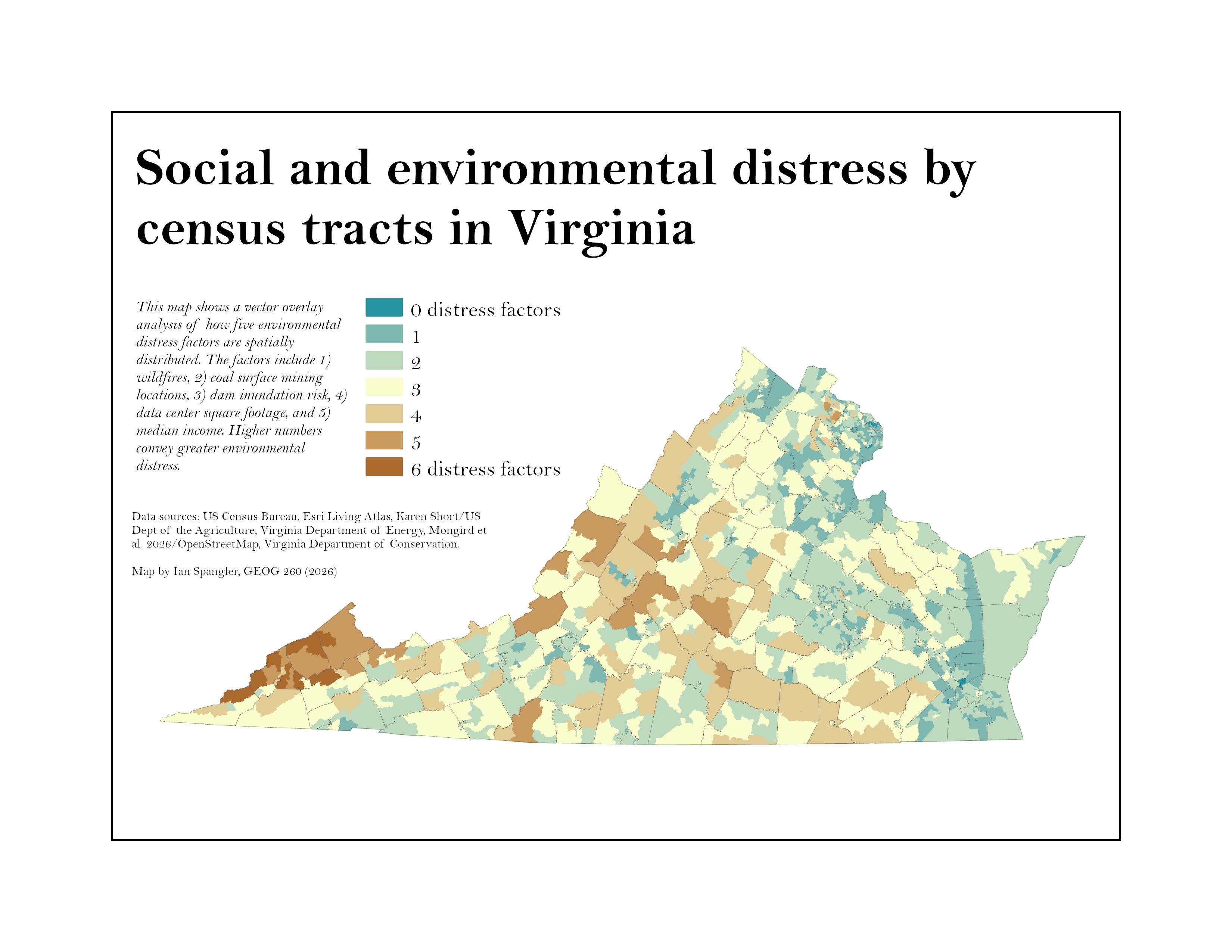
At the end of the lab, you’ll submit your own version of this map, as well as and answers to the questions throughout.
Keep up the good work, make a good workspace!
Download the data
We need a few different datasets for this week’s lab. For base mapping and spatial aggregation:
- Virginia counties
- Virginia census tracts
The four environmental distress criteria we’ll use include:
- Surface mineral mining (as permits)
- Wildfire occurrences
- Dam inundation (e.g., flooding)
- Data centers
You’ll get counties and census tracts the same way you did for Lab 04. For the others, follow the steps below. Just a heads up that we’re going to be working with some web GIS data formats. Web formats like feature services load seamlessly into ArcGIS Pro without requiring you to download a large dataset. Since all the datasets we are going to work with this week are on the bigger side (for vector data), we’ll test the process of bringing them into ArcGIS Pro as feature services and then exporting them to the local geodatabase as feature classes. Basically, this saves the step of downloading a big dataset to your downloaded-data folder.
Add counties and census tracts
First, open Lab 04 and export the % of households making less than $50,000/year. Name it “vaIncomeTracts” and save it to your Lab 05 geodatabase!
Then, add the counties data by searching “u.s. counties & equivalent entities” in the Living Atlas tab of the Catalog. Add them to the map—and don’t forget to put a definition query where STATE = ‘51’.
Finally, update the map’s projection to “Projected Coordinate System NAD 1983 StatePlane Virginia South FIPS 4502.”
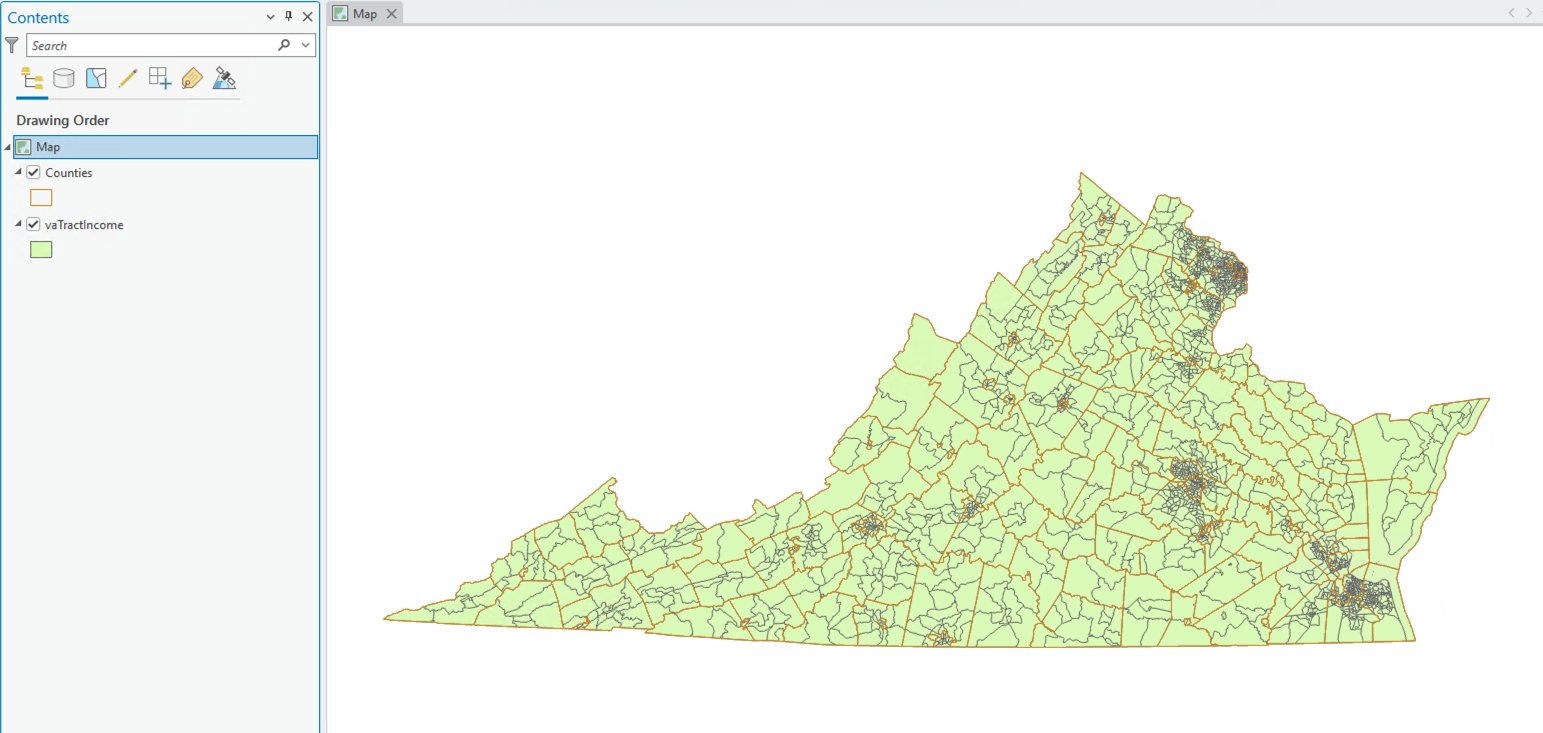
You can turn off or delete the default basemaps. My project now looks like this:
Get wildfire data
There are tens of thousands of wildfires in Virginia every year. Karen Short, through the US Department of Agriculture, maintains an extraordinary archive of wildfire data across the United States randing from 1992 to 2024: https://www.fs.usda.gov/rds/archive/catalog/RDS-2013-0009.7
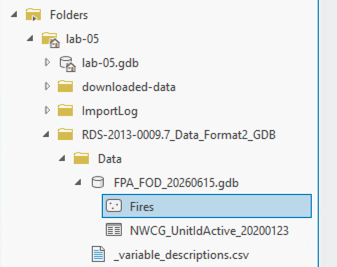
To load this data into ArcGIS Pro, click the link above > click the link at “RDS-2013-0009.7_Data_Format2_GDB.zip (157.8 MB; Checksum)”. This will start downloading a large, zipped geodatabase. Once it has downloaded, drag it into your project workspace and right-click > “Extract All”. You should be able to navigate to a new feature class called Fires inside of a geodatabase called FPA_FOD_20260615.gdb (if you don’t see it, double-check your project directory structure, you may need to right-click the Folders tab in the Catalog > “Add new folder connection”):
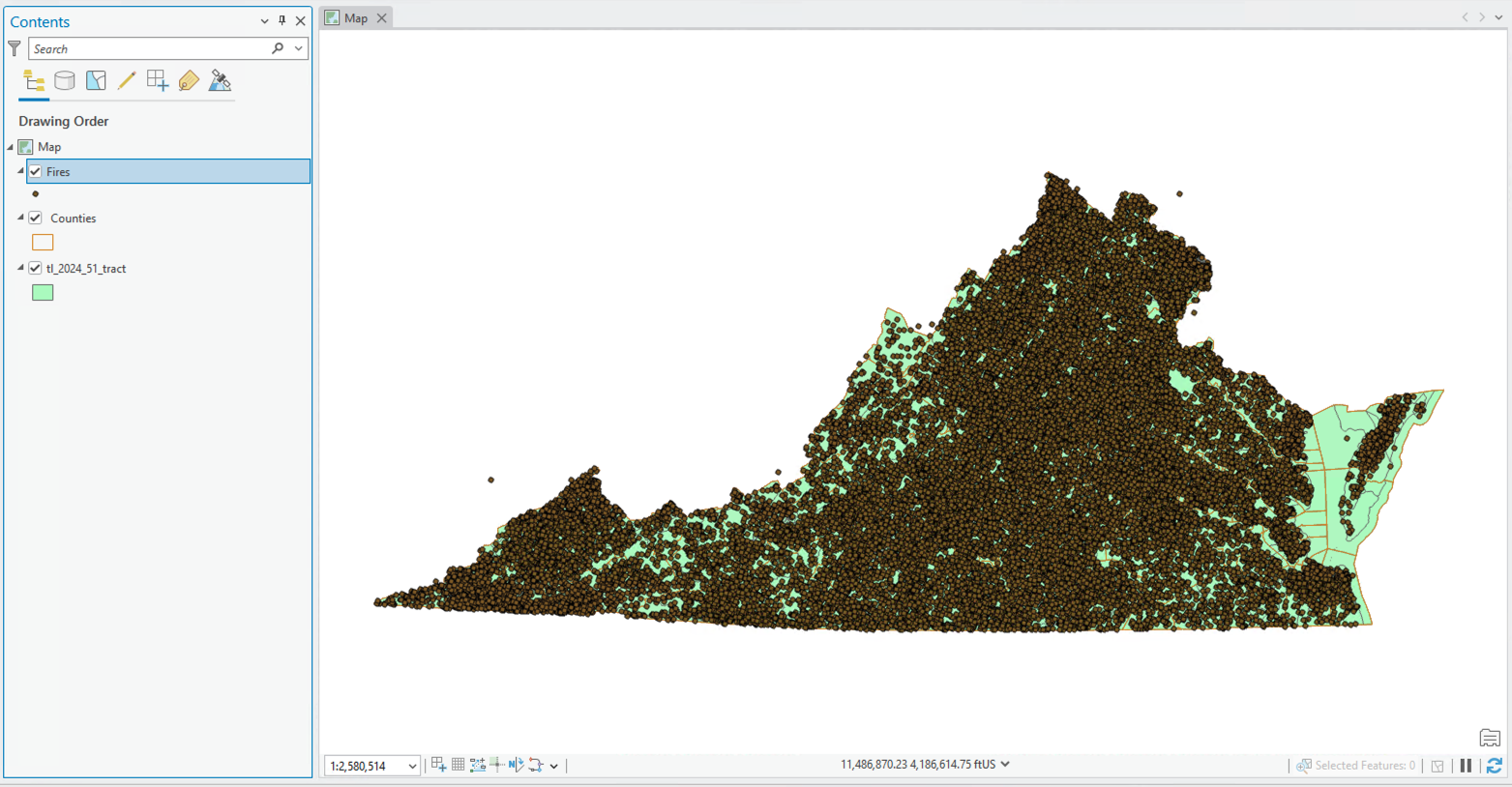
Add the Fires feature class to your project. A zillion dots will appear. Let’s filter them to Virginia:
- Right-click
Firesin the Contents pane > “Properties” - Click “Definition query” > “New definition query”
- Make a query where the state is equal to “VA,” click “Apply,” and click “OK”
Now you should see something like this:
Get mineral mining permits
Mine operators are required by federal and state law to get permits for their mining activities. You can get data about mining from a bunch of different places: The US Department of the Interior, the Virginia Department of Energy, and the Department of Labor. However, many of these publish mining data at the scale of the county, and we want data at the scale of specific mines.
The Virginia Department of Energy (VDOE) maintains a handy resource about mine land repurposing and mapping. From there, you can access an Esri Feature Service—basically, this is just a spatial data layer optimized for the internet—of all active coal surface mine operation (CSMO) permits.
- Click the link at “Virginia Energy REST Services” (a REST service is a method for exchaning data over the interent; geospatial data is commonly exchanged via REST)
- Click the first link: “DMLR/CurrentPermits (FeatureServer)”
- Click “CSMO Permit Boundaries”
- Copy the URL
- Load it into ArcGIS Pro by pasting the URL into the input box of the the “Add data from path” button (in the “Map” tab, click “Add Data from Path”—if you get stuck, see these instructions)
Get dam inundation data
You can get point data for dam inundation zones in Virginia by clicking this link > “Download” it as a shapefile.
Extract the zipped file’s contents, in your downloaded-data folder or equivalent and load it into ArcGIS Pro.
Get data centers
Virginia is also known as “Data Center Alley.” As data centers become more common forms of development, it’s important to understand their distribution. Researchers have published an open source data center atlas using data from OpenStreetMap, which is like Wikipedia for maps. To download the data center location data, go to this link (https://data.msdlive.org/records/p147s-4h760), scroll to the bottom of the page, click the filename im3_open_source_data_center... and click the download button:
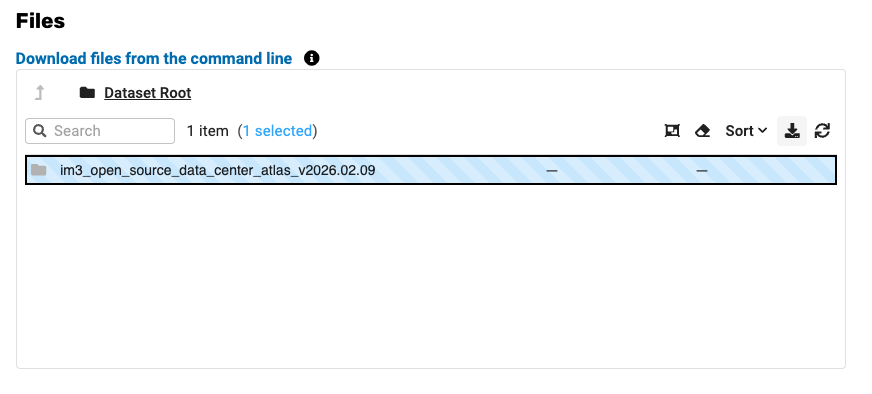
This will download a file format that is probably new to you: a geopackage. Move this into your workspace.
Geopackages are like geodatabases, except open-source (e.g., not a proprietary format maintained by Esri). They can contain point, line, and polygon data all at once, which this geopackage does. Add the main.building feature to your map.
Before proceeding to the next section, create a definition query for both of these so that only polygons inside of Virginia appear.
Project everything
You should now have all six layers loaded for your analysis:
- Virginia counties
- Virginia census tracts
- Surface mineral mining (as permits)
- Wildfire occurrences
- Dam inundation (flooding)
- Data centers
They do not all share the same projection, so we need to project them before moving on.
- Open the “Batch Project” tool, either using the Command Search bar or the Geoprocessing pane
- Add all of your layers as input feature classes. Make sure you have left the “Use the filtered records” option checked for both
FiresandCounties! - Set the output workspace to your Lab 05 geodatabase
- Set the output coordinate system to the current map, or “NAD_1983_StatePlane_Virginia_South_FIPS_4502_Feet”
When your options resemble the screenshot below…
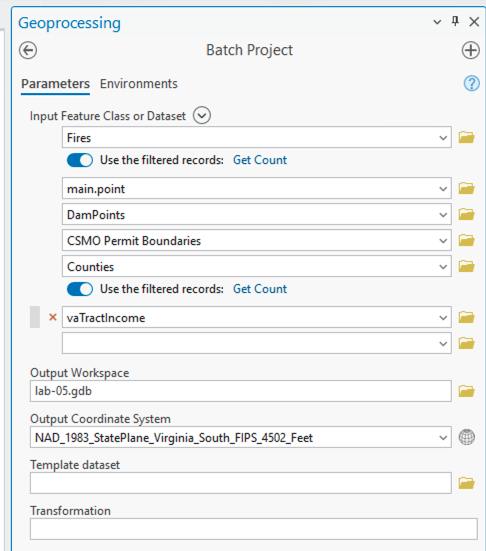
… click “Run.” It might take a minute. By the end you’ll have six new layers in your Lab 05 geodatabase.
When you use the “Batch Project” tool, you can’t assign output names of your choosing to individual files/layers. This means you may want to rename the vaTractIncome_1 and main_buildings layers. By right-clicking these feature classes and selecting “Rename,” I’m going to rename them vaTractIncome_projected and dataCenterBuildings, respectively.
Remove your six current layers from the map and add the newly projected layers. You should see something like this:
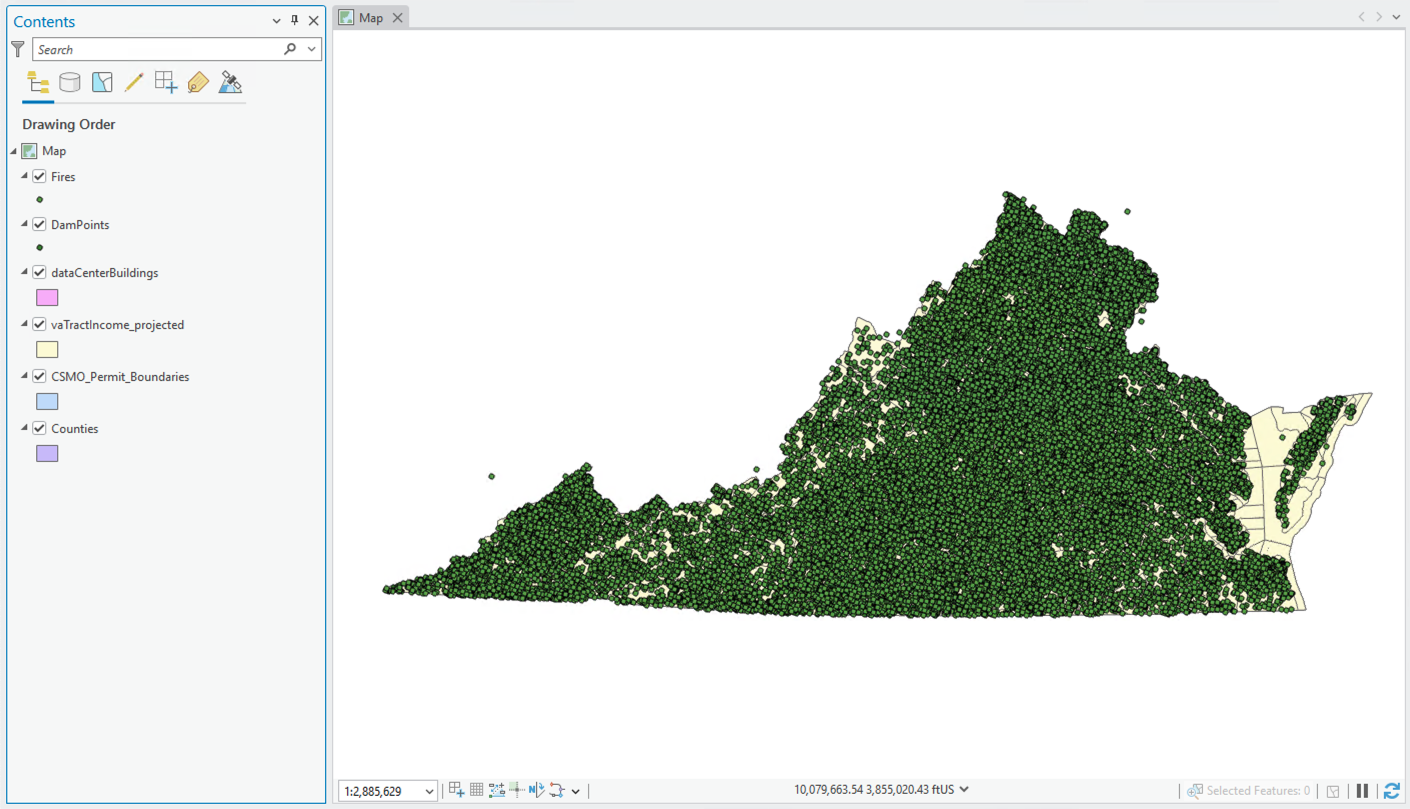
Before proceeding, Put the Counties layer on top, giving it an empty fill and a 0.2 pt gray outline.
Wait, what actually is vector analysis?
Vector analysis involves doing spatial operations on vector data. You can divide vector analysis into two kinds, single layer and multilayer:
| Type | Definition | Example | Common Operations |
|---|---|---|---|
| Single layer | Calculations on one vector layer | Field calculator workflows to combine census variables (e.g., Lab 04) | Dissolve, merge, append, select |
| Multilayer | Overlaying datasets to see how they affect each other, driven by a research question | Finding Virginia’s most environmentally distressed census tracts | Union, intersection, symmetrical difference, identity |
Frequently, single layer vector workflows are used in the commission of multilayer ones. Particular kinds of vector analysis include suitability analysis (what’s the optimal location for New York City’s first Waffle House?), proximity analysis (how should a region plan for emergencies like hurricanes, floods, or nuclear attacks?), overlay analysis (how has cropland in Uganda changed between 2010 and 2020?), and network analysis (what’s the fastest rescue path by foot to an injured hiker stranded on the AT?).
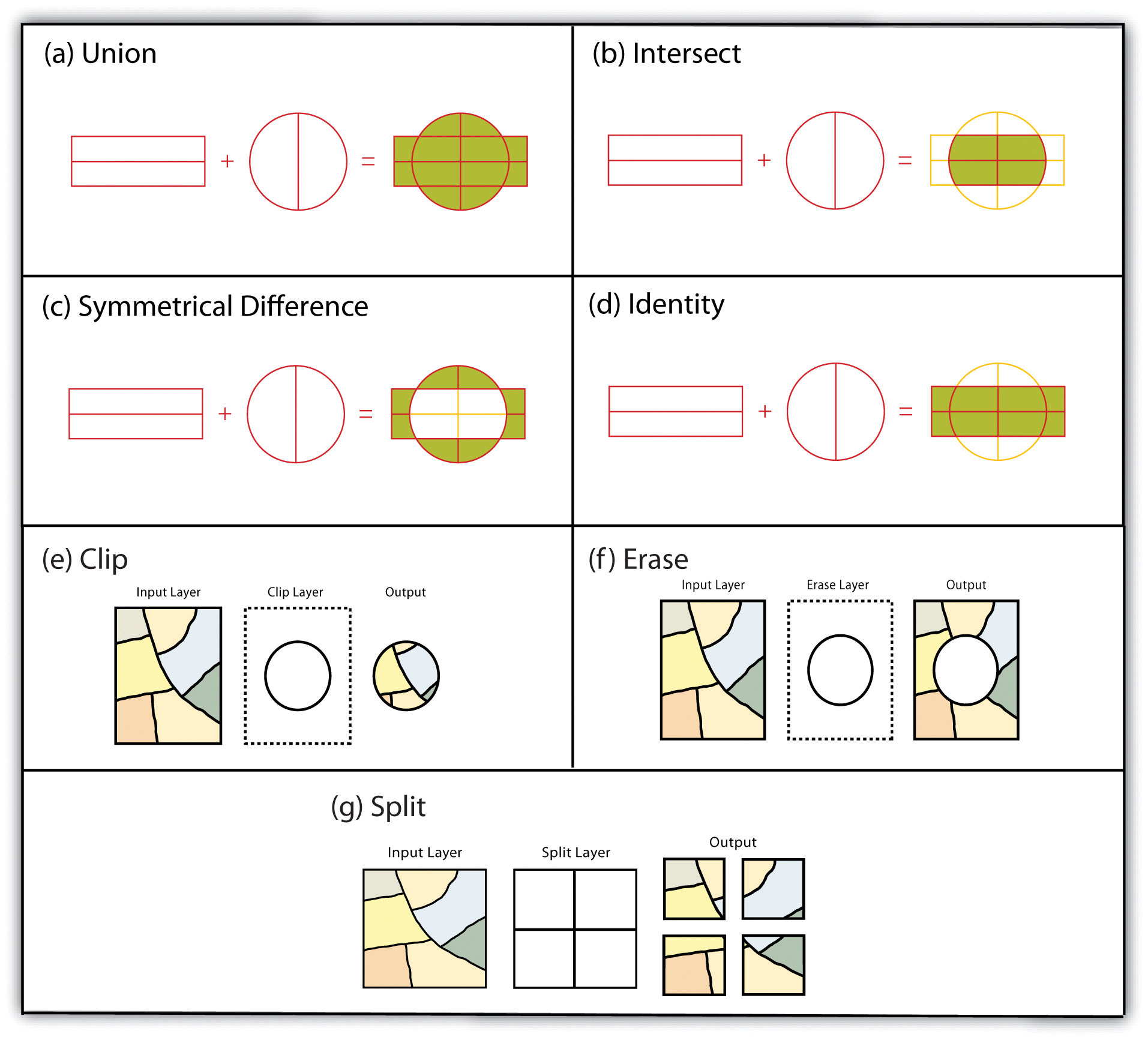
That image is from a handy online textbook with great descriptions of vector analysis.
Often times, vector analysis will require you to reduce complex processes into simple, ranked categories. That’s ultimately what we’ll be doing in this lab.
Map the data
In this section, we’ll do a series of spatial joins to understand how these environmental stressors are geographically distributed.
Mapping fires
Let’s start with the Fires data, just so we can get them off the screen:
- In the Geoprocessing pane, find the “Summarize Within” tool and click it. This tool overlaps two vector features and summarizes the attributes of one inside the other; it is a spatial join tool
- Use the following parameters:
- Input polygons =
vaTractIncome_projected - Input summary features =
Fires - Output feature class =
vaTractIncome_summaryFires(this should save into your Lab 05 geodatabase) - Summary fields = set the
FIRE_SIZEfield toSUM(according to this data’s metadata,FIRE_SIZEis an “estimate of acres within the final perimeter of the fire”—this might be helpful to have)
- Input polygons =
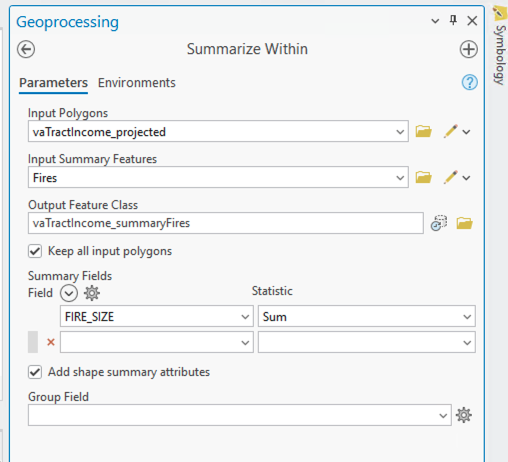
Click “Run.” It may take a minute but you’ll get a new census tract layer containing two new fields: 1) Sum FIRE_SIZE (a summed estimate of acres within the final perimeter of the fire) and Count of Points (a count of all 41,373 wildfires across the commonwealth).
If you’re working with quantitative data, you can use the “Summary Fields” section to do mathematical operations on input fields. If you’re working with qualitative or categorical data, you can use the “Group Field” option to get summary data.
Q1
Using the “Sort” feature in the attribute table…
- what is the name of the county with the largest
Sum FIRE_SIZEvalue and where is it located? - what is the name of the county with the largest
Count of Pointsvalue and where is it located?
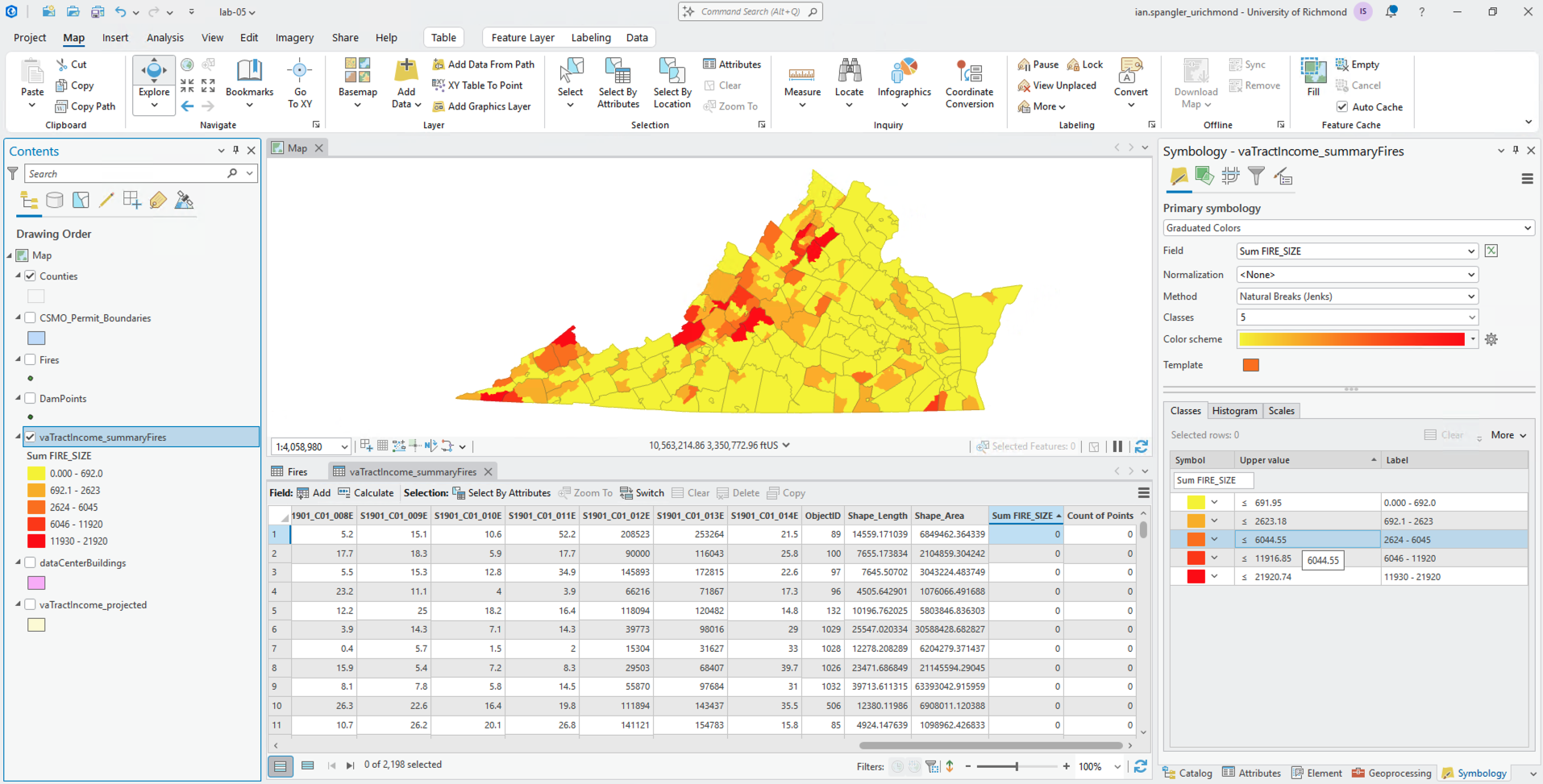
Turn all your layers except for vaTractsIncome_summaryFires and symbolize it with graduated colors, in 5 classes, using the Count of Points field.
Then, do the same thing with the field value set to Sum FIRE_SIZE.
Q2
In 2 sentences, describe the differences between the Count of Points symbolization and the Sum FIRE_SIZE symbolization, with a focus on where high values cluster for each field.
At this point, here’s what my map looks like:
I’m actually going to remove Fires from the map now that it is joined to the census tracts data.
Remap the attribute tables
I can already tell that the attribute table for our vaTractIncome_summaryFires layer is going to to get unwieldy if we don’t get ahead of this thing now.
Here’s what each of those variables mean (this information is in a file called ACSST5Y2024.S1901-Column-Metadata.csv, probably in your Lab 04 workspace):
| Code | Meaning |
|---|---|
| S1901_C01_001E | Total |
| S1901_C01_002E | Less than $10,000 |
| S1901_C01_003E | $10,000 to $14,999 |
| S1901_C01_004E | $15,000 to $24,999 |
| S1901_C01_005E | $25,000 to $34,999 |
| S1901_C01_006E | $35,000 to $49,999 |
| S1901_C01_007E | $50,000 to $74,999 |
| S1901_C01_008E | $75,000 to $99,999 |
| S1901_C01_009E | $100,000 to $149,999 |
| S1901_C01_010E | $150,000 to $199,999 |
| S1901_C01_011E | $200,000 or more |
| S1901_C01_012E | Median income (dollars) |
| S1901_C01_013E | Mean income (dollars) |
| S1901_C01_014E | Household income in the past 12 months |
We’re going to remove the fields we don’t need and rename the ones that we do.
- Open the attribute table for
vaTractIncome_summaryFires - Right-click the menu button on the top-right > click “Fields view”
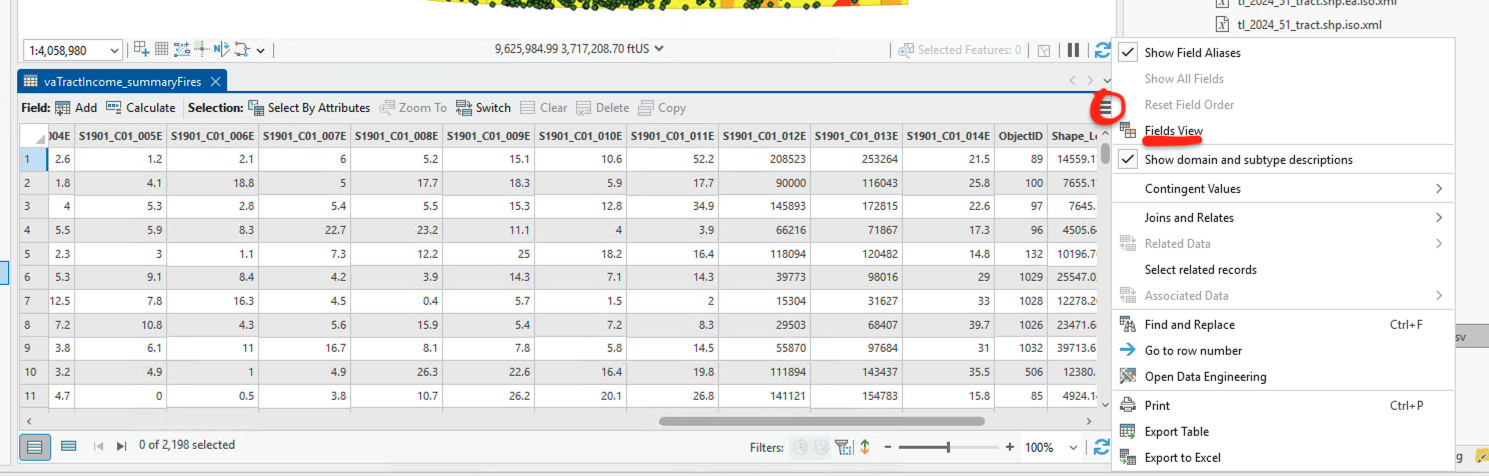
- Now it is easy to uncheck a ton of fields at once, without actually deleting them from our data.
- Click the checkbox next to “Visible” to uncheck everything
- Scroll through the attribute table and check the following fields to be visible again, and where appropriate, rename the “Field Name” or “Alias” value:
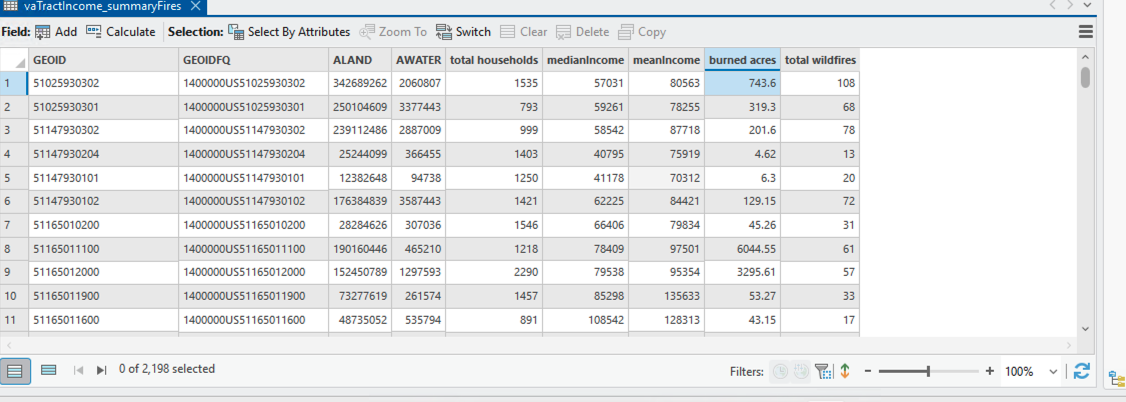
GEOIDGEOIDFQALANDAWATERS1901_C01_001E=> rename this ALIAS to “totalHouseholds”S1901_C01_0012E=> rename this ALIAS to “medianIncome”S1901_C01_0013E=> rename this ALIAS to “meanIncome”sum_FIRE_SIZE=> rename this FIELD NAME to “acresBurned”Point_Count=> rename this FIELD NAME to “totalFires”
Field aliases are helpful ways to organize your fields. While fields in attribute tables must follow certain rules about naming conventions, aliases are much more loosey goosey; you can kind of name them whatever you want. Take advantage of that!
When you’re done, click into the “Fields” tab of the Ribbon > click “Save” in the “Manage Edits” group:
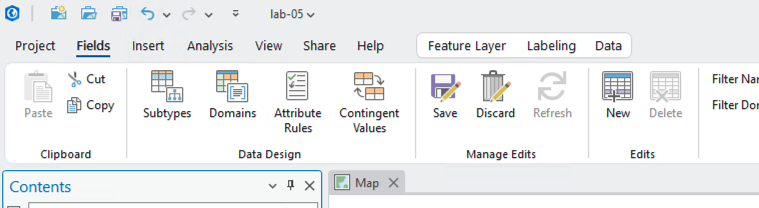
The attribute table should now resemble:
Mapping dams
Moving forward, the game plan is simple: continue summarizing our distress criteria one by one, until they are all included in the same layer. Let’s do DamPoints.
First, remap the attribute table so you can only see DamName and HazardClas. Right-click the HazardClas field > “Visualize Statistics”; you’ll see that there are 9 fields, most of which have an “Unknown” hazard value. Other values include “High,” “Low”, and “Significant,” with a few variations in each:
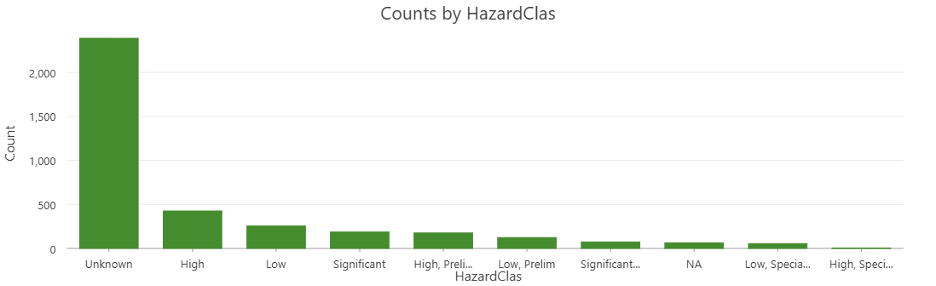
We are going to reclassify these fields as simple integers so we can combine them with other vector layers later on. This process of reclassification is super important for any geospatial analysis because it allows you to take disparate variables and values and combine them according to a set of criteria that you, the analyst, determine. To do so, we’ll use Select by Attributes and the Field calculator to turn High into 2, Significant into 1, and everything else into 0.
- Open the “Select by Attributes” tool and construct the following query:
- Where
HazardClasis equal to “High” - Or
HazardClasis equal to “High, Prelim” - Or
HazardClasis equal to “High, Special”
- Where
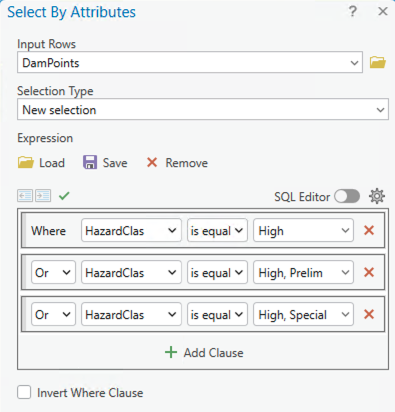
- Click “Apply”—you should have 606 selected records
- Now, click the “Calculate” button at the top of the attribute table. This open a minimal version of ArcGIS Pro’s Field Calculator
- Change the data type to short integer; change the field name to
HazardRank(this will create a new field of that name); and type2in the input box, like so:

If you don’t change the field name to HazardRank before you run it, you could accidentally overwrite data in the source field—no good, very bad! And if you don’t set the data type to short integer, your numbers will be text.
- When you’re certain that the calculation looks right, click “Run” and you should see a new field appear with
2values for all records whereHazardClasrecords includedHigh - Now, invert the selection with the “Switch selection” button at the top of the attribute table:
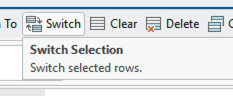
- Calculate the new selection—which should be 3,146 records—as
0, ensuring that theHazardRankfield is still the target of your calculation - Now, we just have to calculate the “significant” hazard dams. Using Figure 15 as a guide, try to do this—you should end up with 260 records total—then calculate their value as
1.
Now we have a numerically ranked field for flooding hazard among dams in Virginia. Clear your selection and summarize DamPoints within the existing vaTractsIncome_summaryFires layer:
- Input polygons =
vaTractIncome_summaryFires - Input summary features =
DamPoints - Output feature class =
tractsIncome_firesDamsin Lab 05 geodatabase - Summary field as
HazardRankand statistic asSum
Now you can remove DamPoints and vaTractIncome_summaryFires from the map.
Bivariate symbolization sidequest
So far in class, we have mostly used symbolization techniques like graduated colors and proportional symbols—but right now, we have a perfect opportunity to test bivariate symbolization, a means of showing two variables at once. This is helpful for showing how two data points may be related to one another, but bivariate maps are harder to read and contain less information, so that’s your trade off.
Try it out:
- Select
tractsIncome_firesDams> Symbology - Set primary symbology to “Bivariate colors” and match these properties:
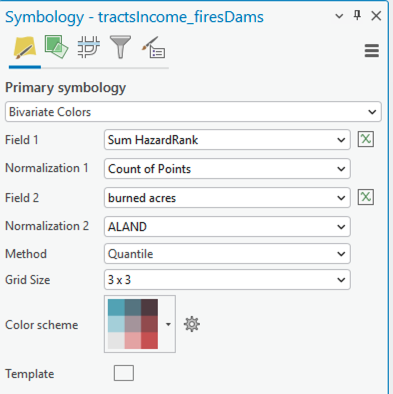
Q3
According to the bivariate map, where do dam inundation risk and wildfires tend to colocate?
CSMO permits
Let’s move on to coal surface mining operation (CSMO) permits (turn the CSMO_Permit_Boundaries and move it above the tractsIncome_firesDams layer in your Contents pane). Run another Summarize Within using these parameters:
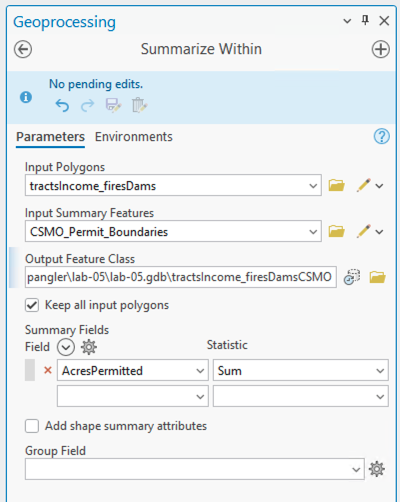
Pause to clean up your attribute table again, it is already getting too busy:
- Open the attribute table for
tractsIncome_firesDamsCSMO - Open “Fields” view (see Figure 11)
- Scroll to the bottom and update your fields like so, unchecking visibility for the newest
Shape_LengthandShape_Areafields, as well as renaming field aliases:
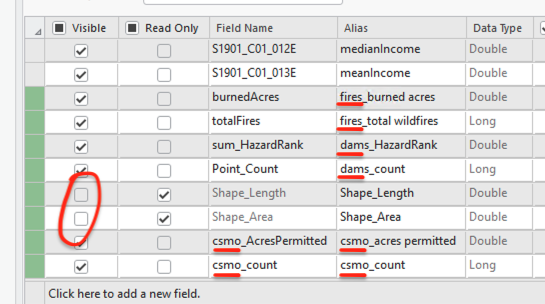
When you’re done:
- click “Save” in the “Fields” tab of the Ribbon
- remove
tractsIncome_firesDamsfrom the Contents pane - move on to the next and final summarize within!
Data centers
Run a final Summarize Within tool on the dataCenterBuildings layer. It should resemble:
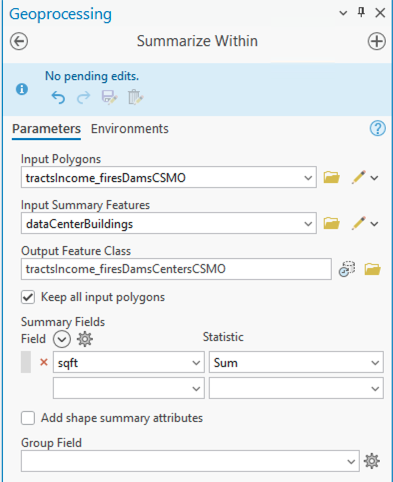
Rank it all together
Reset the symbology for your new layer—which should be titled something like tractsIncome_firesDamsCentersCSMO—to single symbol, move the Counties layer on top of everything, and then remove all the layers except for those you.
Open the attribute table of the firesDamsCentersCSMO layer and fix the fields so that the new Shape fields aren’t visible and the new sum/count fields have sensible names.
When you’re done, you should see something like this:
We’re now going to get some summary statistics on each of our 4 environmental distress criteria, plus median income for good measure, for a total of 5 ranked variables that will collectively inform our index of environmental distress.
I’ve gotten the values for you, but you should know how to do it:
- In the attribute table, right-click on the median household income field
- Then, from the list of fields on the left, right-click the acres burned, dams hazard rank, CSMO acres permitted, and data centers square feet, select “Add to statistics and calculate” for each of them
Here’s the logic we’ll use, based on median/mean values for our distress criteria. At the end, we’ll add these all together, and the lower the overall value, the lower the environmental distress:
- If median income > 86250, rank = 0; else, rank = 1
- If burned acres >= 235, rank = 2; else if burned acres < 235 & > 0, rank = 1; else, rank = 0
- If dam hazards >= 7, rank = 2; else if dam hazards < 7 & > 0, rank = 1; else, rank = 0
- If CSMO acres permitted >= 28, rank = 2; else if CSMO acres permitted < 28 & > 0, rank = 1; else, rank = 0
- If data centers square footage >= 19010, rank = 2; else if data centers square footage < 19010 & > 0, rank = 1; else, rank = 0
Q4
In your own words (1-2 sentences), summarize what the logical statements above mean. You don’t have to summarize each one, but rather, convey what their overall purpose and logic is.
These values will inform a new field, called DistressRank, which we’ll use to convey an environmental distress index across the state of Virginia.
Because the median income variable is inverted from the others—e.g., a higher value is a lower rank—we’ll calculate this one in a separate field:
- Right-click
medianIncome> “Calculate field” - Set the parameters like so (we are going to set everything to
1value to start):
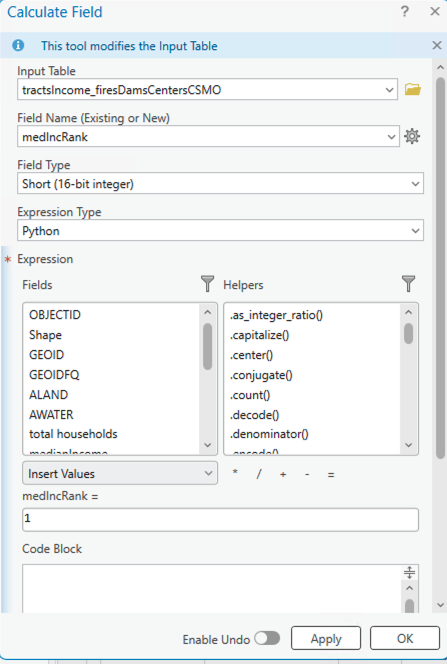
- Click “Run” and you have a new field for
medIncRank - Then, open “Select by Attributes” and select all census tracts where
medianIncome> 86250 - Click “Calculate” >
medIncRank= 0, like so:

For the other four variables, since they are all pretty
We’re actually going to use a bit of Python code to make it:
- Open the “Calculate Field” tool
- Create a new field called
distressRank - Paste the following code snippet into the “code block” section:
def score(variable, cutoff):
    if variable is None or variable < 0.1:
        return 0
    elif variable > cutoff:
        return 2
    else:
return 1- And paste the following expression into the section for “
distressRank=”:
score(!burnedAcres!, 235) + score(!sum_HazardRank!, 7) + score(!csmo_AcresPermitted!, 28) + score(!sum_sqft!, 19010) + !medIncRank!
- Together, this expression and code snippet are basically pairing a simple Python function with our 4 variables of interest and their individual cutoffs.
- Click “OK”
In the attribute table, try to sort the distressRank from high to low. You should see a max value of 6.
New symbology
In the symbology pane for your tractsIncome layer with the new rank:
- Set primary symbology to “unique values”
- Set the field to
envDistressRank - Click color scheme > “More color schemes” > select “Brown to blue-green diverging, bright”
- Right-click the “Symbol” header > “Reverse symbol order”
- Click the gear next to “Color scheme” > “Apply to fill and outline”
You should see something like this:
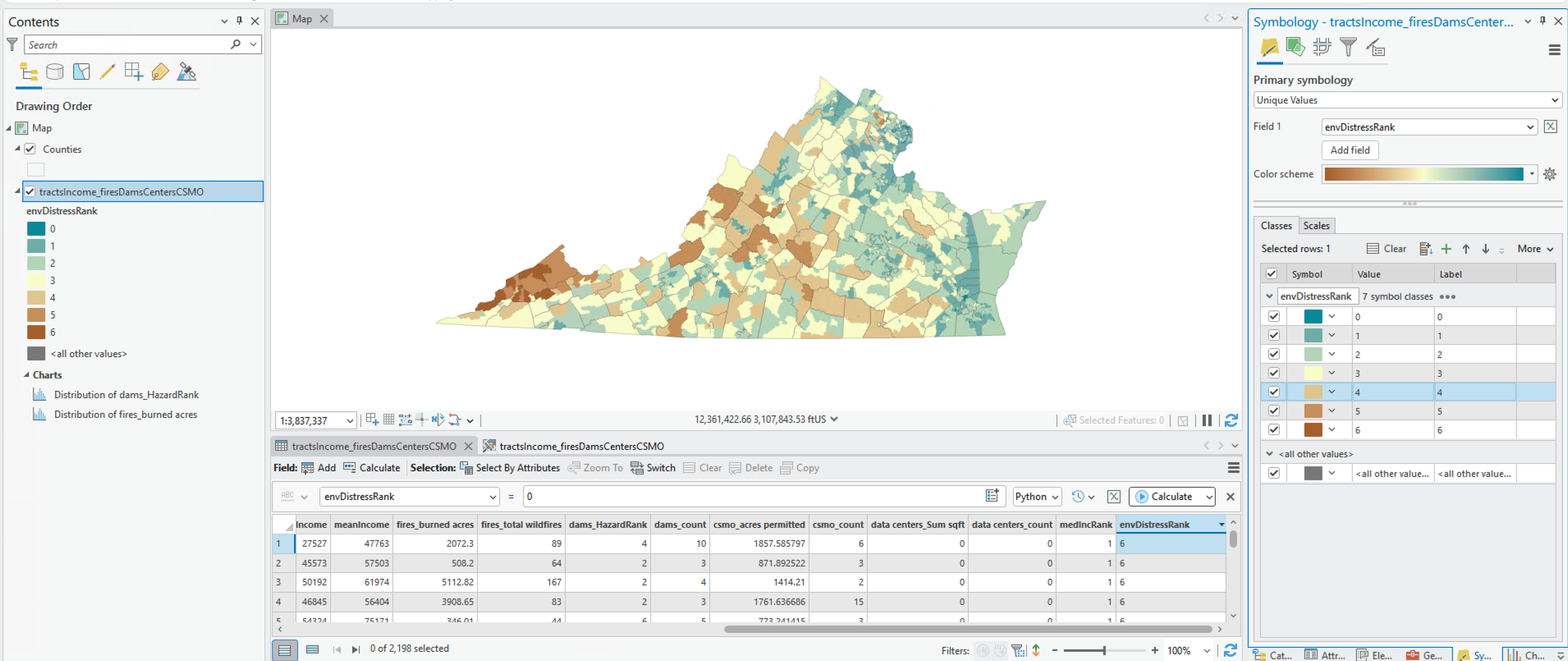
Feel free to pick your own color ramp. For a ranked categorical map like this, I think divergent color schemes work well. Let’s get this beauty into a map layout and call it a day!
Map layout
I won’t give you super detailed instructions here, but let me just highlight some things I’ll be doing when I make my map:
- I’ll be using an 8.5x11 landscape layout
- I will right-click the ruler > Add Multiple Guides > “Both” > Placement = “Offset from edge” > 1 inch margin (but you could use smaller margins, like 0.5 inch. Or no margins! Up to you)
- Use the scale input bar at the bottom left-hand side of the layout view to fine-tune scale of map
- Once map is placed the right spot, you can lock it in place by locking that map frame layer
- Once I make my legend, right-click it > “Convert to graphics”—will make it much easier to work with the legend
- Use visual hierarchy to convey what is most important, including font size, weight, and serif vs. san serif. In my map I used ~32 pt bold font for the title; 18 pt normal font for the legend; 10 pt italicized font for the explanation; and 8 pt normal font for the data source
- Try to use empty space/flow text around the shape of the data in a sensible way
Here’s an example map:
You can add more details about the methodology if you want (e.g., an explainer on how we ranked the variables), and you could also consider what the map is lacking—for instance, a deeper analysis might include other environmental stressors like power plants (eGrid data from Lab 02?) as well as demographic info like race and employment. You could also take it further by exploring how these variables interact over time. These would all make great topics for a final project…
Submission details
| Assigned | Due | Submit |
|---|---|---|
9/28/26 |
10/9/26 |
Section 1, Section 2 |
| Question | Point Value |
|---|---|
| Question 1 | 2 |
| Question 2 | 1 |
| Question 3 | 1 |
| Question 4 | 1 |
| Final map | 5 |