Sketch 02
Parking lot cemeteries
| Assigned | Due | Submit |
|---|---|---|
10/19/26 |
10/26/26 |
Section 1, Section 2 |
Introduction and context
Since the passage of the Interstate Highway Act in 1956, private automobiles have solidified themselves as the primary mode of transportation for people in the United States. Car dependency has an indelible mark on our landscape. From a geospatial perspective, what tools exist for visualizing the imprint of parking lots American cities? Perhaps more importantly, how can we adequately assess what we lost through building them?
Using historic fire insurance and tax atlases, this sketch asks you to make a map of parking lot cemeteries. By that, I mean a map that reveals the kinds of landscapes which used to exist where contemporary parking lots sit today. In ArcGIS Pro, you’ll georeference a few maps from an atlas of your choice, ultimately producing a visualization of what kinds of social and geographic features predated parking lots.
Objectives
In this sketch, you will work with historic fire insurance atlases. Fire insurance and tax atlases meticulously documented building material, street names, urban morphology, and much more, providing insight into how places have changed over time.
Originally created so that banks could adequately assess fire insurance risk, today they are invaluable tools for historical urban research. The Sanborn Company produced by far the most maps of this genre in the United States. The Library of Congress holds nearly 700,000 Sanborn maps, with tens of thousands of atlases digitized in their entirety.
Your task is to choose a city in the United States—one with decent coverage of fire insurance atlases—and produce a map that answers two questions:
- What landscapes used to inhabit modern-day parking lots?
- What percentage of land in my area of interest is devoted exclusively to parking?

Example gallery
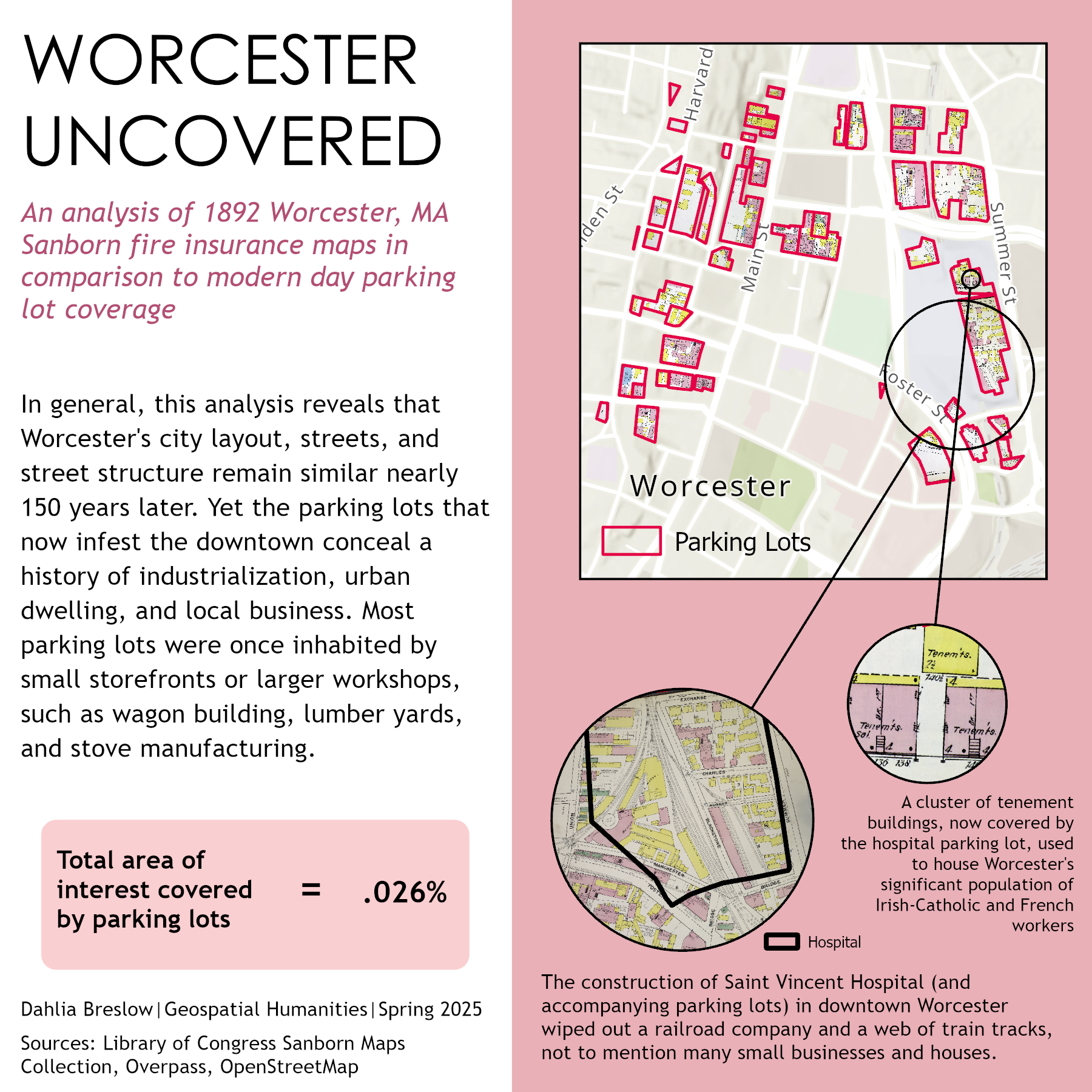
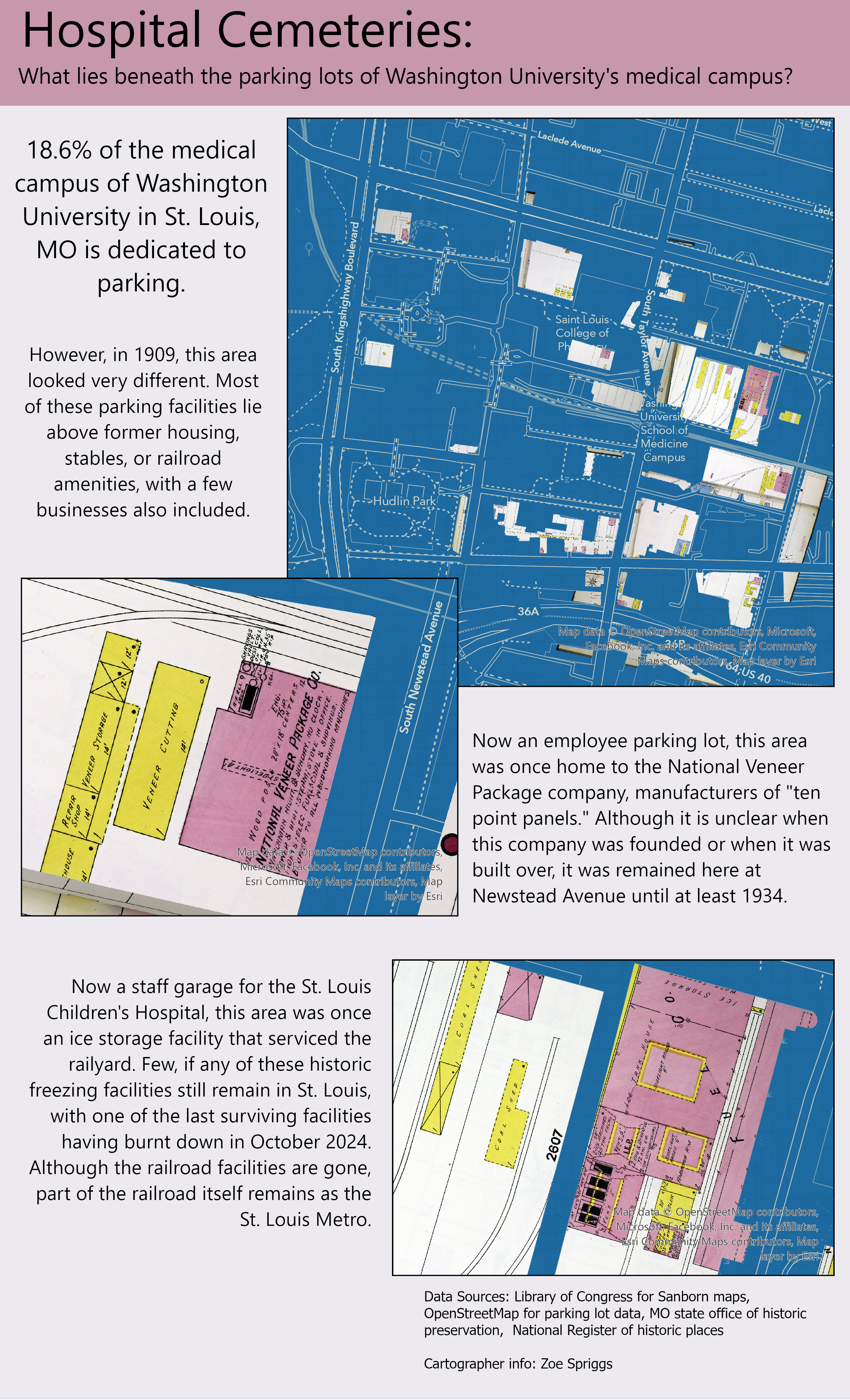
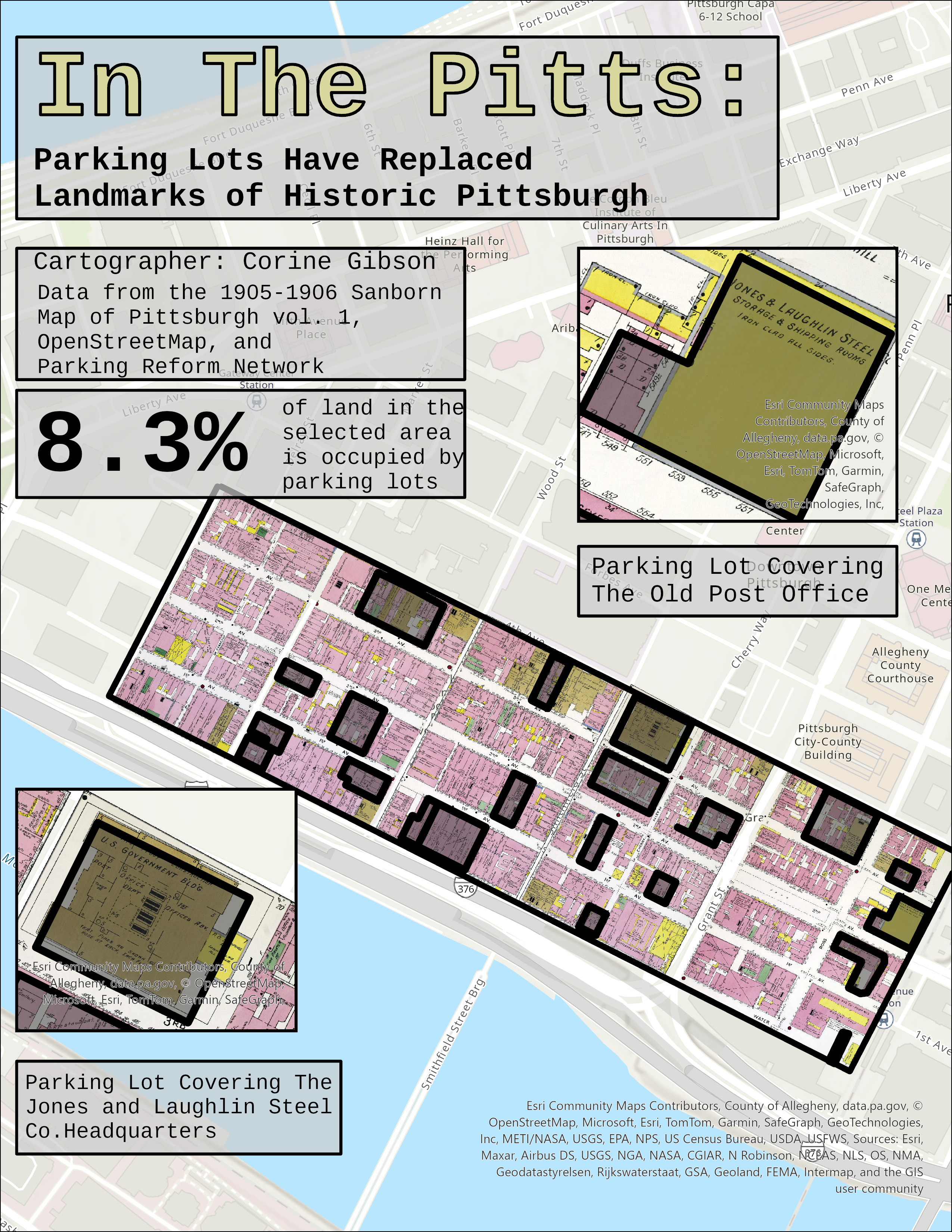
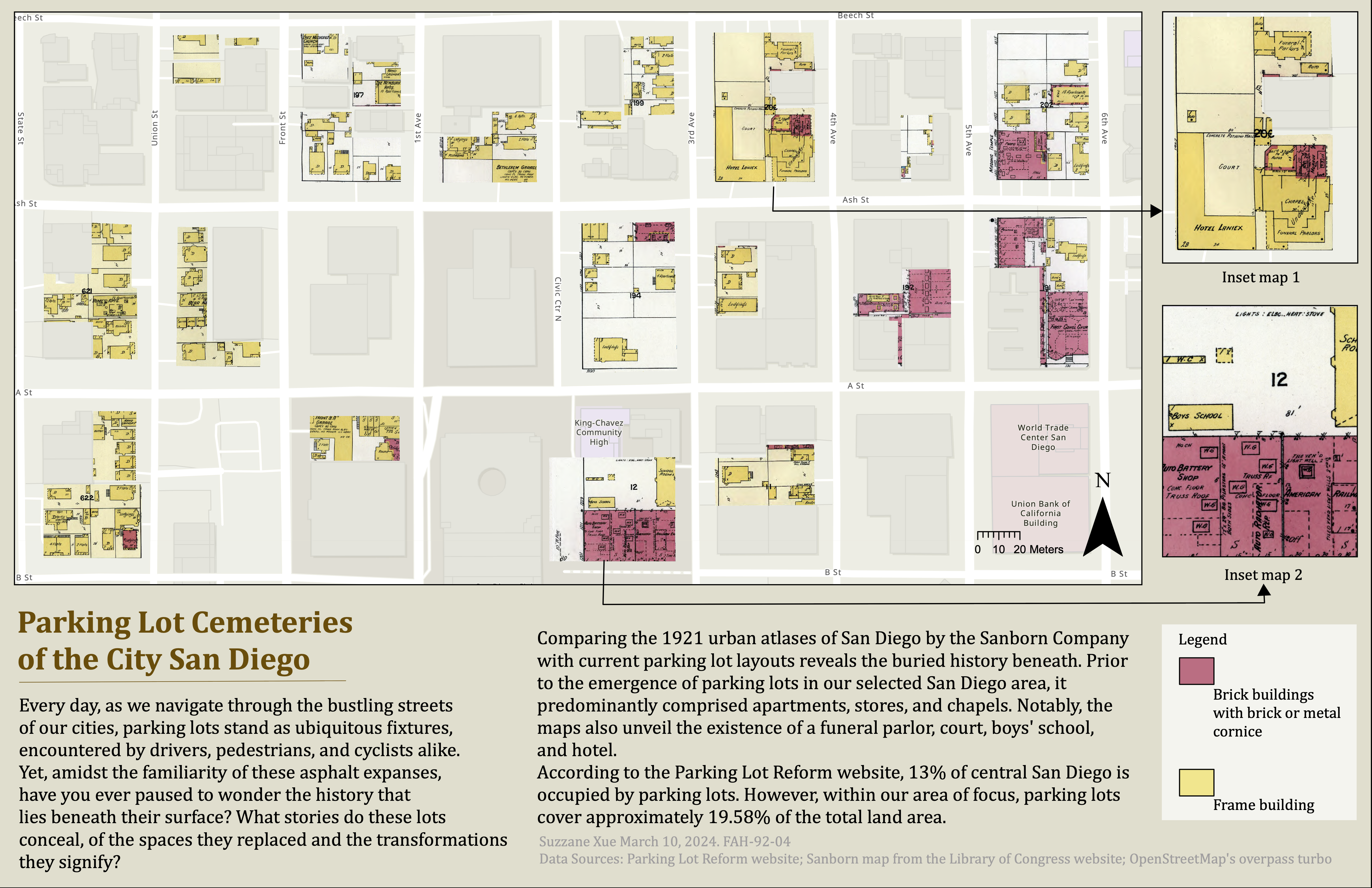
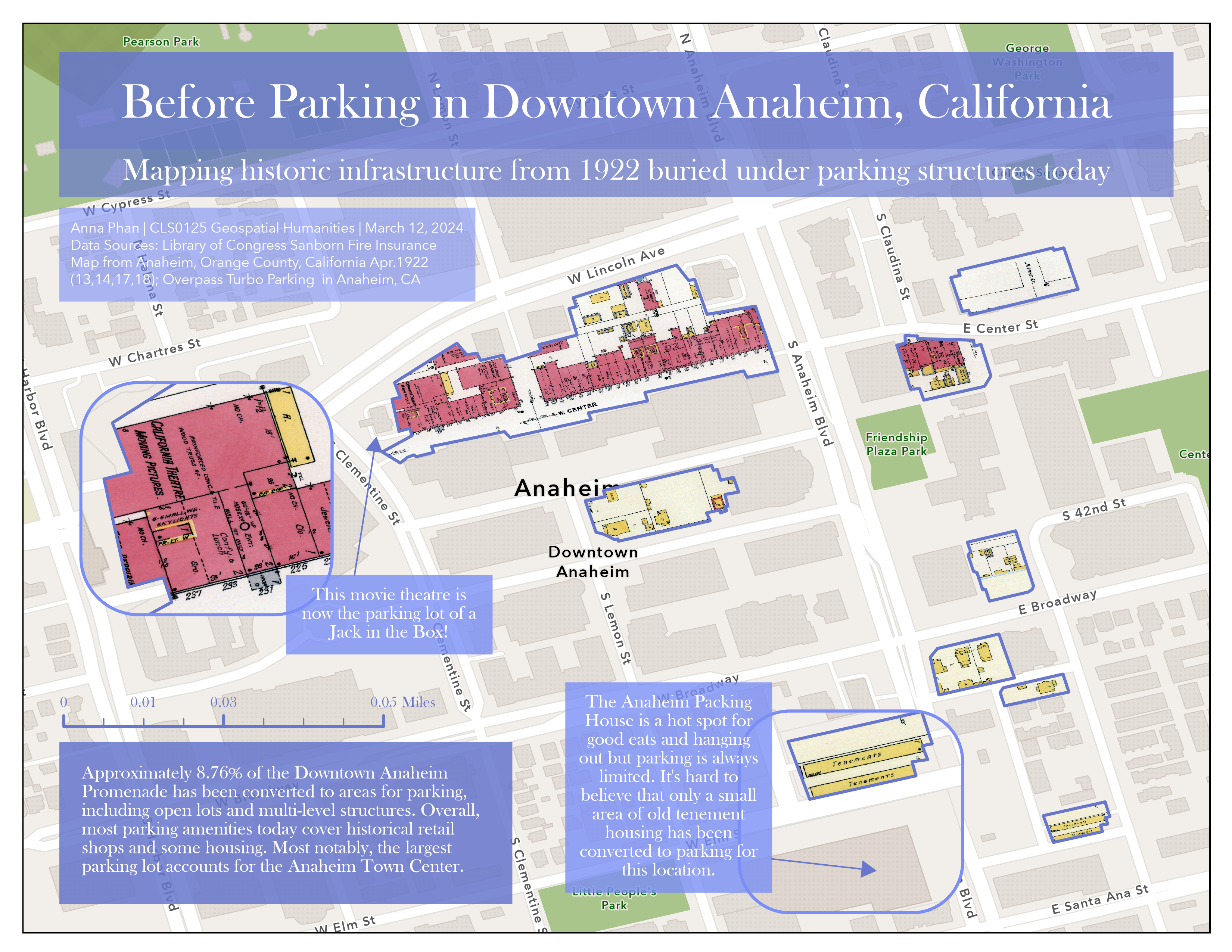
Here’s a sample of some fun maps created in previous years:
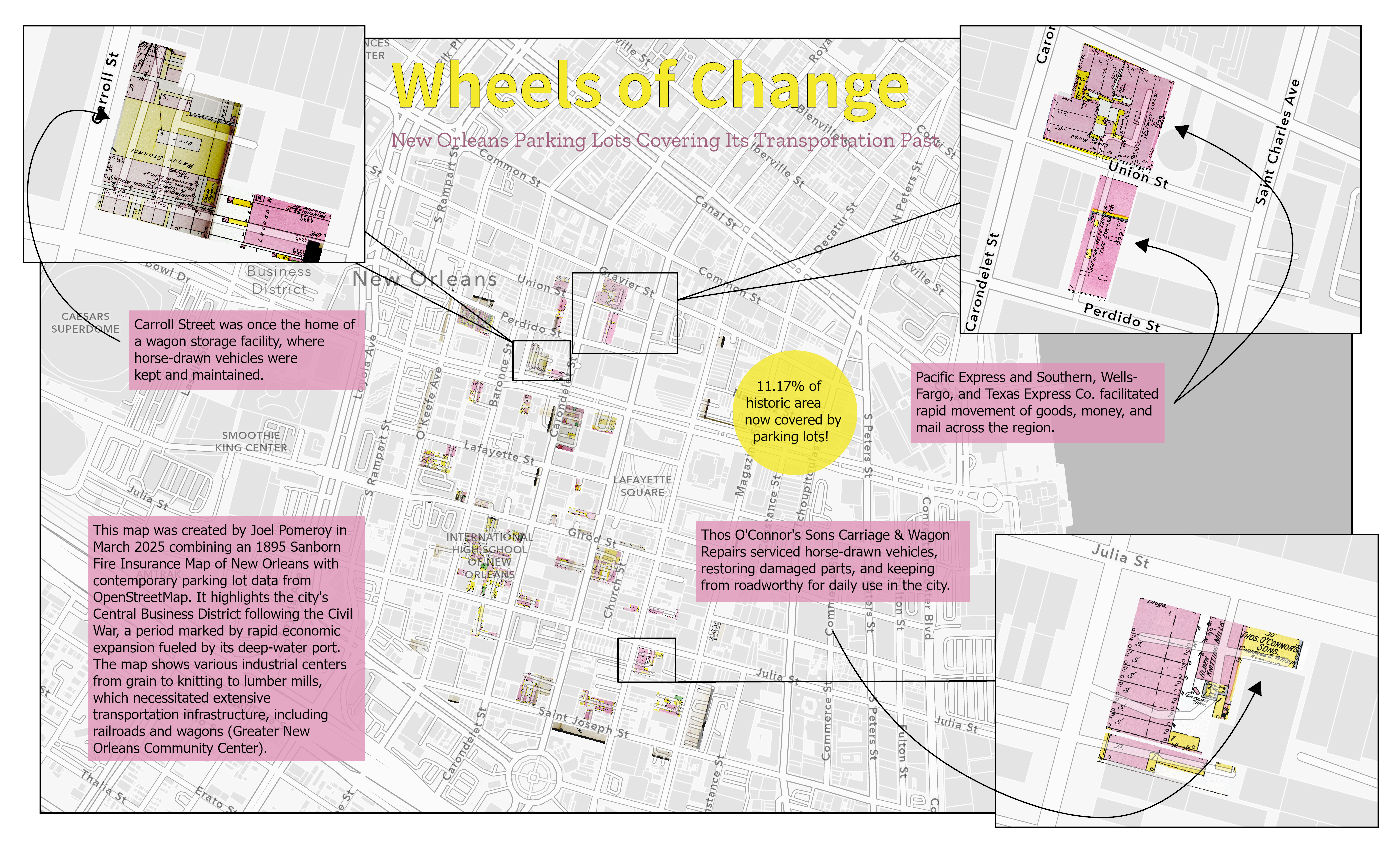
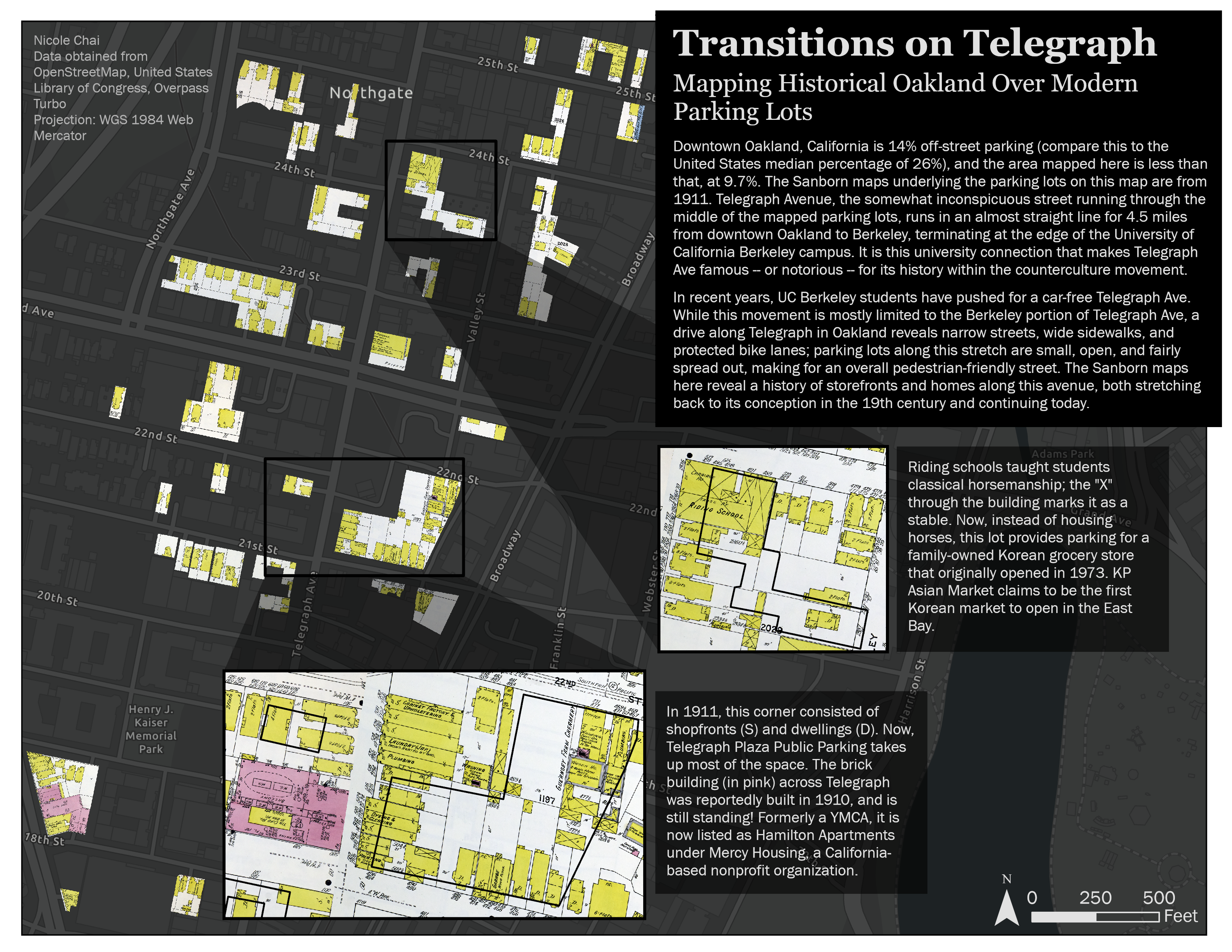
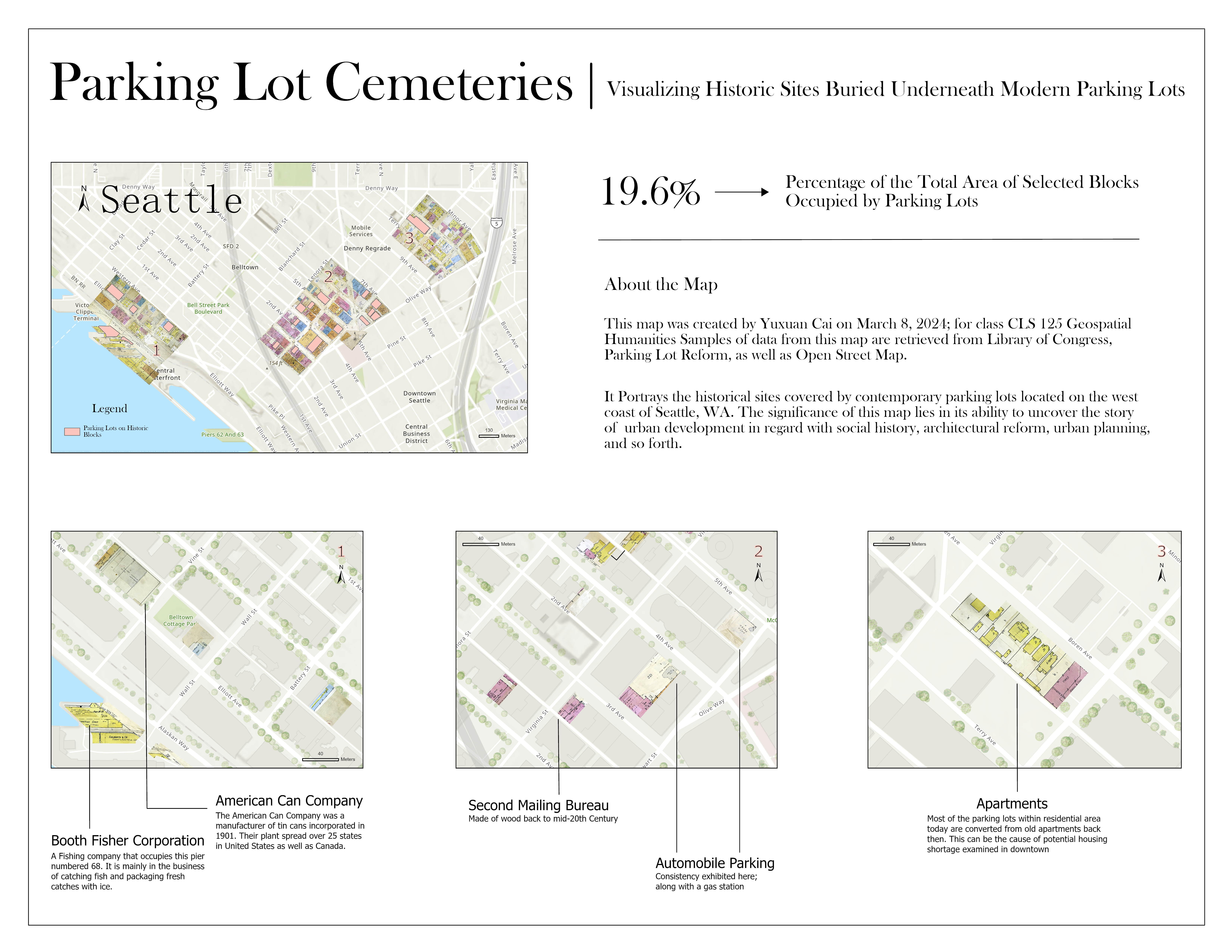
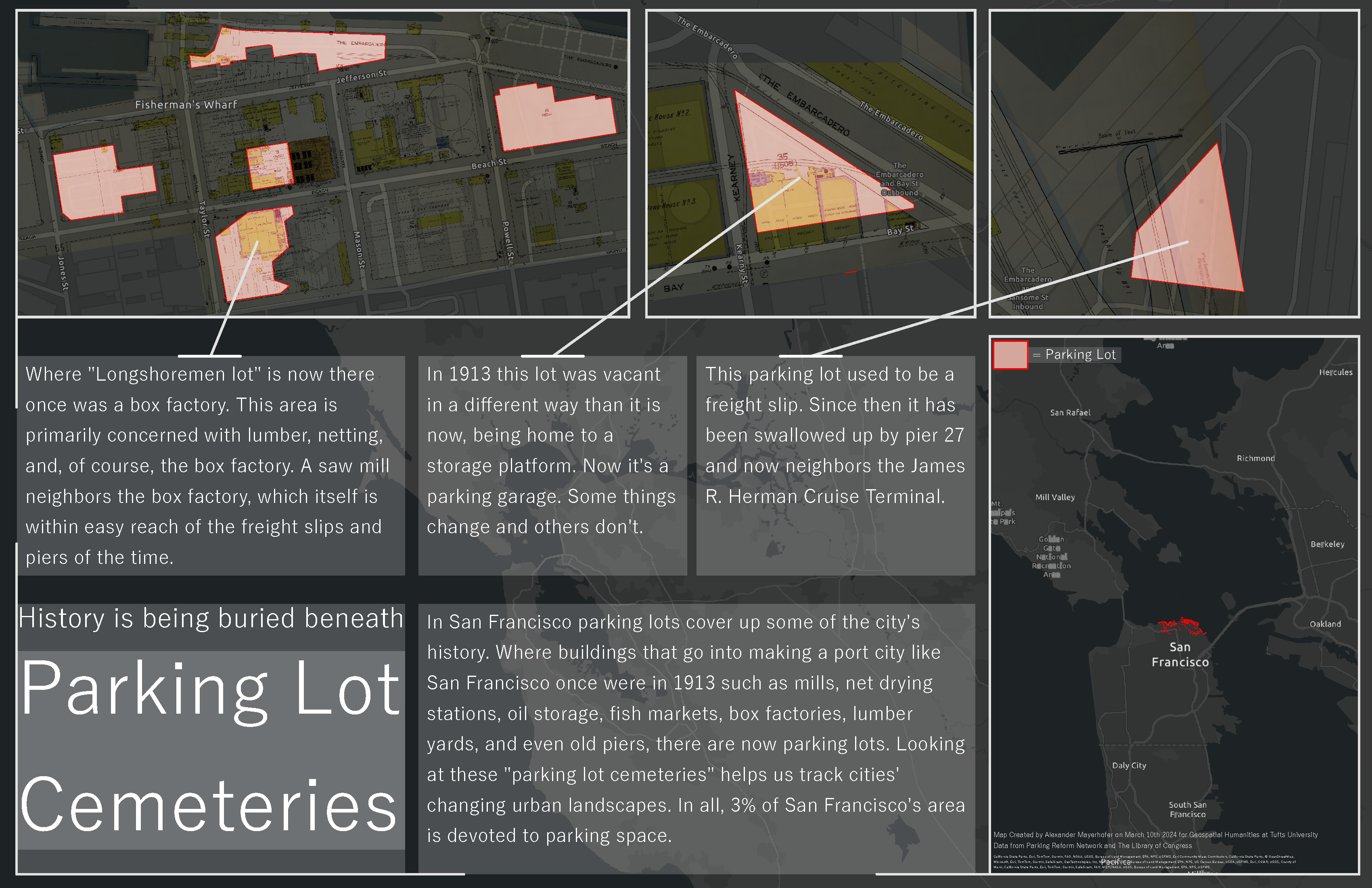
Requirements
You’ll produce your final map using data from the following sources (see Table 1 for the components your final map should include):
- At least four georeferenced maps from the Library of Congress’ Sanborn map collection
- Parking lot vector data from OpenStreetMap, a volunteer-driven digital map and spatial database
The table below outlines each component your final map layout should include.
| Component | Details |
|---|---|
| Base map | For this sketch, you could still make your own base map (good practice, more fun!)—but you may use one of the preset “streaming” base maps from ArcGIS Pro. Whatever you choose should still follow the principles of map design like unity, harmony, etc. |
| Sanborn maps | A mosaicked layer of four georeferenced Sanborn atlases, clipped to parking lot geometries |
| Appropriate projection | See the note on projected coordinate systems below |
| Area of interest (AOI) boundary | A dissolved boundary file consisting of the vector masks you used for clipping Sanborn maps |
| Analysis | Include the percentage of total land area within your AOI occupied by parking lots (e.g., square meters of parking lots within AOI / sq meters of all AOI * 100) |
| Two inset maps | Zoom into your most interesting “parking lot cemeteries” (these are your Sanborn maps clipped to parking lots) |
| Interpretive text | Describe what’s buried underneath parking lots in general; describe your two most interesting “cemeteries” (may require extra research) |
| Design | Meaningful title, subtitle, data sources, cartographer info, and date; readable and appropriate fonts; sensible, consistent color choices; good figure-ground sensibility; attention to contrast, layout, and balance |
How to georeference your maps
Georeferencing refers to the process of adding spatial data to cartographic images (aerial photos, scanned historic maps) so they can be overlaid on real-world geographies. There are lots of softwares you can use to georeference maps. ArcGIS Pro has an interface for it so we will just use that.
Step 1: Get maps
From the Library of Congress, download at least four Sanborn maps from an atlas of your choosing.
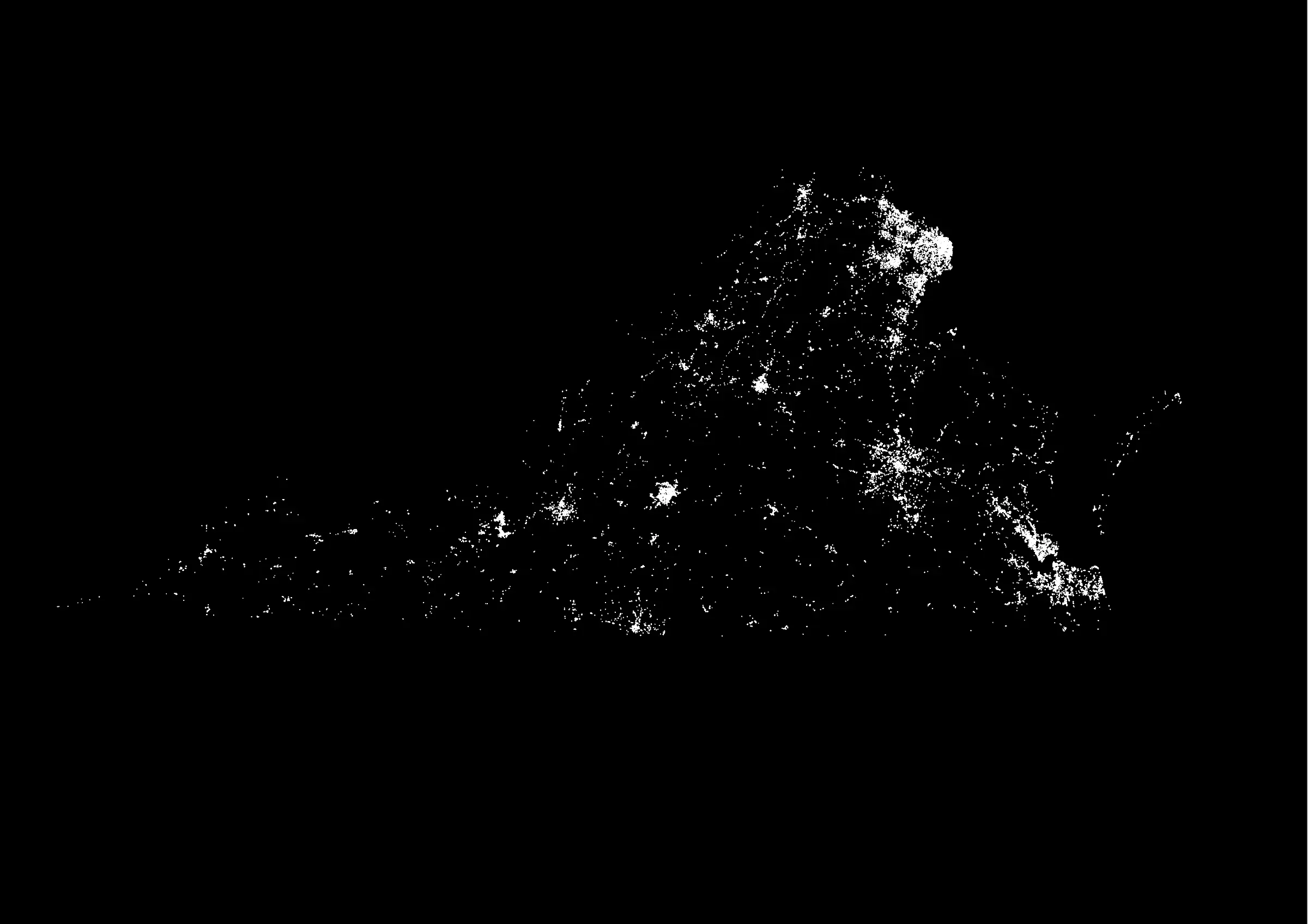
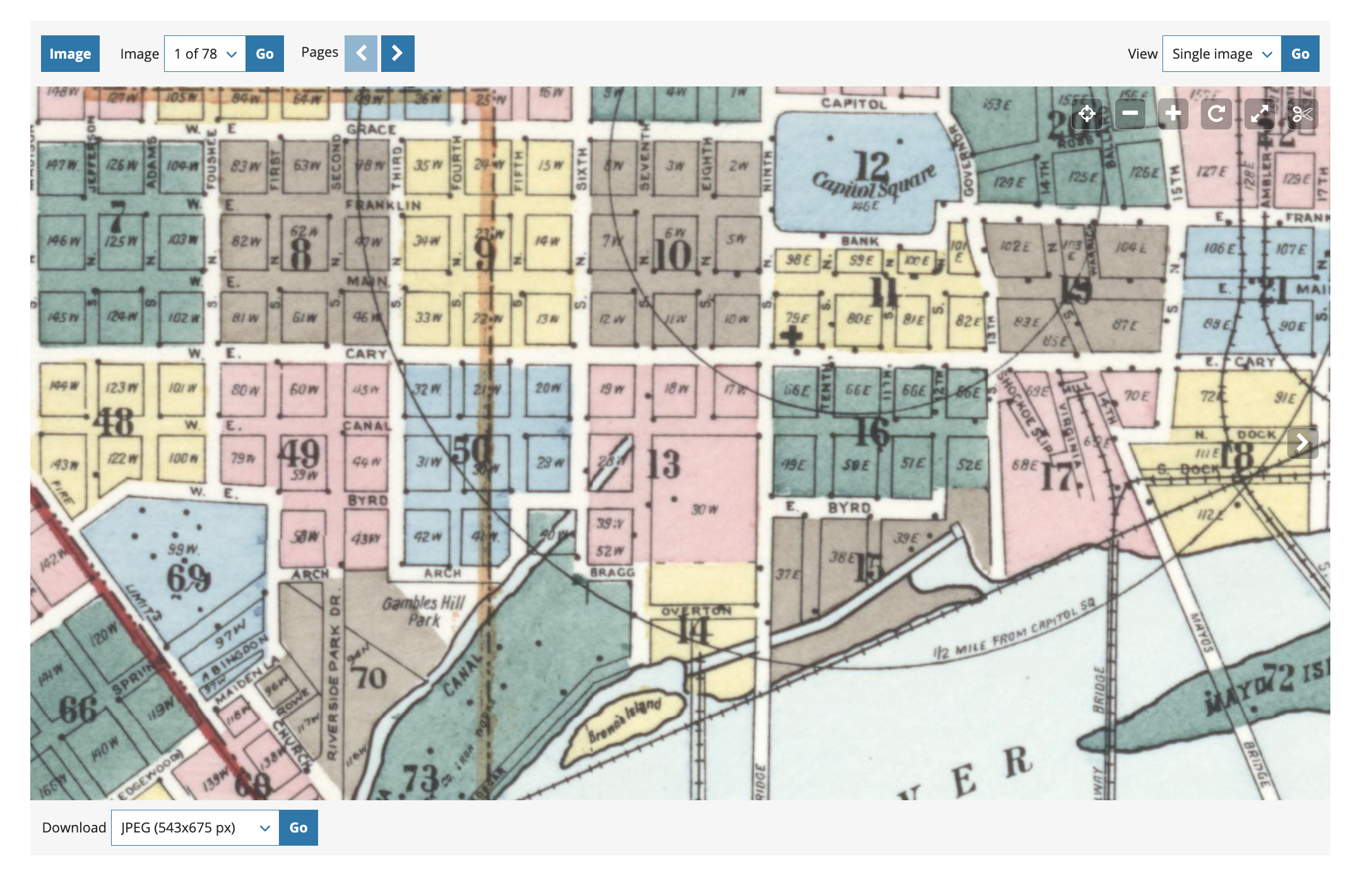
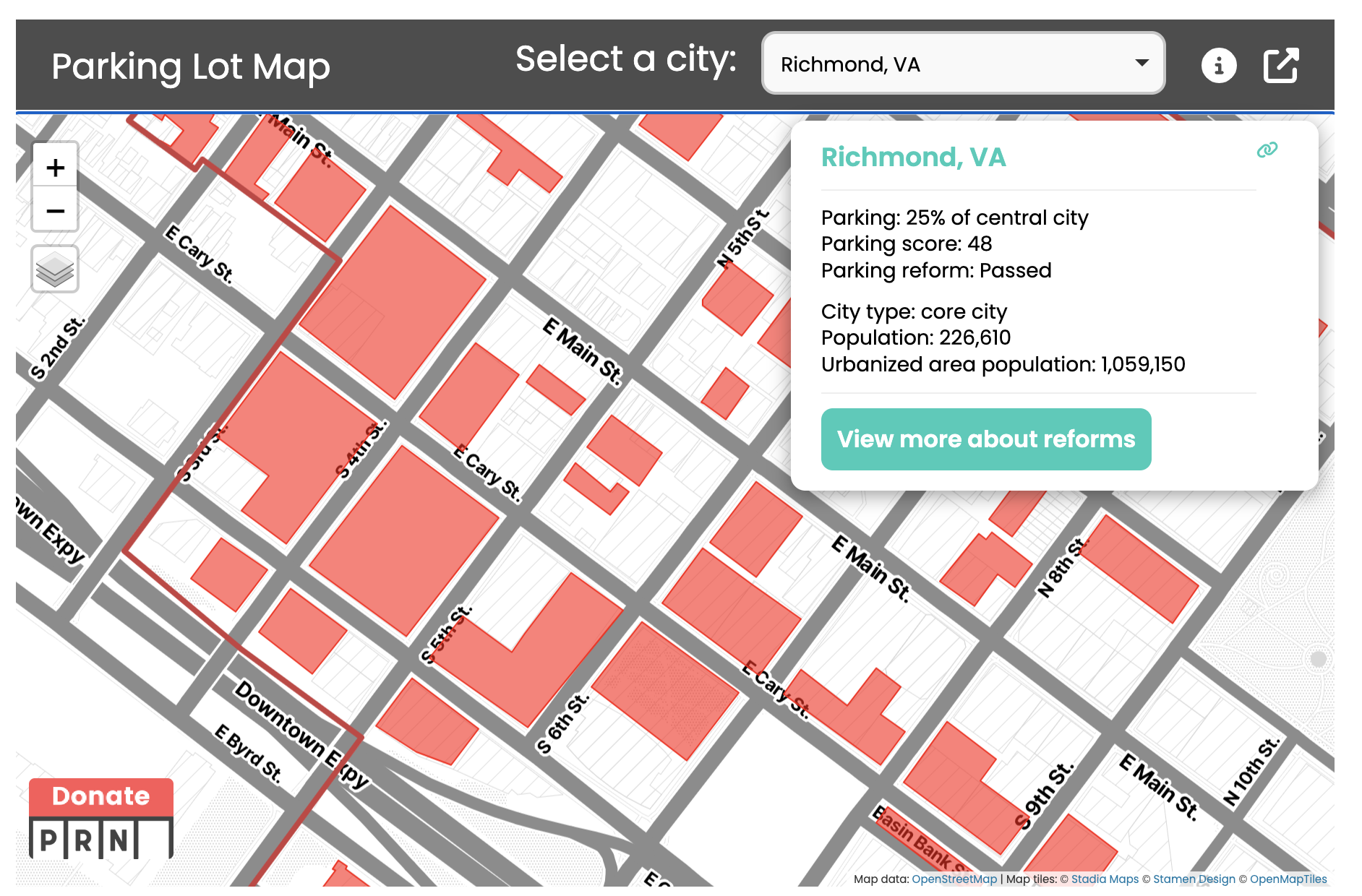
Don’t just pick an arbitrary area—you should choose four maps that cover an area where modern parking lots exist. To get you started, you could compare the index plate of your chosen atlas with this map from Parking Lot Reform. In the example below, I compared the two maps for Richmond, Virginia, and determined that plates 8, 9, 49, and 50, would be suitable, because they contain numerous modern-day parking lots:
The maps (or “plates” in the parlance of urban atlases) that you choose should adjoin one another—e.g., you shouldn’t pick four disconnected plates from across the whole city.
When you’re ready, download the maps as TIFF files from the Library of Congress. Click this link, then follow the instructions in the images below:

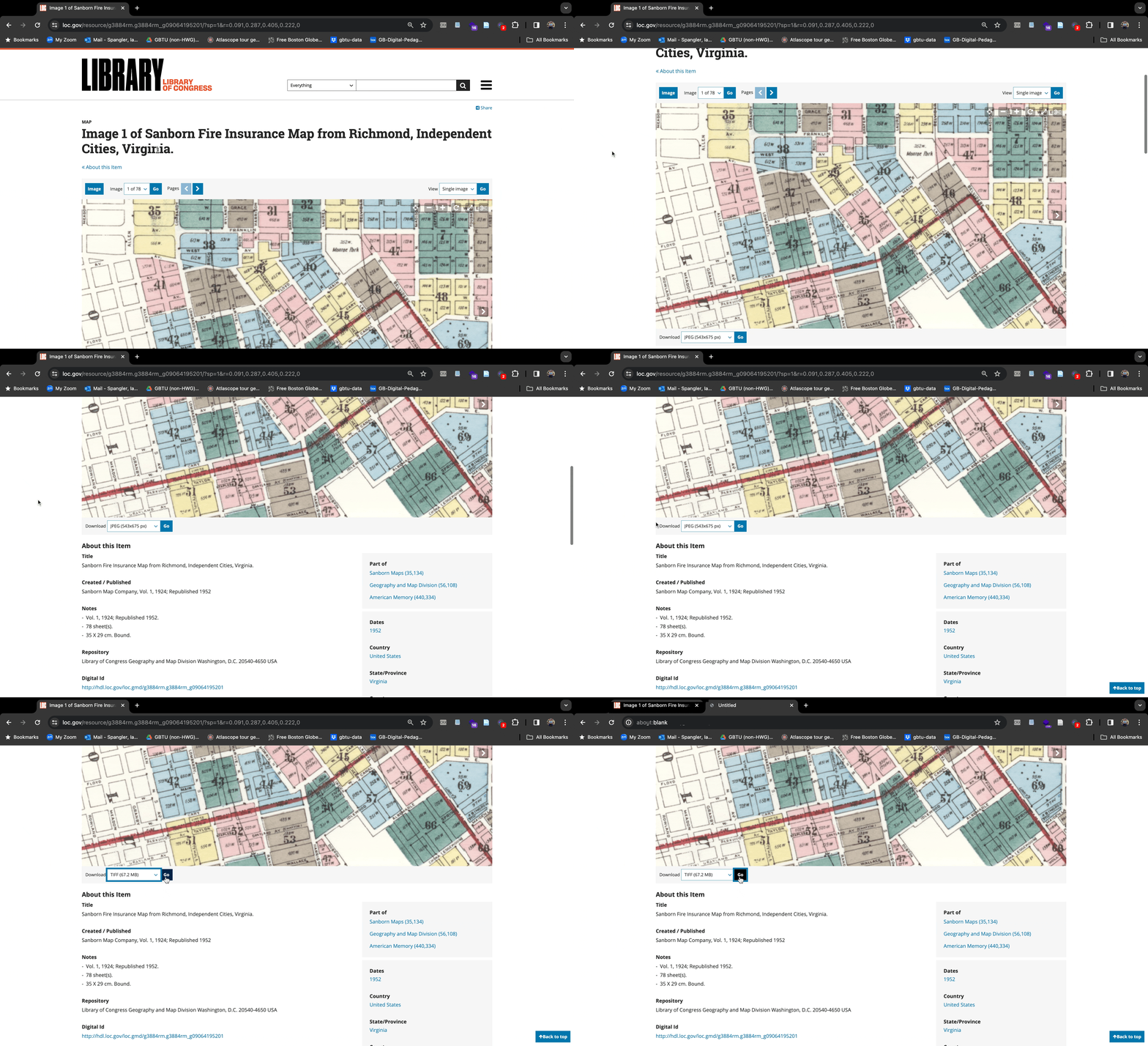
The TIFF files will be very large! Four of them should clock in around 1 gigabyte. Just a heads up. Also, sometimes the Library of Congress website can be a little slow. This is primarily because AI scraping bots are breaking libraries’ digital collections. If you bump into issues, sorry, just be patient… and don’t wait until the last minute to download maps, in case the Library’s website is down at that time.
After you’ve downloaded your four maps:
- Put them in a sensible location in your workspace, e.g., a folder called
sanbornsorsanborn_mapsor some such - Their file names are very long, so rename the downloaded images to their plate number (e.g.,
plate_01.tif,plate_02.tif,plate_10.tif—use leading zeroes where appropriate)
These .tif files are an example of raster datasets.
Step 2: Georeference
First, read this description of georeferencing. It shouldn’t take long but it provides a quick overview to key concepts including control points, transformation algorithms, and root mean square errors (RMSE). When you’re done
Make sure your map frame is using the Mercator projection (Web Mercator is fine). When you’re georeferencing a map, you define its location according to the coordinate system of the map frame. For your urban atlases, follow Bill Rankin’s advice: just use the “evil Mercator projection.”
Then, follow these steps to prepare and georeference the maps:
- Add the
.tifrasters to the project, place them in the same group, and bump their transparency up to 50% from the “Group Layer” tab - Right-click one of the maps > “Zoom to layer.” You should see something like this:
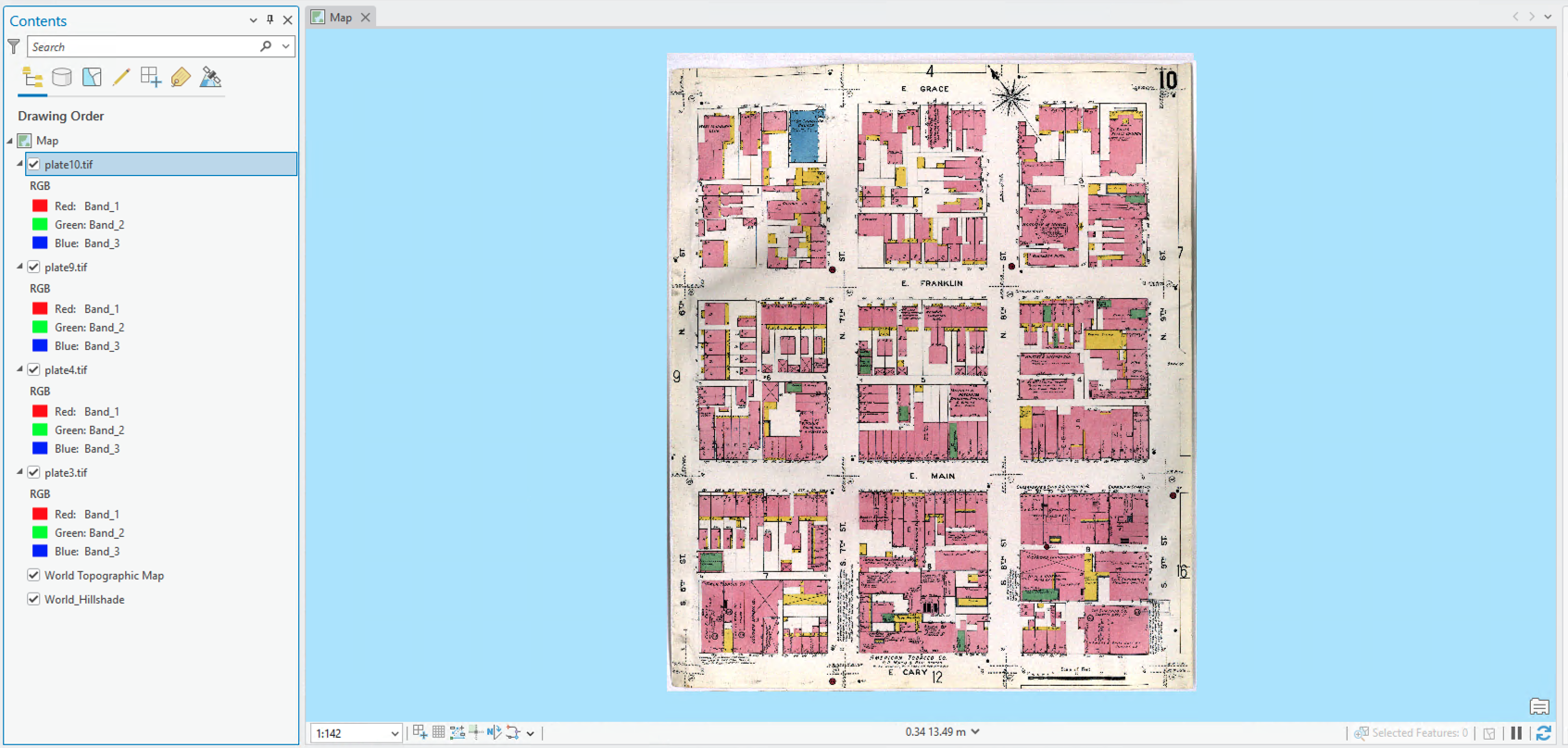
- Click the “Fixed zoom out” button (in the “Navigate” tab of the Ribbon) until you can see where you are in the world. It will take quite a few clicks. These
.tiffiles have no spatial data attached to them, so by default, they load at0,0—the center of the projected coordinate system’s Cartesian grid. This little spot, located off the Gulf of Guinea, is also known as “Null Island.” - Now, navigate to your chosen city. You can use the “Locate” tool in the “Inquiry” group of the “Map” tab to search for the city (just close the “Locate” pane that pops up when you are done).
- In the Ribbon, click the “Imagery” tab > “Georeference”. This tab has three important groups: Prepare, Adjust, and Review.
- Prepare has tools for setting up the input raster
- Adjust has tools for georeferencing the input raster
- Review has tools for assessing how well you georeferenced the input raster
- Click the “Prepare” tab and choose “Fit to display.” This will fit your selected Sanborn map to the screen. Then position it as closely as you can to its actual position on the surface of the earth:
- Click “Move” to move the map around
- Click “Scale” to make it bigger or smaller
- Click “Rotate” to rotate the map
- Press the
ckey to pan around the map while any of these modes are active
- Finally, place your control points:
- Click the “Add control points” button in the “Georeference” tab. Control points are added in pairs: first, a From point, associated with a part of the raster image; and second, a To point, associate with a position on the surface of the earth
- For these particular maps, use street corners as your control points as often as possible. Note that your “To” points will need to be offset slightly from the street corner lines of the default Esri base map.
- If you need to delete a control point or a control point pair, use the tools in the “Review” group to select and delete.
- When you’re done adding control points to the map, it should resemble the screenshot below, and you can click “Close georeferencing” before moving on to the next map:
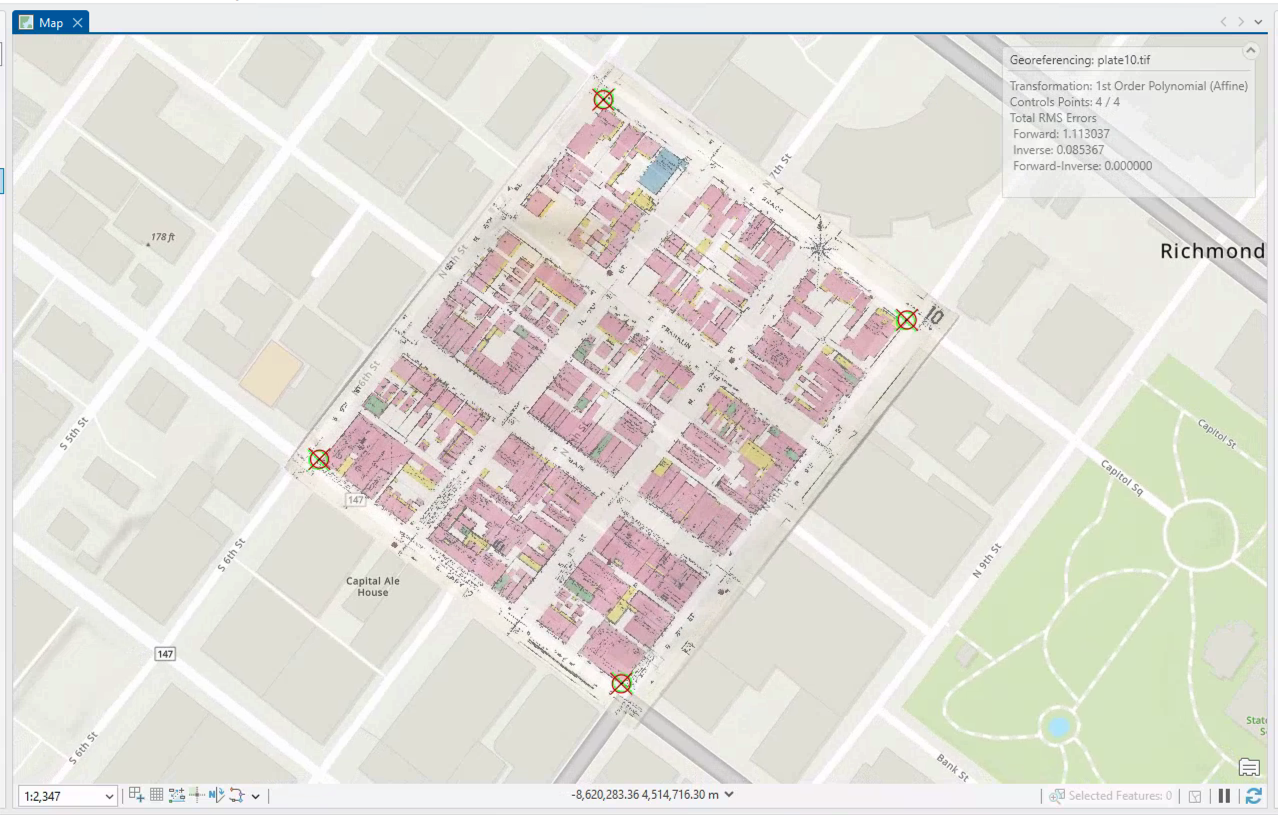
Before you proceed to the next step, ensure you have at least 4 georeferenced GeoTIFFs for your city loaded in ArcGIS Pro. You can do/use more if you want, but you’ve got to have a minimum of 4 georeferenced maps in your final submission.
How to make clipping masks
Now that you have at least 4 GeoTIFFs for your area, you can create clipping masks: vector layers used to mask out non-geospatial features in your maps. We do this because, especially with scanned maps, we want to exclude features like neatlines, compasses, etc. from the georeferenced maps. For example, my four georeferenced maps look like this:
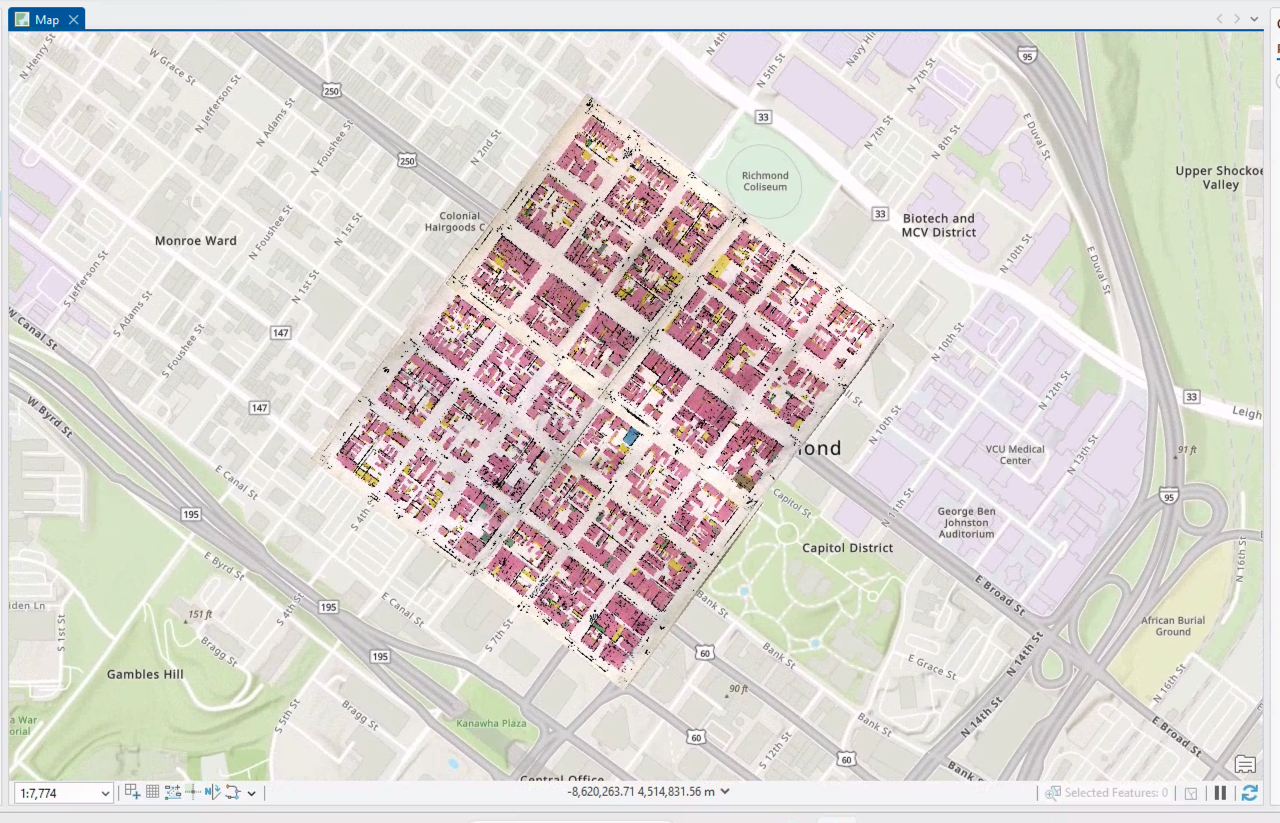
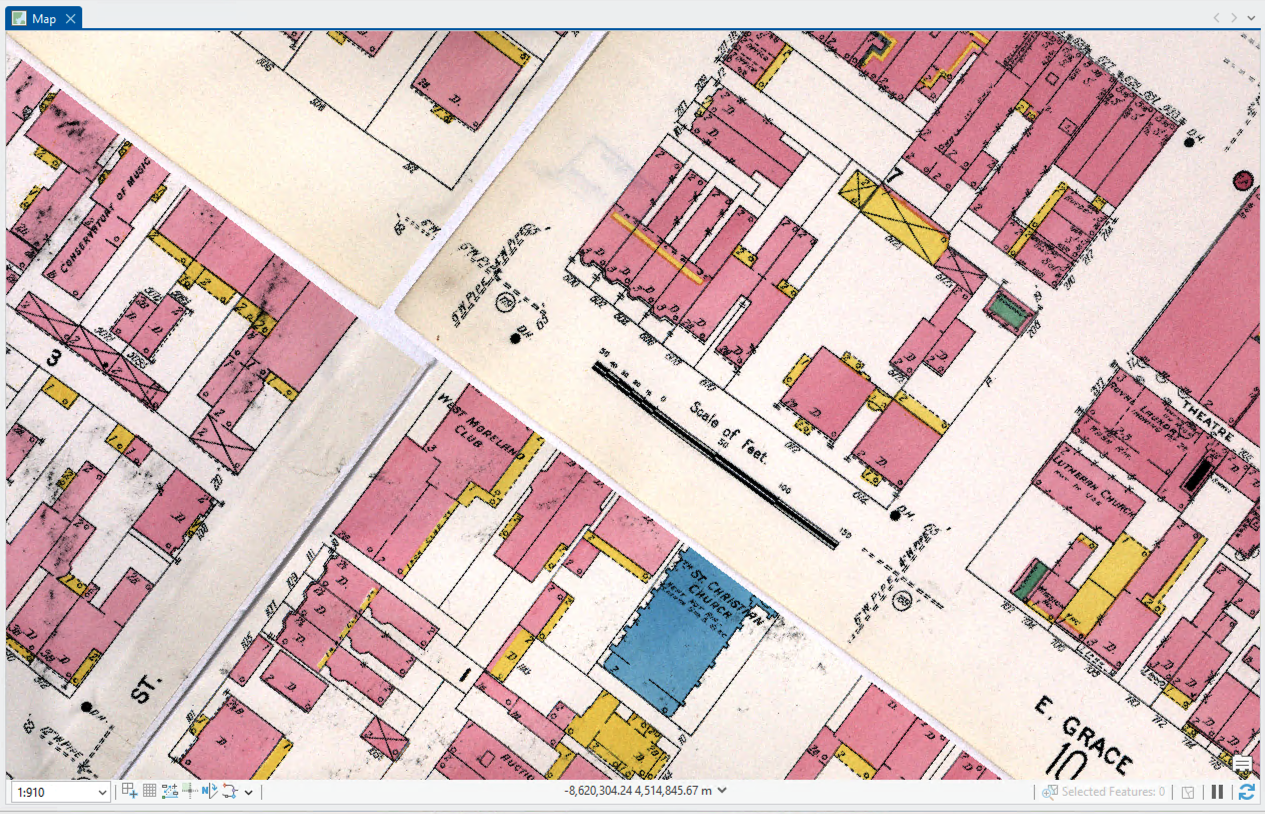
Looks nice at a distance, but if you zoom in a bit, you’ll notice that there are a bunch of page edges that undesirably overlap actual map features:
Generate mask polygons
There are a few ways to make masks. Follow these instructions for a straightforward approach:
- Use the “Raster Domain” tool to create a mask layer for one of your maps:
- Input raster =
plate4.tif(whatever your map is named) - Output feature class =
plate4_mask - Output feature class type = Polygon
- Input raster =
- The output should resemble this:
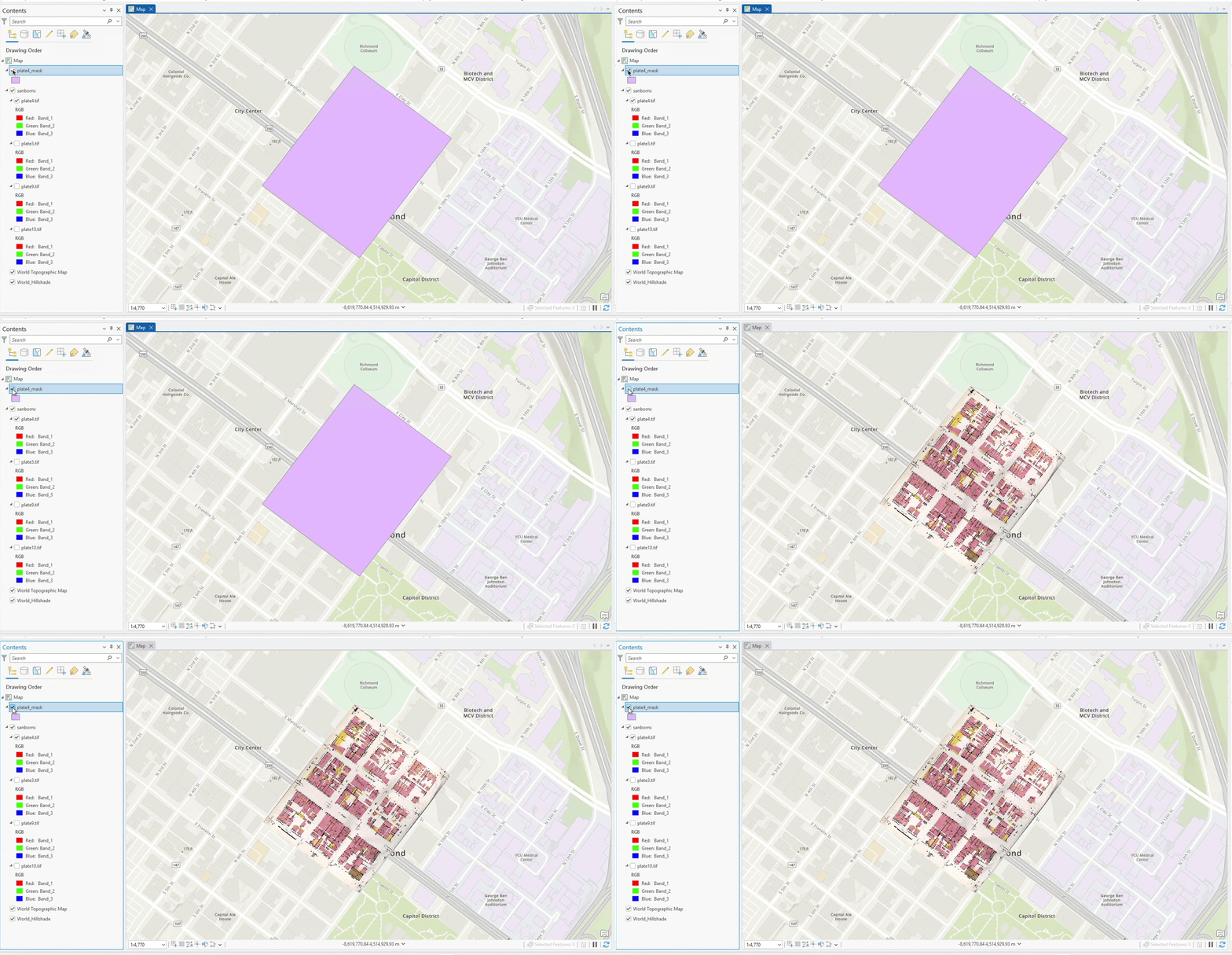
- Replicate this for the remaining plates until you have one mask for each plate; then, put them in a group called
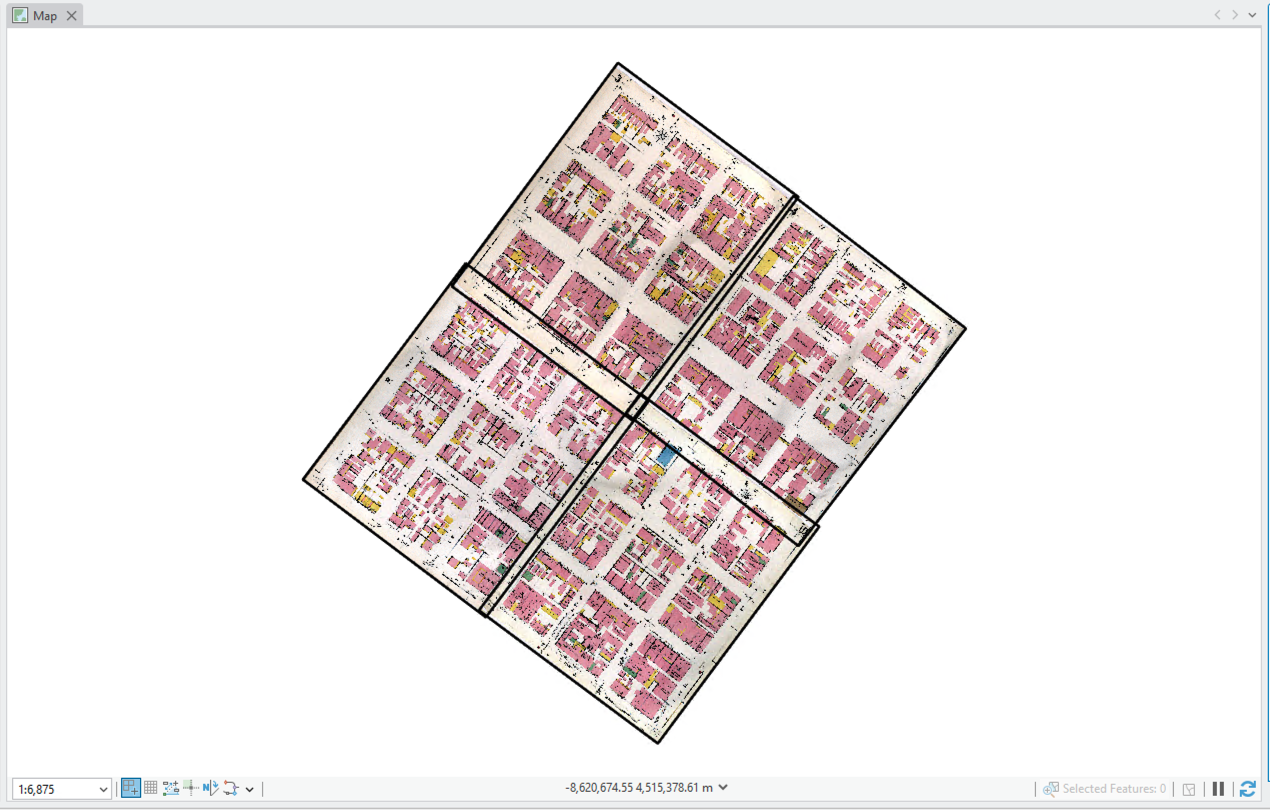
masks - Apply some simple symbology like the black outlines in the image below (I disabled basemaps for clarity):
Fix mask polygons
The masks looks fine at a distance, but zoom into one of the mask’s edges. Do you notice the ~1 zillion little vertices? This sucks! Not only is it unnecessarily complicated, but it makes editing our masks practically impossible. We must fix it.
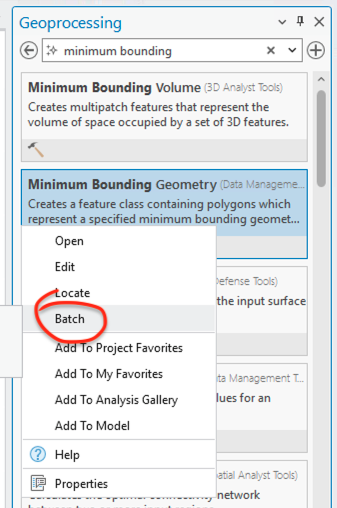
- Open the Geoprocessing pane and search for “Minimum bounding geometry.” This tool will turn out complex polygons into a simple, four-point polygon mask—easier to edit later on
- Right-click the “Minimum bounding geometry” tool > select “Batch” > click “Next” without changing any settings:
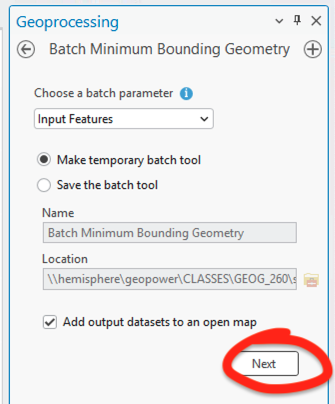
- We’ve opened a batch geoprocessing option, meaning we can run this tool iteratively on multiple layers, saving many clicks. Use these settings:
- Batch input features = all of your masks
- Output feature class =
%Name%_simple(here,%Name%is a placeholder variable for the input layers) - Geometry type = “Rectangle by width”
- Group option = “None”
- Group fields = empty
- Add geom characteristics = unchecked
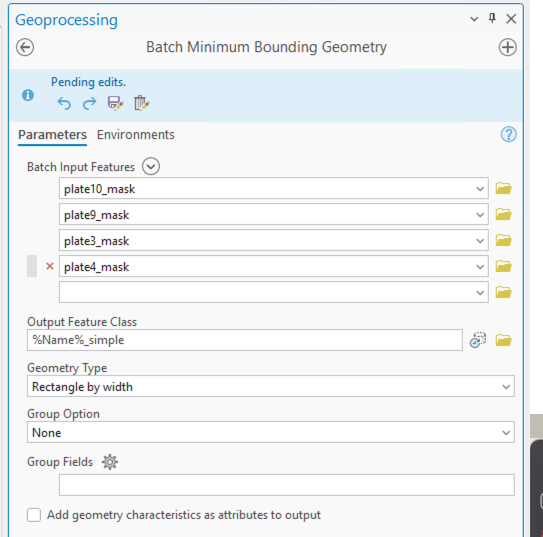
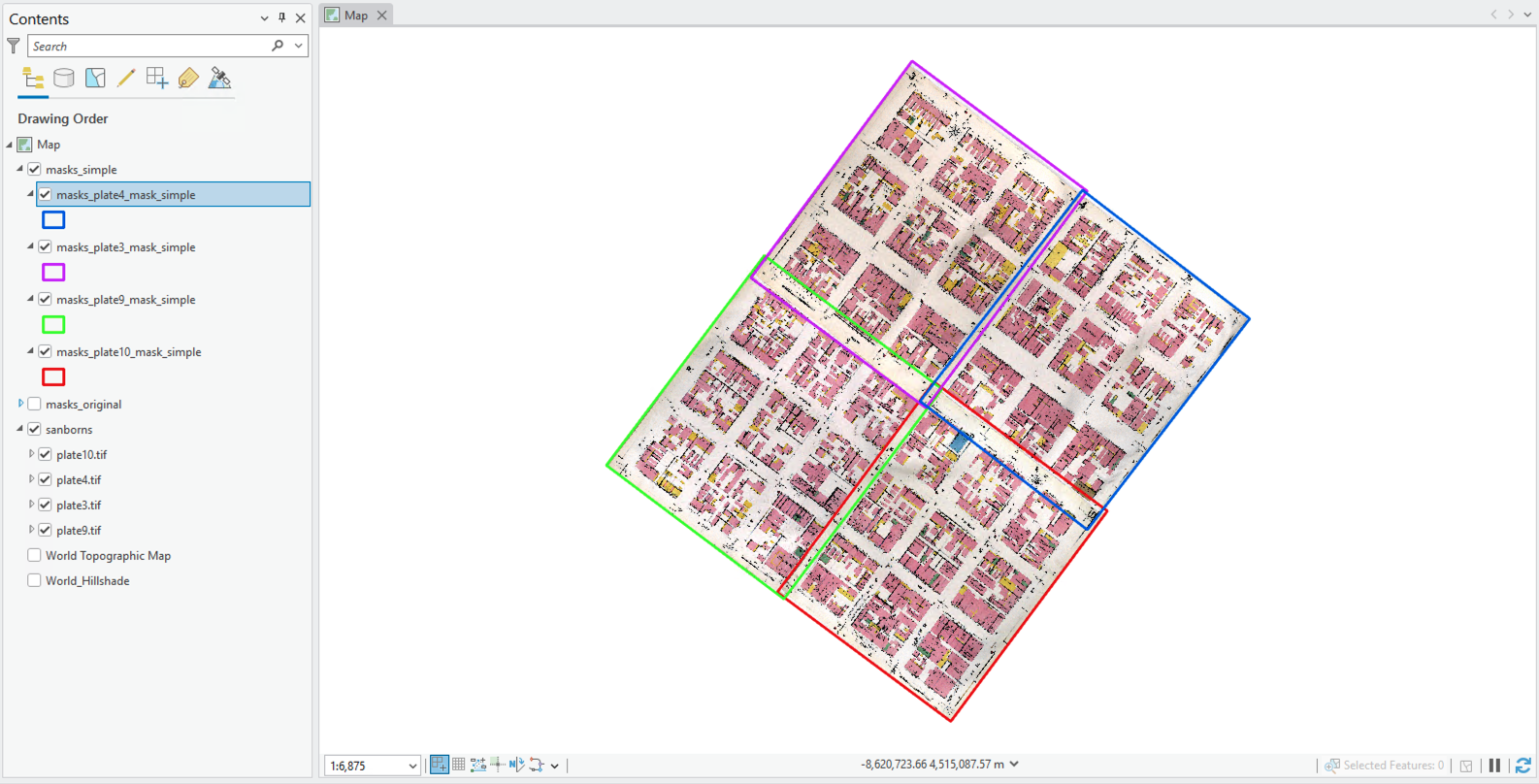
- Click “Run” and you should see four new masks appear
- Put your new masks in a group called
masks_simple - Rename the other masks group to
masks_original - Apply some colorful symbology to distinguish the masks individually
Edit masks
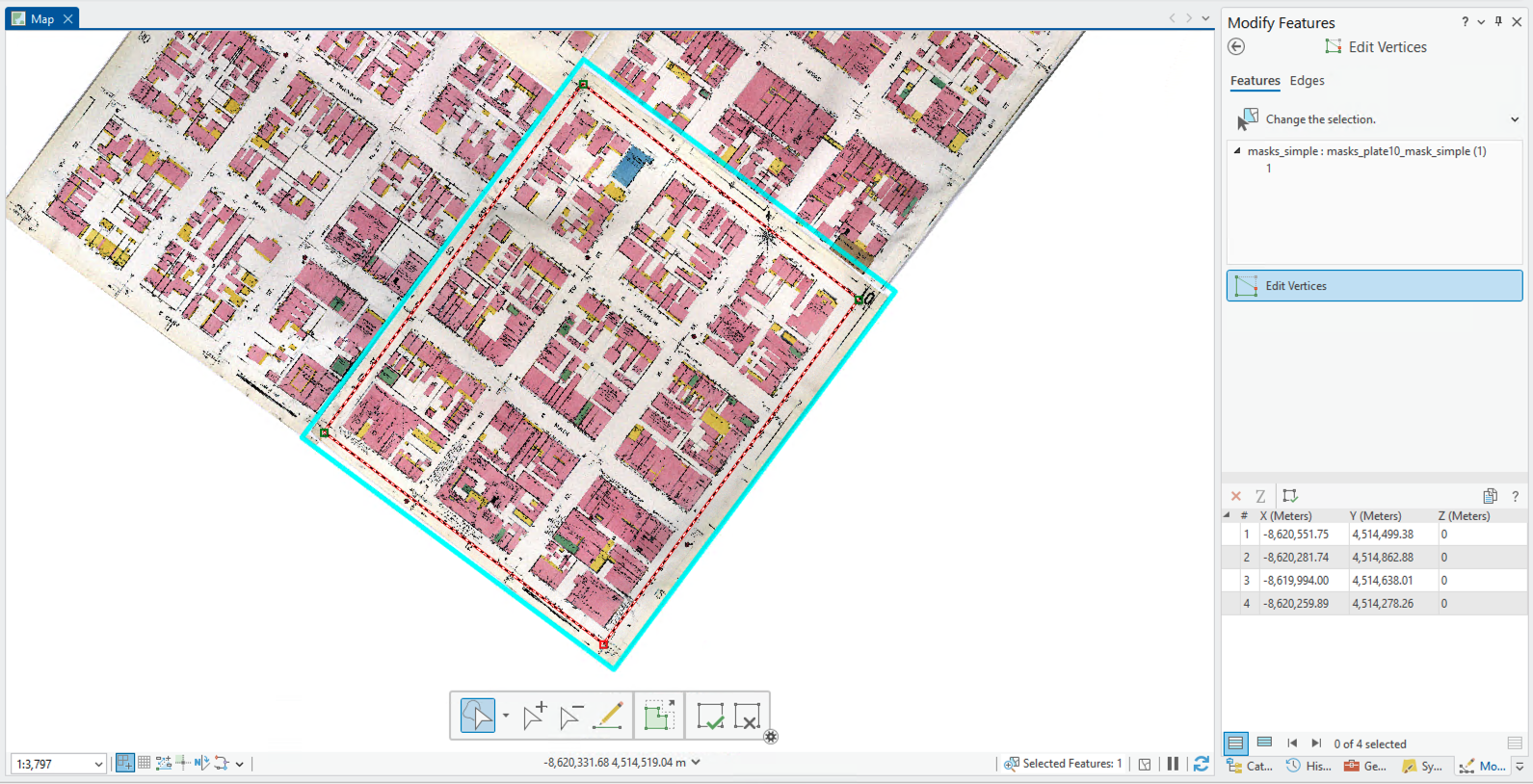
- First, pick a map/mask pair to start working on, and drag them to the top of their respective groups, and turn off the masks you are not working on. I’m going to work on plate 10
- Select the
masklayer and click the “Edit” tab of the Ribbon - In the “Features” group, click “Modify”. This will open a new pane in place of your Catalog
- Click “Edit vertices”
- Hover your cursor over one of the corners of the mask and drag it to about the center of the street. Do this for each of the four corners in your mask
- When you’re done, the map should resemble this:
- Click the green checkbox at the bottom of the Map view to “Finish” your edits. The new map should be smaller
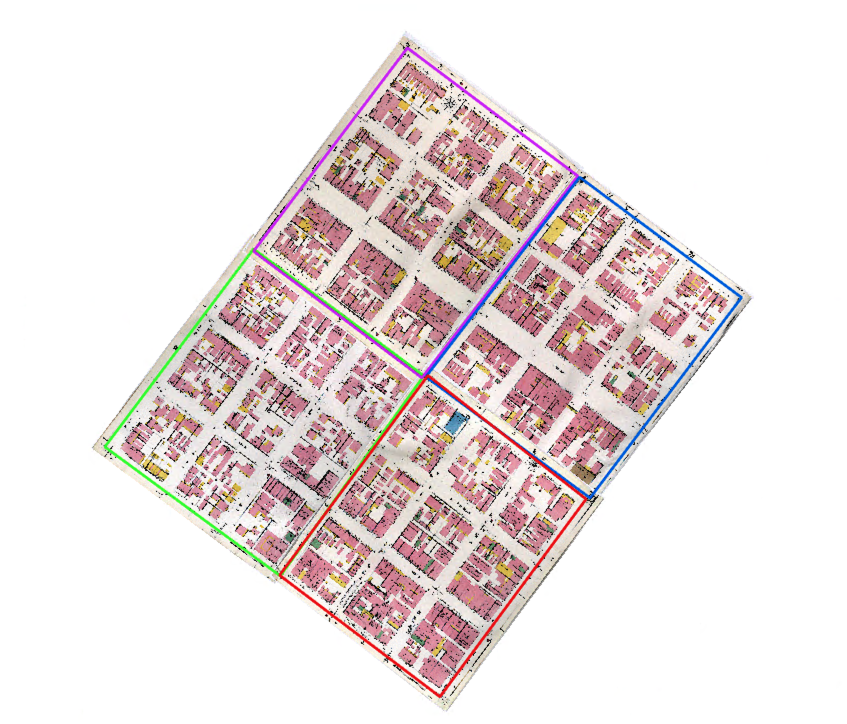
- Repeat this for the remaining masks, taking care to adjust the masks so they are roughly at the center of the streets, and exclude non-geospatial features in the Sanborn maps. It’s okay if it isn’t perfect, just do your best
When you’re done, the masks should look something like this:
Fix topology
Our final step is to make sure the masks are topologically aligned to one another. In geospatial analysis, topology refers to the geometric relationships between different features, especially vector features. We want topological integrity in our masks. This means when polygons neighbor one another, they should share a boundary exactly. Topological integrity is easy to accomplish with the editing tools in ArcGIS Pro. I’m going to start working on the plate10_mask layer:
- In the “Manage edits” group, change “No topology” to “Map topology”
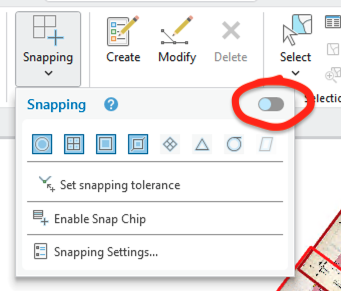
- Click the arrow under “Snapping” and enable it:
- Select a mask, and again from the “Edit” toolbar, select “Modify” > “Edit vertices”
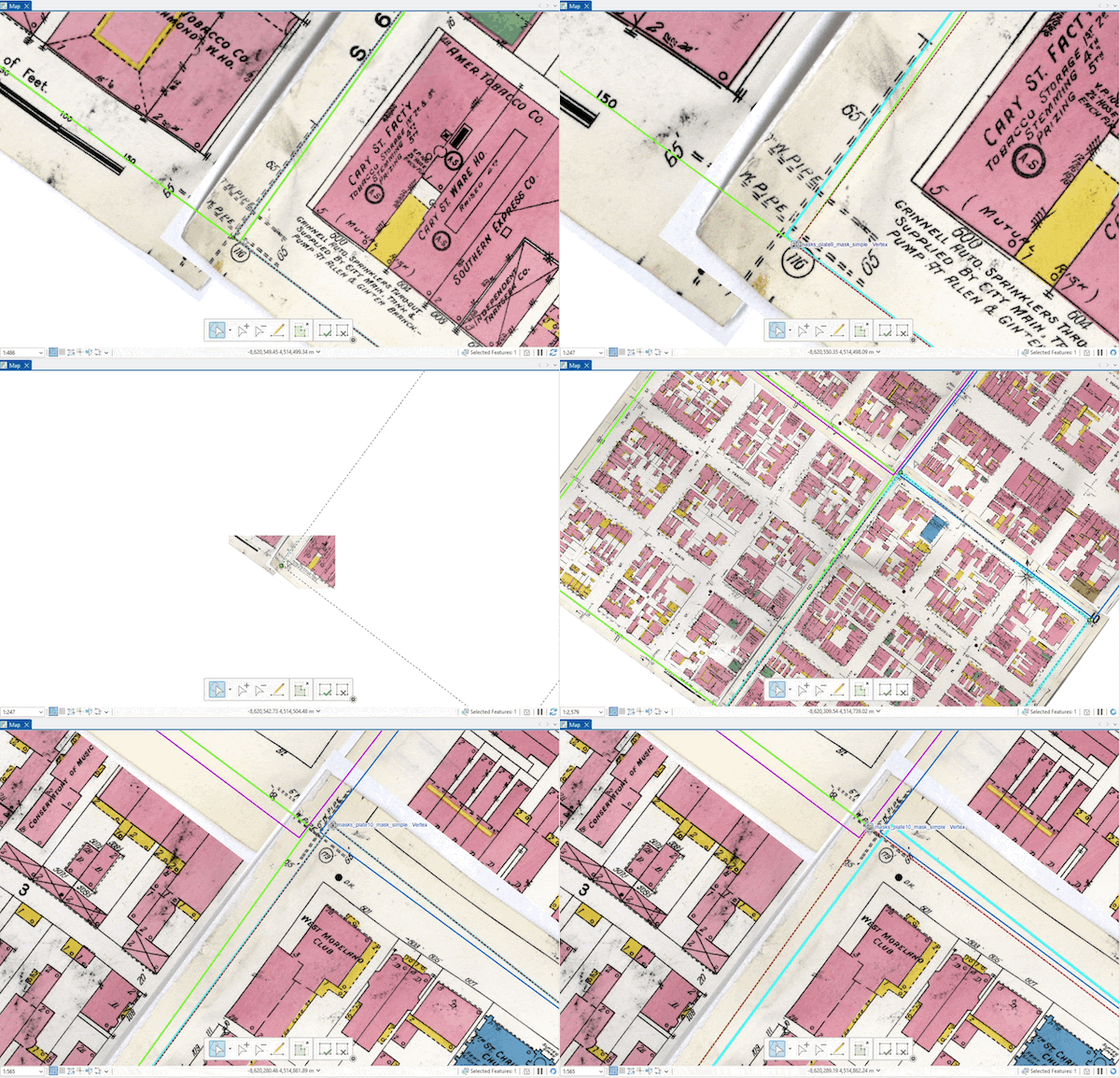
- Now you are going to “snap” the vertices of each mask to its neighbor, like the GIF below:
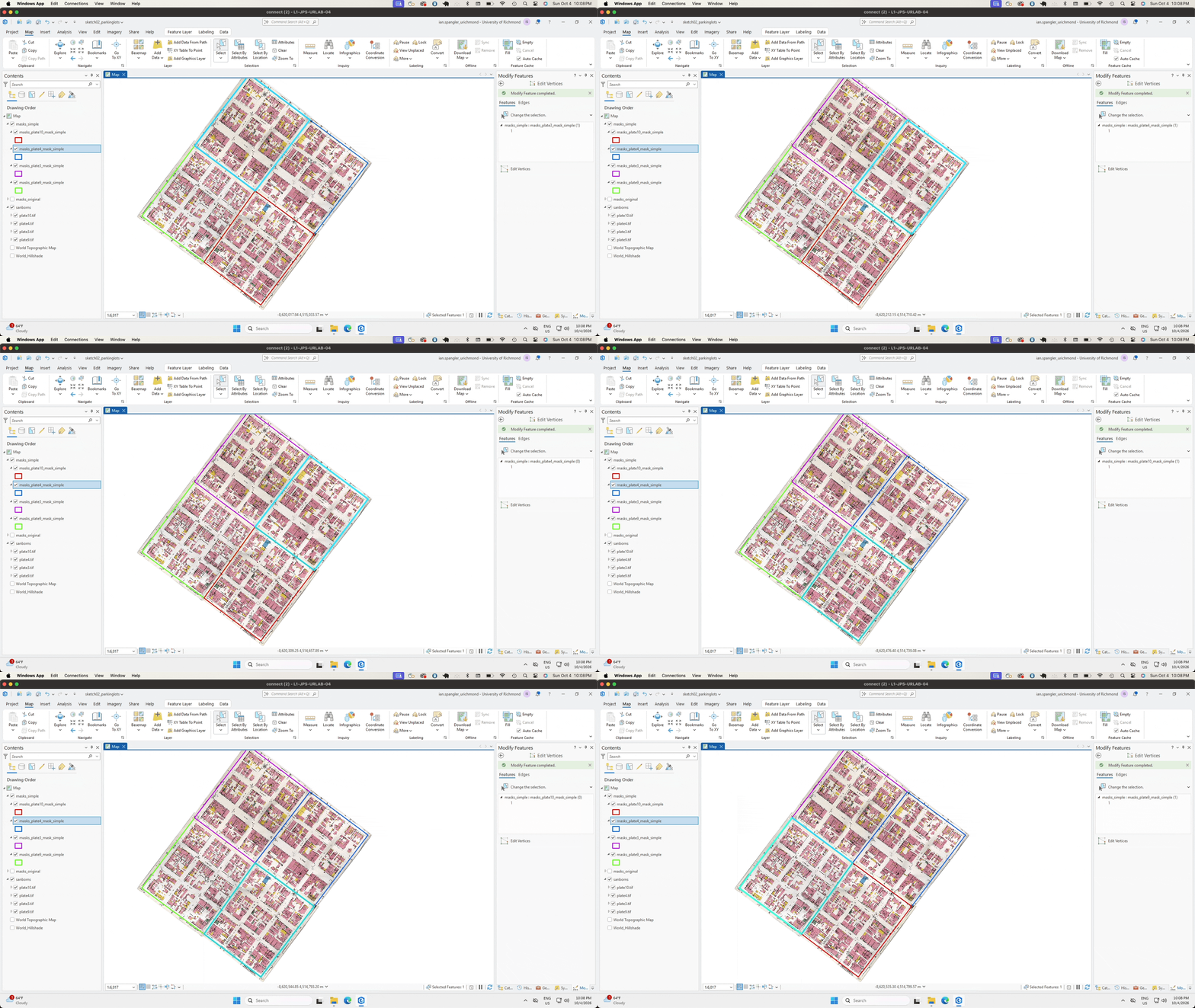
- Do this for each mask, until every vertex is seamlessly aligned with its neighbors, like so:
Before proceeding to the next step, be sure to save your edits by clicking the “Save” button in the “Edit” pane. This is different from the normal “Save” button, which saves your whole project. Here, you want to save the beautiful edits you made to these vector feature layers.
- Let’s turn these individual masks into a single mask overlay. Open your Geoprocessing pane > search “Merge” > run the tool using these parameters:
- Input datasets = all of your
mask_simplelayers - Output dataset =
mask_mesh - Field matching mode = leave as is
- Input datasets = all of your
- Click “Run”
- Now your masks have been combined into a single layer
How to make a map mosaic
Finally, we are going to clip these raster maps to the vector masks, then mosaic them into a single seamless overlay.
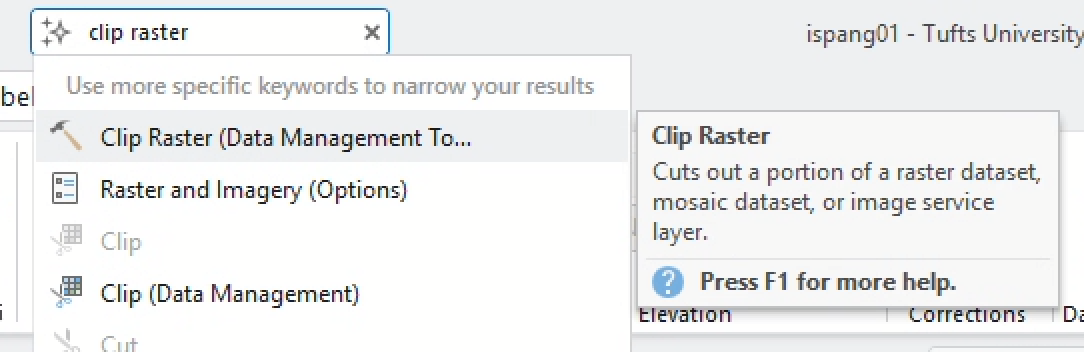
- Search “clip raster” in the Geoprocessing pane. You should see an option for “Clip Raster (Data Management Tools)”. Go ahead and click it
- It’s a little more complicated to batch clip the rasters, so we’ll do them one by one
- Start by using the “Select” tool to select one of the mask features. Then, set the parameters in the “Clip Raster” tool to:
- Input raster: Your chosen map
- Output extent: Your chosen mask (the feature should be selected and you should choose “Use the selected records”)
- Output raster dataset: Your chosen map’s name, suffixed with
_clipped(e.g.,plate10_clipped) - Make sure the “Use input features for clipping extent” box is checked!!
- Click “Run”
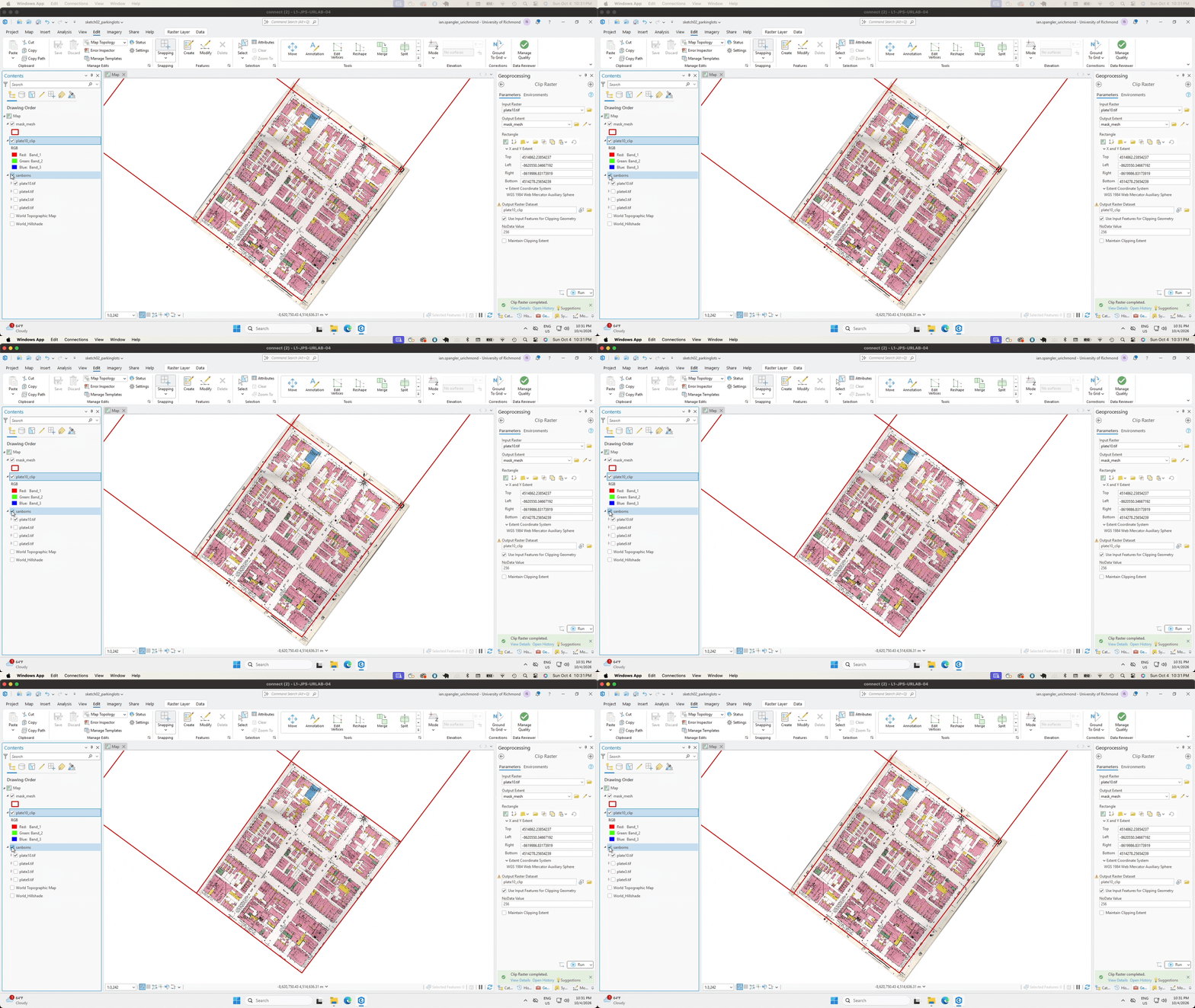
- When it finishes runing, you should have a nicely “masked” map layer, like this:
- Now, repeat this process for each map you have selected
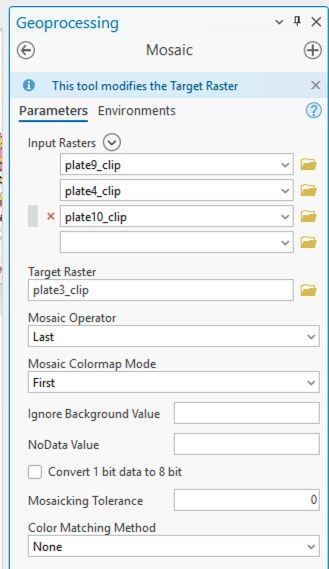
Finally, using your georeferenced, masked maps as the inputs, mosaic the plates into a single layer. Search “mosaic” in the Geoprocessing pane, select “Mosaic (data management tools)”, use the four clipped rasters as your inputs, choosing one as the “target raster.” The other rasters will be added to this one, so you’ll eventually want to rename this feature class to sanborn_mosaic or something like that. See the screenshow below as a reference:
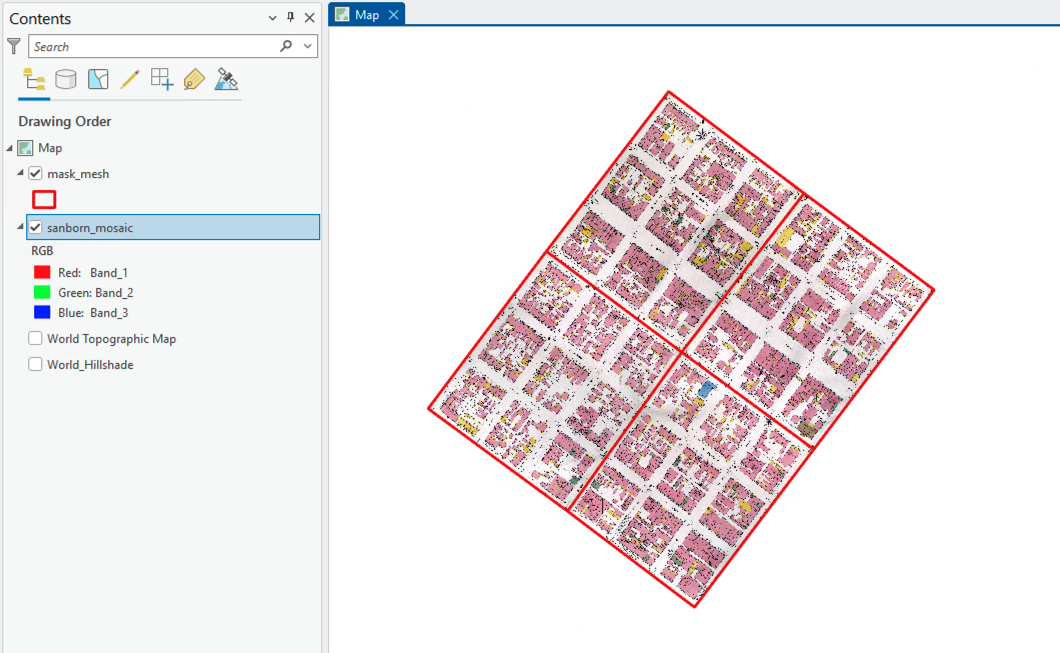
At this point, I renamed the new layer to sanborn_mosaic, removed the intermittent/provisional files from the Contents pane, and my project looks like this:
mask_mesh layer
Before proceeding to the next section, run the Dissolve geoprocessing tool on your mask_mesh layer. Save the output as AOI, short for “area of interest.” You will use this to calculate the percentage of parking lots in the next section.
Get parking lot data
Okay, you now have at least four maps that have been georeferenced, masked, and mosaicked: nice!
It’s time to overlay these historic maps with modern-day parking lots. We can get the data from OpenStreetMap, a massive, open-source, crowdsourced digital mapping project.
You can’t download parking lot data directly from OSM, but you can use another tool called overpass turbo. overpass turbo makes it possible to download a geojson file of parking lots in your area of interest from OpenStreetMap.
Open overpass turbo, and copy and paste the following query into its query builder:
way
    [amenity=parking]
    ({{bbox}});
(._;>;);
out;
Then, navigate to your area of interest on the map itself. By “area of interest,” I mean an area that is roughly equivalent to the extent of the Sanborn maps that you georeferenced. Make sure that the screen is zoomed in to such an extent that your entire area of interest is visible, but not so zoomed out that you end up retrieving a ton of extra data.
Click Run, then click Export ➡️ download the GeoJSON.
Process parking lots
- Convert the GeoJSON to a feature class and load it into your map. Give it a title like
parkingLots. While you’re doing this, you might opt to remove all the fields that come down from overpass turbo. You won’t need them. - Raster clip mosaicked maps by parking lots (you might need to fiddle with the checkboxes in the tool options to get this to work!)
- Calculate geometry for two layers: your
parkingLotsand yourAOI. Then, using the Field Calculator, compute how much ofAOIis occupied by parking lots today. Include that value somewhere in your map.
Once you’re done with the above steps, spend some time examining the parking lot cemeteries. Are there any patterns that you notice between what used to exist? What did the land underneath parking lots used to contain? Once you find two reasonably interesting examples, you’ll be on the right track for finishing the map layout.
Layout
Now, compose your final map layout in ArcGIS Pro. It must meet the requirements outlined above. Check out the example maps for inspiration—all of these are strong examples, but none of them are perfect, so you might also examine them with a critical eye. What works, what doesn’t work? Where do you see harmony, balance, contrast, unity, etc.? What would you do differently? Be creative with it.
Submit
| Assigned | Due | Submit |
|---|---|---|
10/19/26 |
10/26/26 |
Section 1, Section 2 |
Submit your final map layou to Canvas by 10/26/26 at 11:59pm.