Lab 03
You’re projecting
| Assigned | Due | Submit |
|---|---|---|
9/7/26 |
9/14/26 |
Section 1, Section 2 |
This activity will walk you through plotting XY data using the Pleiades dataset—a gazetteer of ancient place names—and then experimenting with how that data translates into a variety of projected coordinate systems.
This week, you do not need to submit a map! Just answers to the questions, in .doc or .pdf format or as a Google Doc (shared with me).
Set up a workspace for this activity by using Windows File Explorer  to create a folder under your name in
 hemisphere. The structure could look something like:
├─ hemisphere/geopower/STUDENTS/GEOG260/yourname/
    ├─ lab03_ancient-places/
        ├─ downloaded-data/         # this is original data that you downloaded from pleiades
        ├─ lab-03_ancient-places/   # this folder would contain all of your working project files
        ├─ for-submission/          # this folder for your submission/maps/answers
Download the data
To get started:
Go to https://pleiades.stoa.org/ and click the “Downloads” tab in the upper-right hand corner.
Under the header “Single Format Snapshots” > “Pleiades Data for GIS (CSV)” and click the link to download the latest version. Note the warning that Microsoft Excel doesn’t reliably read the data. Unfortunately, that’s a common experience when working with spatial data in Excel. In fact, it’s a common experience when working with any data in Excel. If you have access to LibreOffice, an open-source alternative to the Microsoft suite, feel free to try it out!
I’m going to save this file to a folder called
downloaded-datain my workspace.Go ahead and extract the contents with
Right-click>Extract all>Extract. Click through the “unzipped” folders until you get to the data itself.You’ll notice many data files suffixed with
.csv. That’s short for “comma separated values,” which means it’s a plain text file containing rows that represent observations and columns that represent variables. If you opened this file in a text editor, you’d see that the rows are separated by carriage returns and the columns are separated by—you guessed it—commas. Although there’s tons of interesting stuff in this folder, we’re only going to be using theplaces.csvfile today.Go ahead and make a copy of that file (
ctrl+c) and paste it yourdownloaded-datadirectory (ctrl-v). We’re doing this for two reasons: first, because it’s easier to access atdownloaded-data, and second, because it’s really easy to mess up CSV/spreadsheet data in Excel, so it’s helpful to have a clean backup copy.Now, try opening the file in Excel. If you see a message asking you to convert the data, choose “Don’t Convert”! You should see something like this:
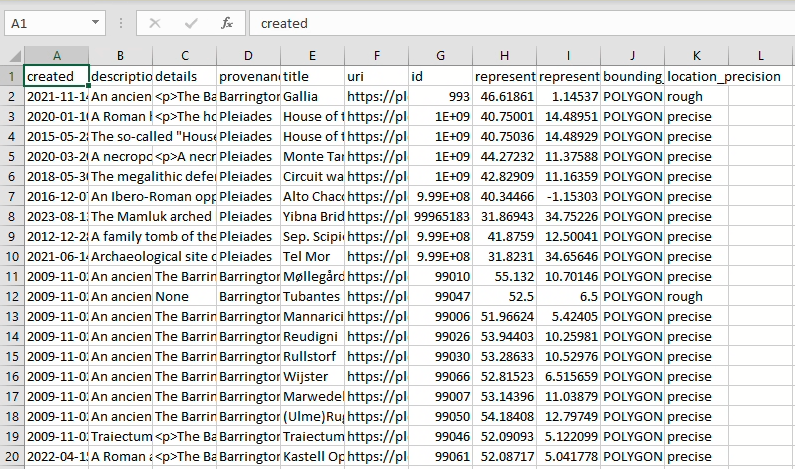
As a point of comparison, open the file in a text editing application. If you’re in Jepson, you can use Visual Studio Code, which makes the file a little easier to read. If you’re in the SAL, open it using Notepad.
You should see something a little less immediately human-readable…
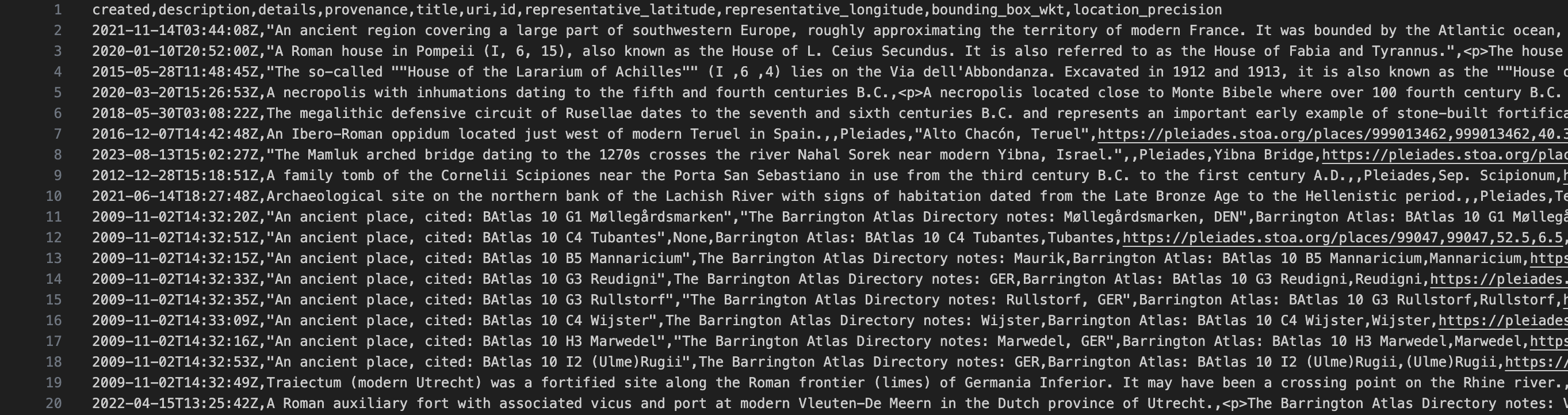
… but if you look carefully, you can sort of track the structure of the data. Again: commas separate each value. In instances where a comma needs to be escaped—e.g., where a comma actually does need to appear in the value of the data—it must be braced in quotation marks.
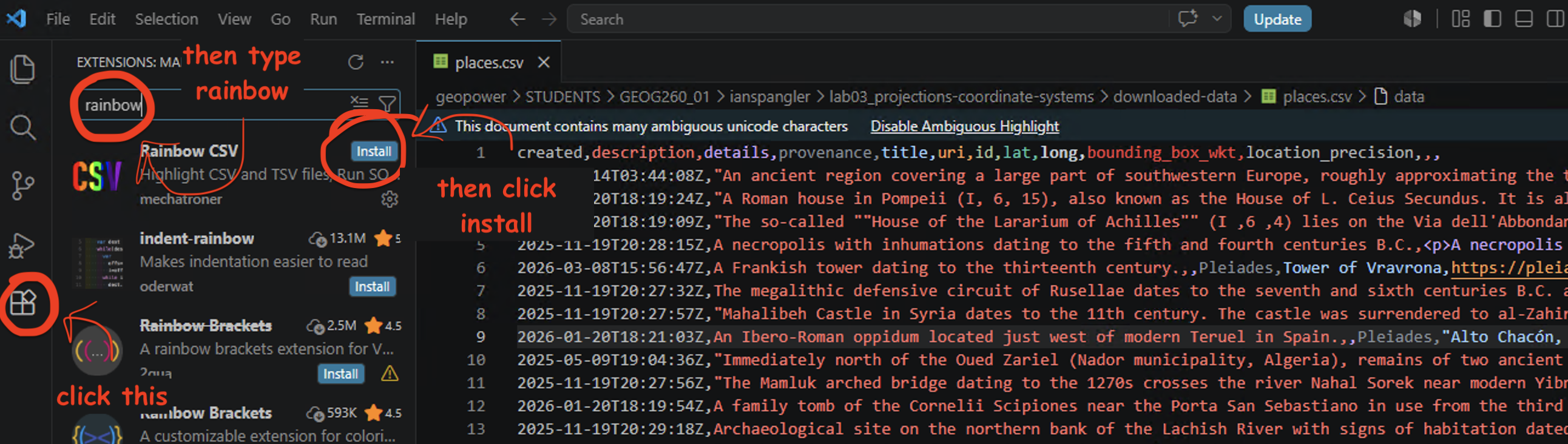
Before answering the question below, install the Rainbow CSV extension for VS Code (should only take a few clicks) so it is easier to visually separate the different columns:
Q1
In the .csv file you’re examining, what do two commas directly next to one another (e.g., ,,) signify? You may need to compare the file in Excel against the file in VS Code to confirm your answer.
Make a new project
If you haven’t already, open up ArcGIS Pro and create a new project file inside of your workspace. When you’re done, your directory structure should resemble:
├─ hemisphere/geopower/STUDENTS/GEOG260/yourname/
    ├─ lab03_ancient-places/
        ├─ downloaded-data/
            ├─ pleiades_gis_data/
            ├─ places.csv
            ├─ pleiades_gis_data.zip
        ├─ lab03_ancient-places/
            ├─ multiple
            ├─ ArcGIS
            ├─ Pro
            ├─ folders
            ├─ and
            ├─ files
        ├─ for-submission/
It’s okay if your workspace doesn’t look exactly like this, so long as you’re making some intentional choices around how you name stuff.
Study the data
Our goal is to load this .csv into ArcGIS Pro and plot the locations of each observation (e.g., row)—but first, any time you’re trying to load a table into ArcGIS Pro, you want to have a quick look through its contents.
Open the
places.csvfile in Microsoft Excel by double-clicking the file and make note of two important fields:representative_latitudeandrepresentative_longitude.Thankfully, the dataset is really tidy, so we don’t need to fuss with it a lot. However, it’s best practice, when possible, to keep your field names to 10 characters or less. This specification is important because the shapefile format has a field name maximum character limit of 10, and shapefiles are encountered pretty commonly in geospatial workflows.
Rename each field name so that it contains 10 characters or less. (The destination format of this file is an ArcGIS feature class which has much longer field name limits, so it’s not super important in this case, but this is best practice notwithstanding.) The result should resemble:

- This was a very simple example of data preprocessing, or getting a dataset ready for analysis. Preprocessing will often be more complex than just renaming columns… but this still counts!
Geodesy
Let’s turn that csv file—an example of tabular data—into real-life, bona fide spatial data. When we’re done, we’ll have a feature class of vector points that displays over 40,000 ancient place names.
Before diving in, we just need to take a moment to wrap our round heads around the round globe.
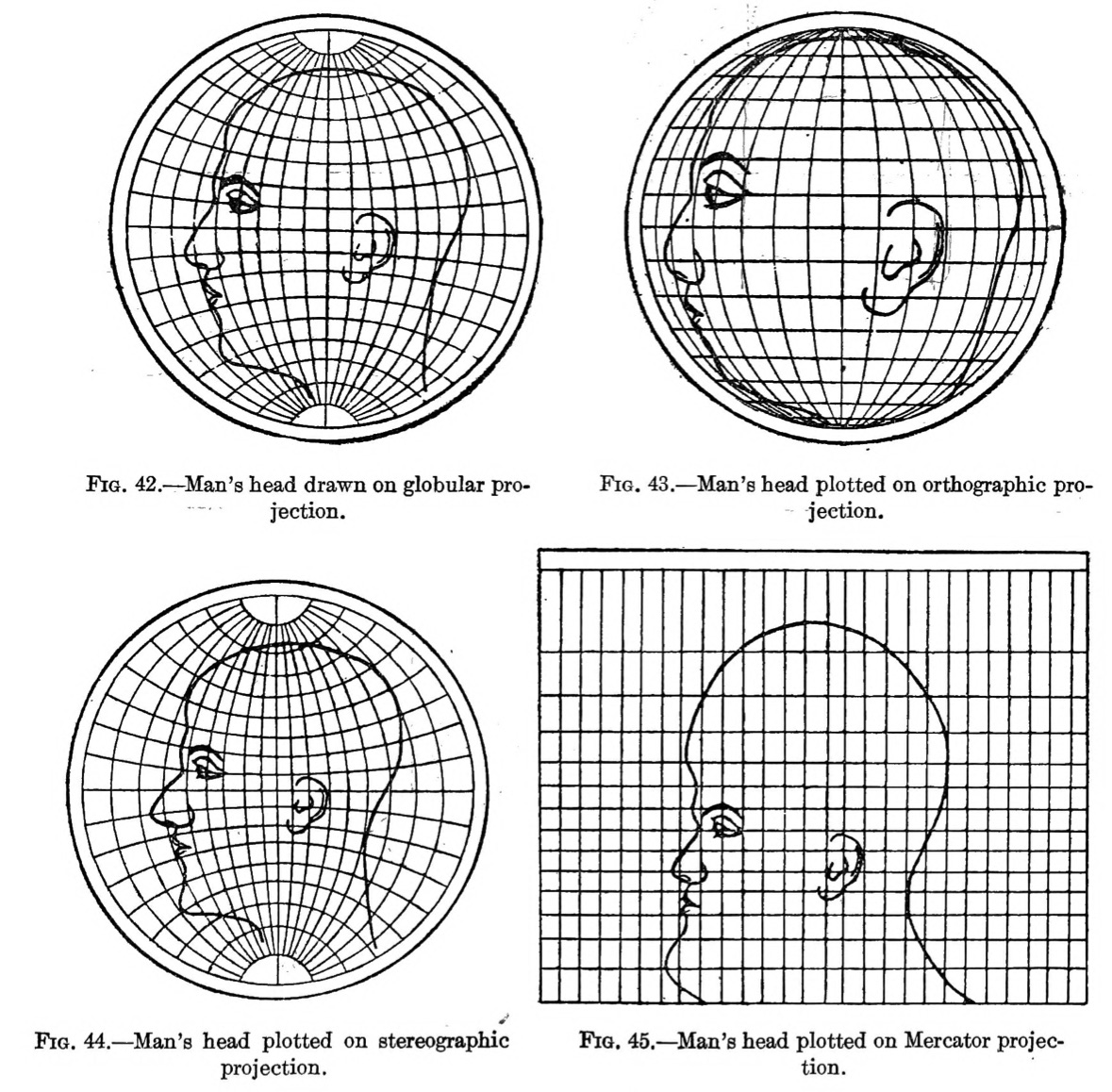
Geodesy is the study of the shape and size of the earth, including its gravitational and magnetic field. It’s a pretty complicated science—made all the more so by the fact that the Earth is not truly a sphere, but in fact a lumpy oblate spheroid—so here’s a quick and dirty highlight reel of geodesy.
Coordinates
We measure locations on the earth’s surface in coordinates, most often described in terms of their position on an X-axis (horizontal) and Y-axis (vertical). You’ll probably encounter XY data most commonly as latitudes and longitudes like the ones in the places.csv spreadsheet, but they can also be represented in DMS, or “degrees-minutes-seconds” format: 0° 0' 0", followed by a cardinal direction N, S, E, or W.
Sometimes you’ll need to convert from one to the other. If you’re ambitious, you can make those conversions by hand, but in these cases I prefer to use an online lat-long converter. Converted from lat-long to DMS, the first record in our places.csv would be 46° 37' 6.96" N, 1° 8' 43.08" E.
Coordinate systems
We’re speaking in terms of coordinates because when flattened out, the world essentially becomes a big coordinate grid. The lines of this grid are divided into latitudes and longitudes.
- On the X-axis, lines of latitude (also known as parallels) wrap horizontally around the earth. The equator is the largest parallel at
0°, but they become smaller as they approach +/-90°at either of the poles. Lines of latitude remain fairly constant in distance, no matter where you are positioned on the globe; they are spaced evenly. - On the Y-axis, lines of longitude (also known as meridians) wrap vertically around the earth, intersecting one another at the north and south poles. As a consequence of an 1884 political conference, the Greenwich Meridian that passes through the Royal Observatory in Greenwich, England is arbitrarily designated at
0°—a decision that Giordano Nanni has described as “the colonization of time.”
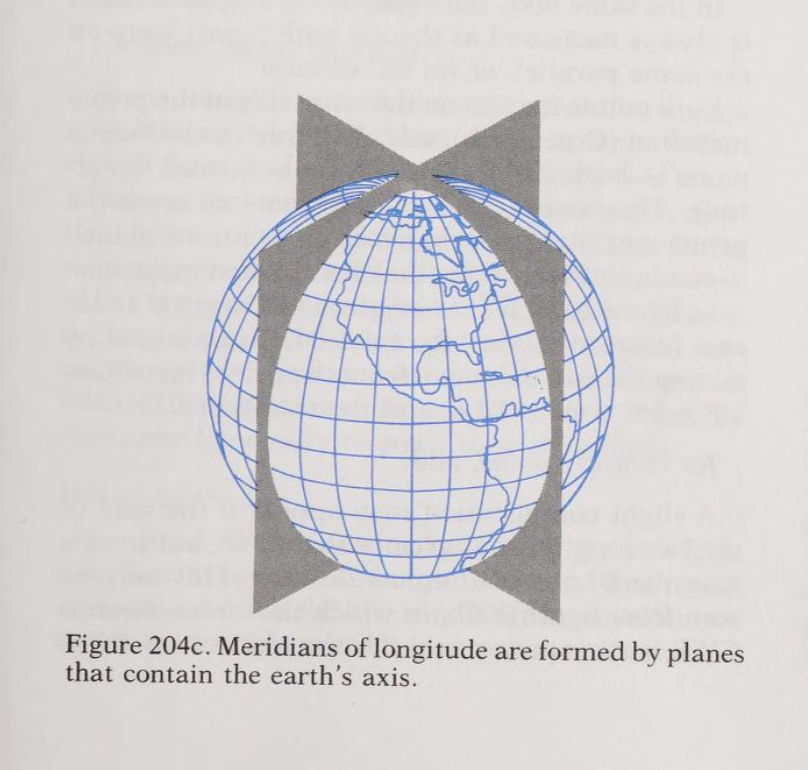
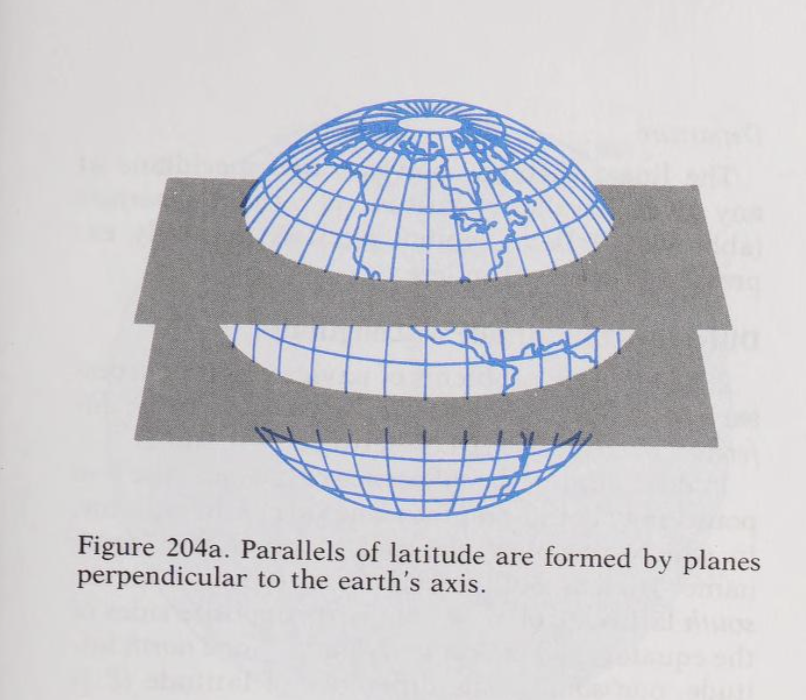
The X and Y axes meet at the grid’s origin, and all other locations on the grid are specified relative to that origin. This is an example of a Cartesian coordinate system, or a grid formed by juxtaposing two horizontal and vertical measurement scales.
If you plot longitudinal distances on a chart, you’ll get the gently sloping function shown in Figure 8. As latitude increases—or in other words, as you approach the poles—the distance of one degree of longitude (in nautical miles) decreases evenly:


You’ll most commonly encounter two kinds of coordinate systems when working with geospatial data: geographic coordinate systems and projected coordinate systems. They’re closely related, but distinguishing them is really important.
Geographic coordinate systems
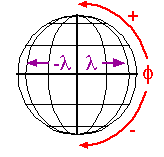
A geographic coordinate systems (GCS) defines positions on the surface of the earth. It uses concrete, measured values to define global parameters, in the literal sense of the word “global.” An example is WGS84. Its global parameters are defined as follows (and you can scroll through many more “useful constants” at this page, if you wish):
| Parameter notation value | Notation | Value |
|---|---|---|
| Semi-major Axis | \(a\) | \(6378137.0\ \text{meters}\) |
| Flattening factor of the Earth | \(1/f\) | \(298.257223563\) |
| Nominal Mean Angular Velocity of the Earth | \(\omega\) | \(7.292115 \times 10^{-11}\ \text{radians/second}\) |
| Geocentric gravitational constant (Mass of Earth’s atmosphere included) | \(GM\) | \(3.986004418 \times 10^{14}\ \text{meter}^3/\text{second}^2\) |
Do you need to know the difference between a semi-major and semi-minor axis? No. Will you ever need to compute the flattening factor of the Earth in this class? Unless you really want to, absolutely not.
The purpose of seeing these parameters is not for you to memorize them, but to acknowledge that they are derived from real measurements about the Earth, derived by a person or people, some of whom gathered those measurements by walking around its landscapes.
Projected coordinate systems
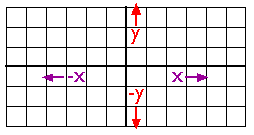
A projected coordinate system (PCS) defines how to display that lumpy, oblate, spheroid surface as a flat map. It uses abstract, mathematical formulas to effect cartographic transformations that show certain areas on the globe with less distortion, and other areas with more. An example PCS is Mercator. Its formula is:
\(T(ϕ, θ) = (θ, ln(|sec(ϕ) + tan(ϕ)|))\)
GCS vs. PCS
In short, you could think of a GCS as the data and a PCS as the algorithm. A GCS defines the globe, while a PCS defines how you flatten it. A GCS deals with the actual territory, while a PCS deals with the map (which is, quite famously, not the territory!).
When you are working with spatial data, you must select a PCS that is appropriate for your study area, because doing any kind of calculation on data that has only been projected in a GCS will result in large and unexpected errors.
However you conceptualize these two different systems for understanding and representing the Earth, the making of maps requires both a GCS and a PCS working harmoniously with one another.
The table below highlights their differences:
| It is… | It represents… | It uses… | Examples… |
|---|---|---|---|
| Geographic coordinate system | Globe (e.g., the territory) | Angular/degree units (e.g., 40° W) | WGS84, NAD27 |
| Projected coordinate system | Places (e.g., the map) | Flat/linear units (e.g., meters) | Mercator, Peters |
Q2
- What town does the Prime Meridian pass through?
- What’s one way you could distinguish lines of latitude and longitude?
- Which of the two types of coordinate systems make more sense for displaying spatial data on a flat map?
XY data in ArcGIS Pro
The rest of this lab deals with XY data. By “XY” data, I simply mean gridded data that has an “X” position and a “Y” position—in other words, points with a latitude and longitude.
To view XY or any other spatial data in ArcGIS Pro, you don’t need to use a PCS, but you must use a GCS. By default, a new ArcGIS Pro project will take on the coordinate system of the first data later you add, including a base map. Often this will be WGS 1984 Web Mercator.
When a geographic coordinate system is selected without a PCS, your map will be arbitrarily projected using the pseudo-plate carrée projection.
There are two places where you can learn information about your GCS and PCS:
- You can view project-wide information about GCS and PCS by
right-clickingthe “Map” layer in your Contents pane >Properties>Coordinate Systems. - You can view layer-specific information about GCS and PCS by
right-clickingan individual layer >Properties>Source> “Spatial reference.”
Loading tabular data as points
Under the Map tab in the banner, select Add Data > XY Point Data. This will open the XY Table to Point geoprocessing tool. (There are always multiple ways to do a thing in ArcGIS Pro; note that you could also access this tool by searching for it in the geoprocessing toolbox.)
In your tool, set the parameters to:
- Input Table = click the folder icon, navigate to where you saved
places.csv, and select that file - Output Feature Class = save the file as
pleiades_placesin your project geodatabase - X Field =
long, or whatever you named the longitude column - Y Field =
lat, or whatever you named the latitude column - Z Field = this can stay empty (it refers to height)
- Coordinate system = You should always check the metadata to see what the data’s source projection is. In our case, the right answer is in the Pleiades metadata, under the heading titled “Technical metadata.” Refer to that.
Click Run and you should see this:
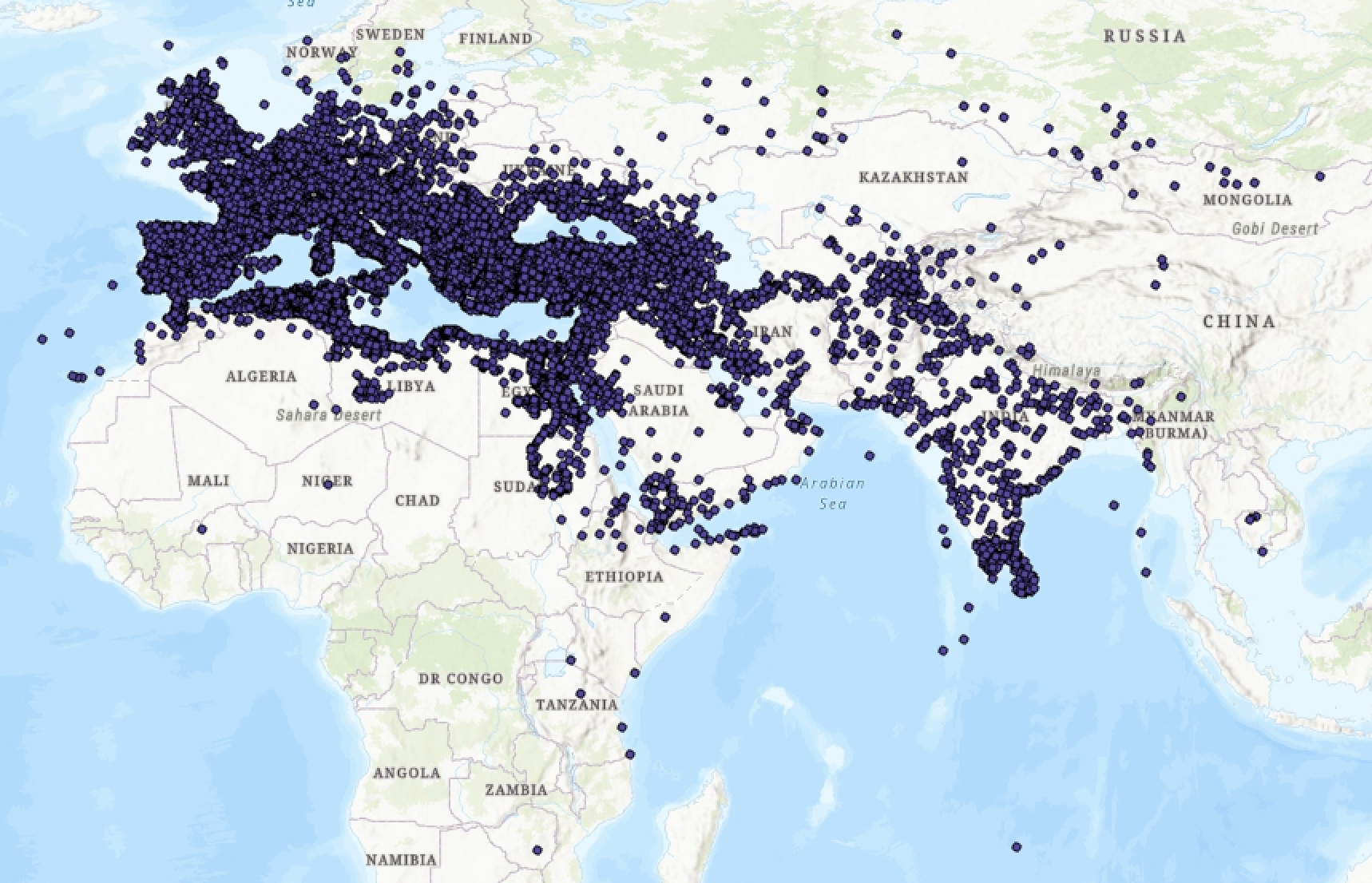
Nice! (It’s okay if you get a warning message, that’s normal for this dataset.)
Now we’ve got a full-fledged feature class containing over 40,000 points of ancient places, plotted from a csv. That said, it’s kind of difficult to make sense of all this…
Querying Pleiades
… so let’s see if we can break this data down and find any interesting patterns.
First, go ahead and open the attribute table. You can refer to the Pleiades metadata if you’re confused by any of the fields (although note that the field nammes won’t be exactly the same if you edited them before loading the data).
While the title field has the most obviously mappable information, the description or desc field has got lots of fascinating information:
- “A necropolis with inhumations dating to the fifth and fourth centuries B.C.” (Monte Tamburino necropolis,
OBJECTID: 4) - “A nuragic complex consisting of a ‘megaron-type’ temple and a giant’s grave.” (Sa Carcaredda,
OBJECTID: 248) - “A major settlement mound along the Orontes river in Syria with over 10,000 years of occupational history from the Pre-Pottery Neolithic to the Mamluk period.” (Tell Qarqur,
OBJECTID: 192)
What if we were able to search through the entire contents of this feature class for interesting words like “mound” or “grave” or “necropolis,” selecting only those features which include such terms?
Wait a minute: we can do that!
At the top of the attribute table, click the Select by Attributes button. It will open a little dialog box.
You can leave the Input Rows and Selection Type parameters as they are.
Click the
 button in the middle of the dialog and then set the parameters of your new clause like so…

description field contains the text “mound”
… and click
Apply. You should see a message pop up notifying you that “The input has a selection. Records to be processed: 168.”This message just means that if you were to run some other tool, the tool would only apply to selected records. Also, all your selected records appear on the map in a light blue color. Neat! Click
OK.At the bottom-left hand side of the attribute table, toggle the view from “all records” to “selected records.”
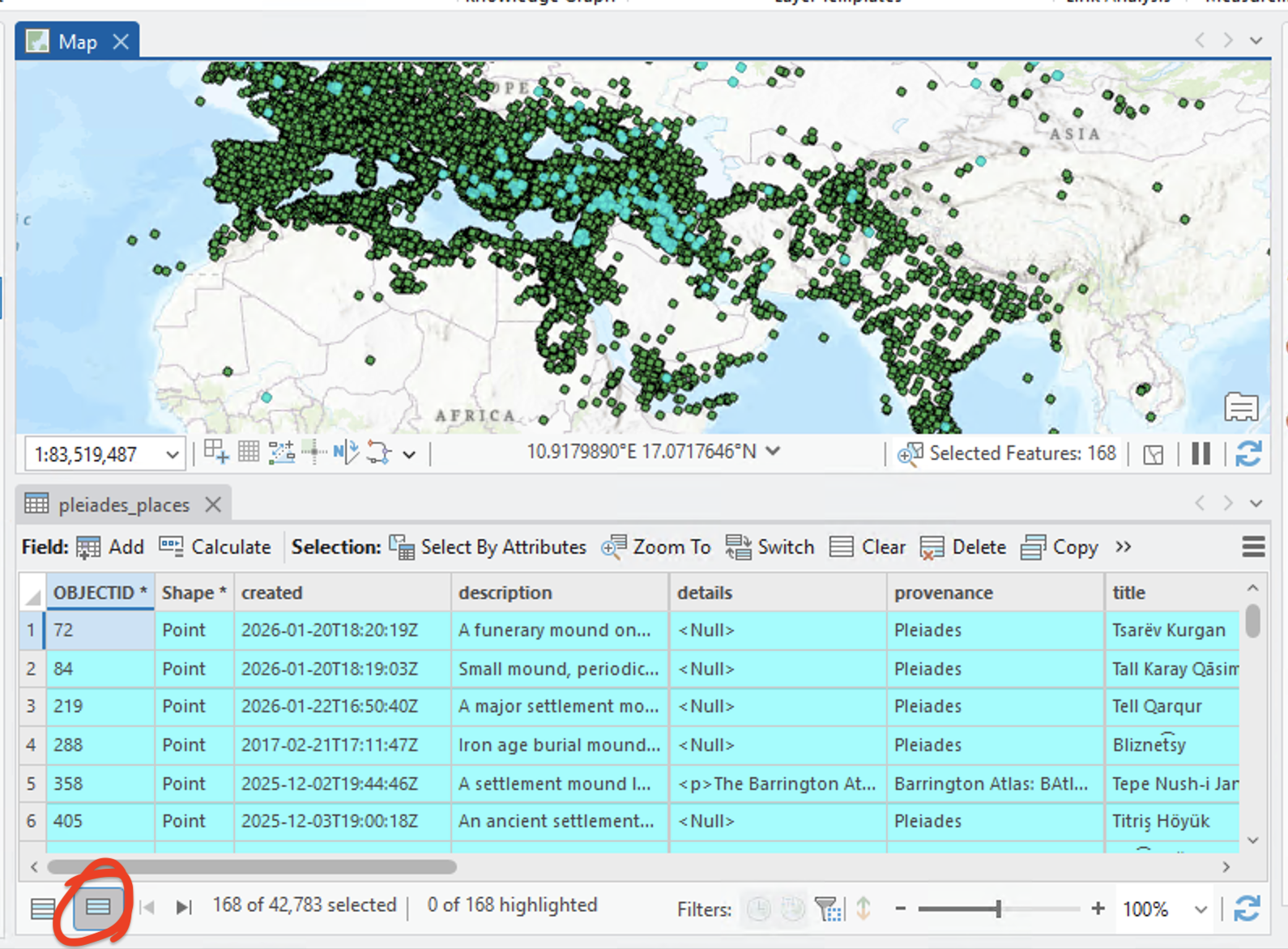
Now the attribute table should show you only those records you selected.
- Right-click on the
pleiades_placeslayer in your Contents pane and choose “Zoom to layer.” This is a really handy shortcut for snapping a data layer to full screen in your map view. Just eyeballing it, do you notice any patterns in how the blue points are distributed?
Build your own query
Test out a couple of other keywords in your query. Replace “mound” if you want. Once you’ve found a few that you like, combine them with the “Add Clause” button in the Select by Attributes interface. You should choose at least 3 queries in total. Be conscious of how you’re using boolean operators; for example, if you string together multiple queries using AND, you’ll likely end up with few or zero results.
While you’re at it, toggle the SQL button  on and off to see how your queries are actually being composed behind the scenes. (We looked at this in Lab 02 as well.)
Note that if your attribute table is set to only “Show Selected Records,” you won’t see the Select by Attributes tool.
Q3
Paste your full SQL query, as it appears in the dialog when you toggle the SQL button on. In no more than 2 sentences, consider why they are clustered the way they are.
Distortion
Now that you have a handle on what a GCS and PCS actually are, you can take the next step towards understanding how to use them. It all comes down to distortion: since the globe cannot be authentically represented as a flat surface, you must choose which parts of it to stretch and distort. A big decision! And with great power comes great responsibility. Time to learn about distortion.
Tissot circles
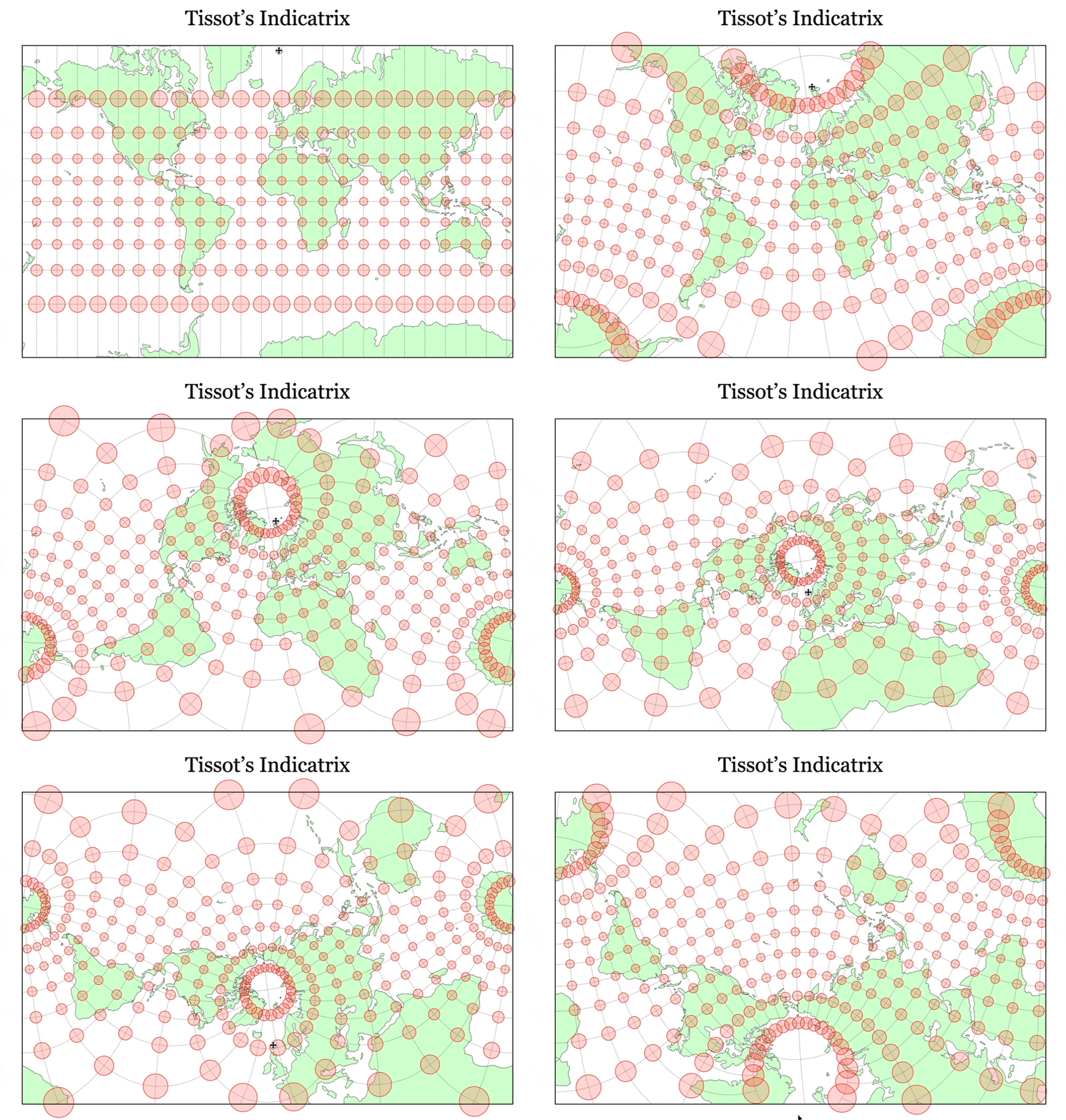
Tissot’s indicatrix is a grid of equidistantly placed and congruently sized lines and circles. Overlaying it on maps helps visualize local distortion of different projections, as the gif above of Jason Davies’ tool demonstrates.
Take a moment to open his tool and drag your cursor around in it.
There are four properties of cartographic distortion: area, distance, shape, and direction (or azimuth). Different projection types account for these distortions, always minimizing some at the expense of maximizing others. See below:
| Projection type | What it preserves | Example |
|---|---|---|
| Conformal | Shape | Mercator |
| Equal area | Area | Peters |
| Equidistant | Distance | Plate Carrée |
| Azimuthal | Direction | Stereographic |
| Compromise | Nothing! | Robinson |
Penn State has some excellent materials that do a great job of distinguishing between these different kinds of distortion, if you want to learn more.
Let’s load Tissot’s indicatrix into our project so we can ascertain how and where different projections distort maps.
- Download the
Tissot.zipdata by clicking this link - Move it into the
downloaded-datafolder in your directory - Load the data into your project
Right-clickon one of the layers—Points,Admin, orLatlong—and click “Zoom to Layer”
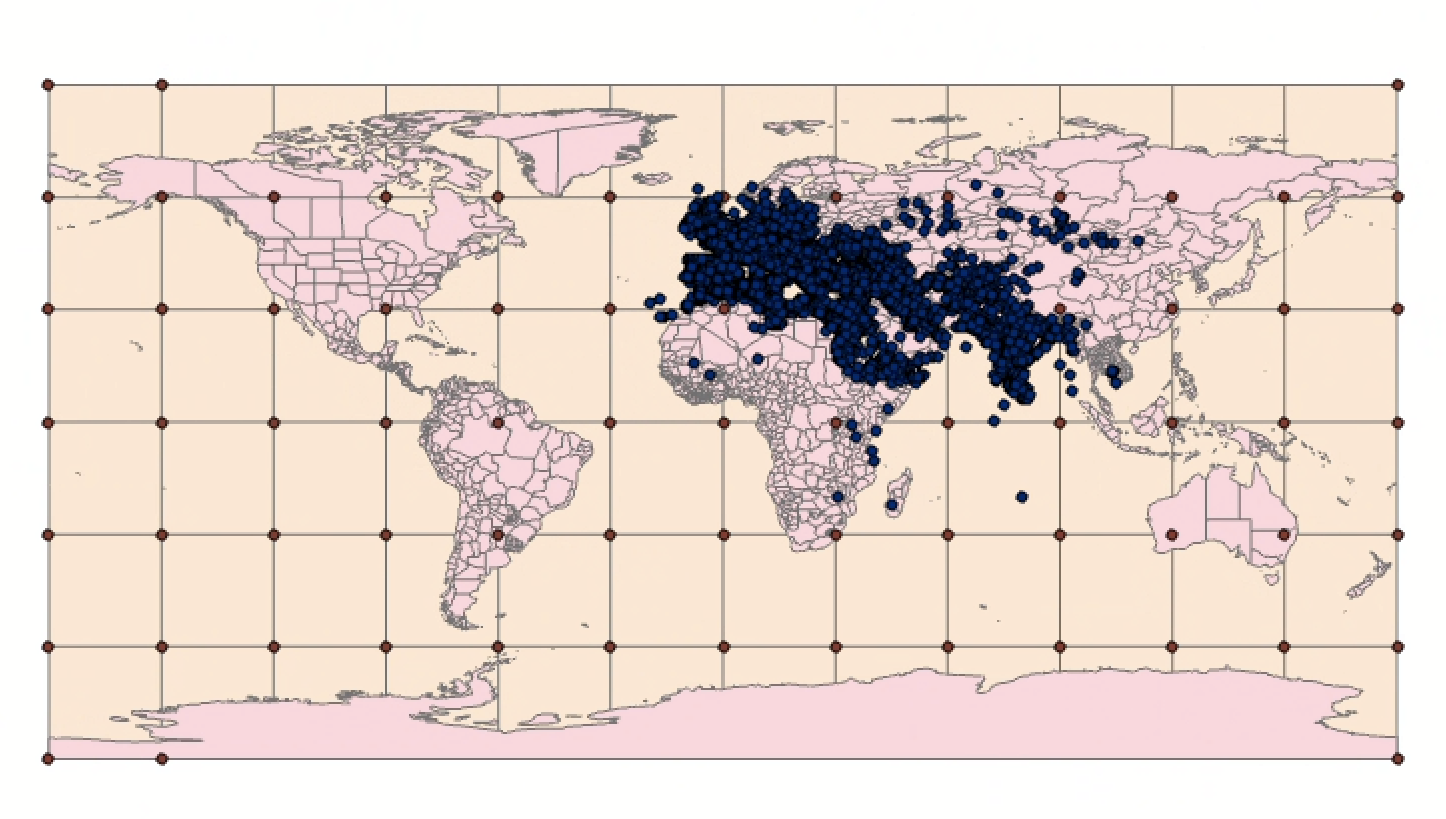
When you’re done you should see something like this (ensure that things are “stacked” appropriately in the Contents pane):
The buffer tool
The points and the grid that you loaded into your map don’t show us a fully-formed Tissot’s indicatrix—at least, not yet.
Some of the material in this section is adapted from Matthew Gimond’s ArcMap exercise about Tissot circles and selections and projections tutorial.
The Buffer tool is a classic tool in geographic information systems workflows. The tool creates buffer polygons to a specified distance around input features (either points, lines, or polygons).
Let’s create some buffers around those points and get a better visualization of how distortion is distributed throughout our map.
Click on the Map tab in the Ribbon
Click on the “Pairwise Buffer” tool from the “Tools” section, like below:
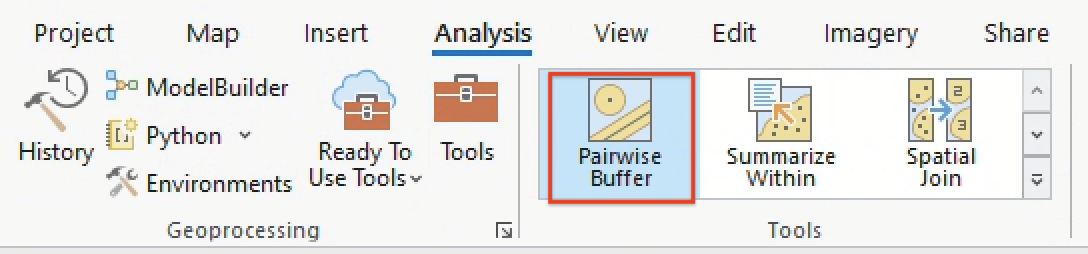
Figure 16: The “Pairwise Buffer” tool If you don’t see the tool, you can also open the Geoprocessing window by clicking the View tab in the Ribbon > “Geoprocessing”, or by simply searching “Pairwise Buffer” in the Command Search Bar. Again: there are always many ways to find a tool in ArcGIS Pro.
The “Pairwise Buffer” tool should open in the Geoprocessing pane on the right-hand of your interface (similar to the “XY” tool you ran earlier). Populate the parameters like so:
- Input Features = “Points”
- Output Feature Class = “geodesicBuffer600km”
- Distance = 600 kilometers (Linear unit)
- Method = “Geodesic”
- Dissolve type = “No dissolve”
- Maximum offset deviation = “0”
Buffer creation is sensitive to coordinate systems used. If you want to create a perfect circle that covers a relatively large region while avoiding distortions that can accompany some projected coordinate systems, it’s best to create a geodesic buffer output. A geodesic feature is one that is created on a sphere or ellipsoid (e.g., based on a GCS) and not on a plane (e.g., based on a PCS).
If you haven’t already, click “Run.” When the Pairwise Buffer finishes running, you should see something like this:
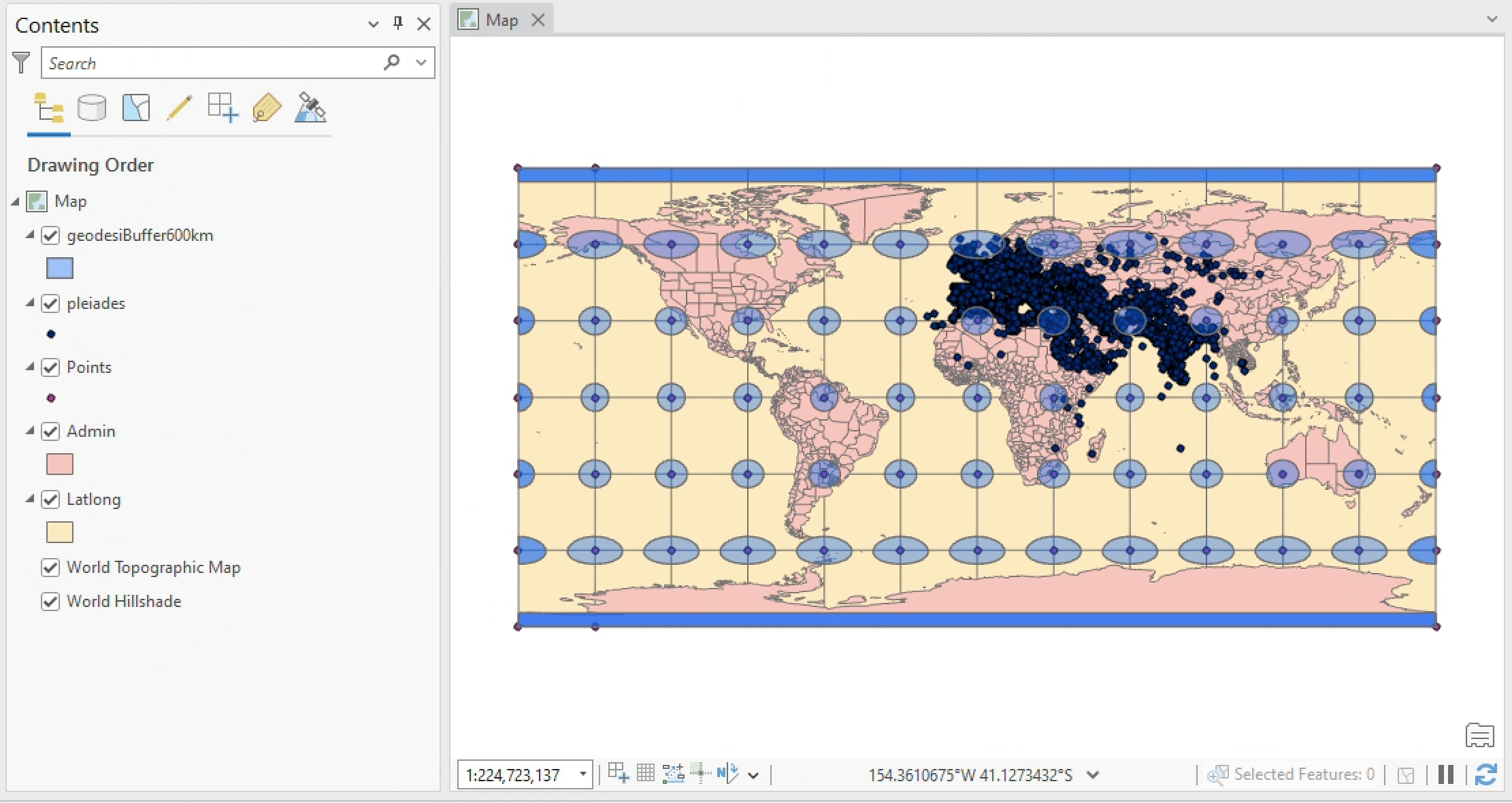
Figure 17: Tissot circles in ArcGIS Pro
It’s a bit weird that we used a standard 600 kilometer buffer for all points, but the circles towards the poles are squished. What’s happening here?
Understanding distortion
Think back to Figure 8, which showed us that as you approach the poles, the distance between degrees of longitude (Y-axis) will shrink. This function is on display in Figure 17. Basically, those “squished” buffers are still perfect circles—but their representation has been altered by the pseudo-plate carrée projection, which preserves distance, but not shape. The points are spaced evenly (no distance distortion!) but the shape has been really messed up (shape distortion!). Even though they look misshapen, their actual areas shouldn’t be disturbed. We can expect the circles to equal \(πr^2\), or:
\(3.14 x 600^2 = 1,130,973 km^2\).
Try using the “Measure Distance” tool (under “Map” > the “Inquiry” group), measure in geodesic kilometers the diameter of both a smaller circle and a wider oval. Then, try using the “Measure Features” tool (in the same place) to click on a circle and measure its area in geodesic kilometers.
Q4
- What’s the diameter of a smaller circle?
- What’s the diameter of a larger oval?
- What’s the total area, in square kilometers, of any circle?
Projections from Baghdad
Different projections also have implications for how how spatial data is measured, so in the following sections, we’ll see how spatial selection queries are affected by different kinds of distortion. We’ll build these selection queries using Baghdad as a central point.
This will just take a few clicks. Under the “Inquiry” group of the Ribbon, click the “Search” tool (binoculars). This will open ArcGIS Pro’s World Geocoding Service.
If you are not prompted to log into ArcGIS online, you’ll need to do so through a web browser (click “sign in” > use “urichmond” as the organization URL > then use your UR ID): https://www.arcgis.com/index.html
Type “Baghdad” into the search bar, select the first option, let the service run, and then save the output as a feature class:
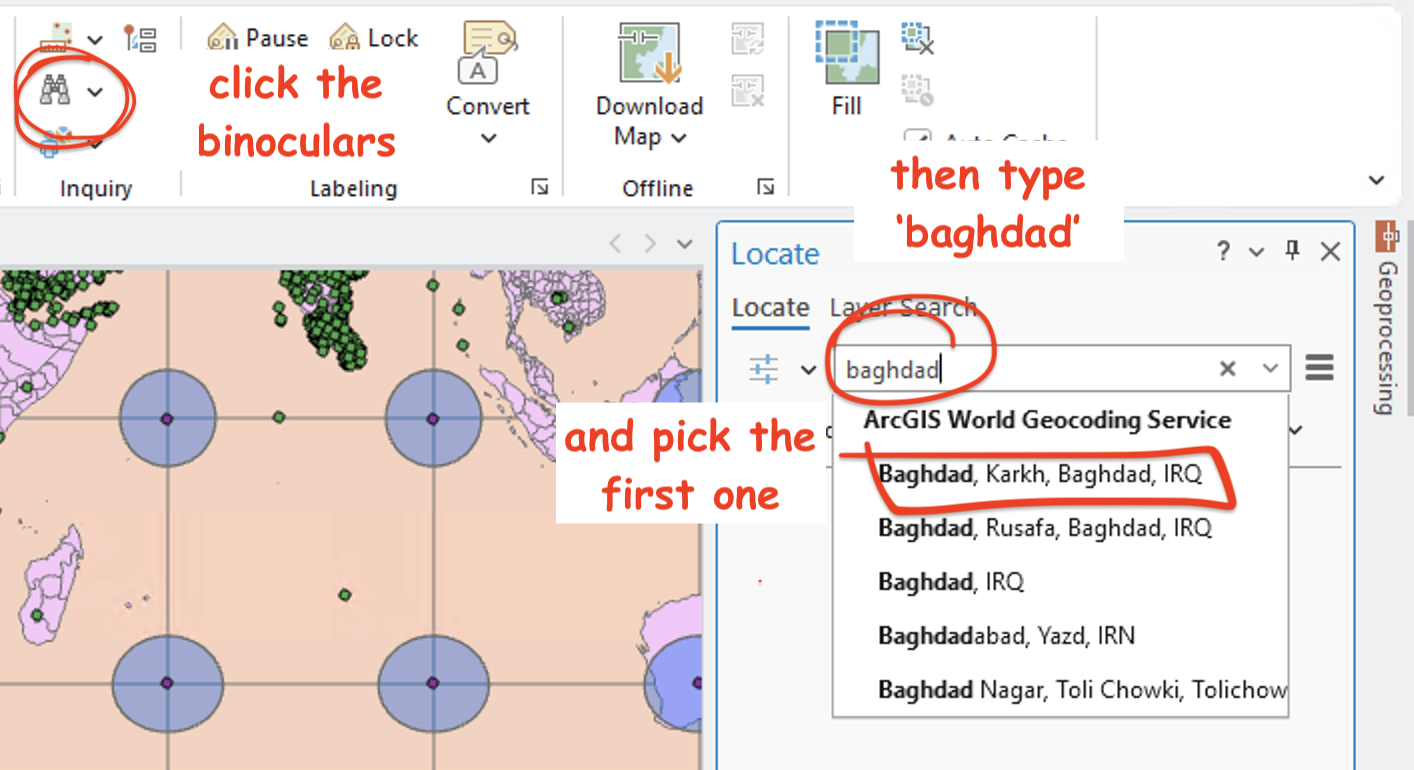
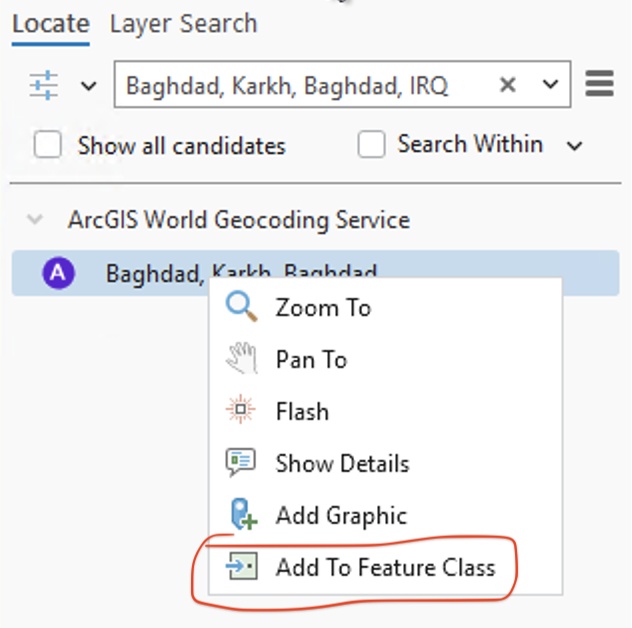
The feature class will end up in your project geodatabase. In my Contents pane, I renamed it “Baghdad” and gave it big red star icon so it was easier to see on the map.
You will need to click into the “Edit” tab of the Ribbon and click “Save” to avoid any feature class editing funny business!
Make some new maps
Let’s make three new Map views, apply different projections to each, and test how those projections distort spatial selection queries:
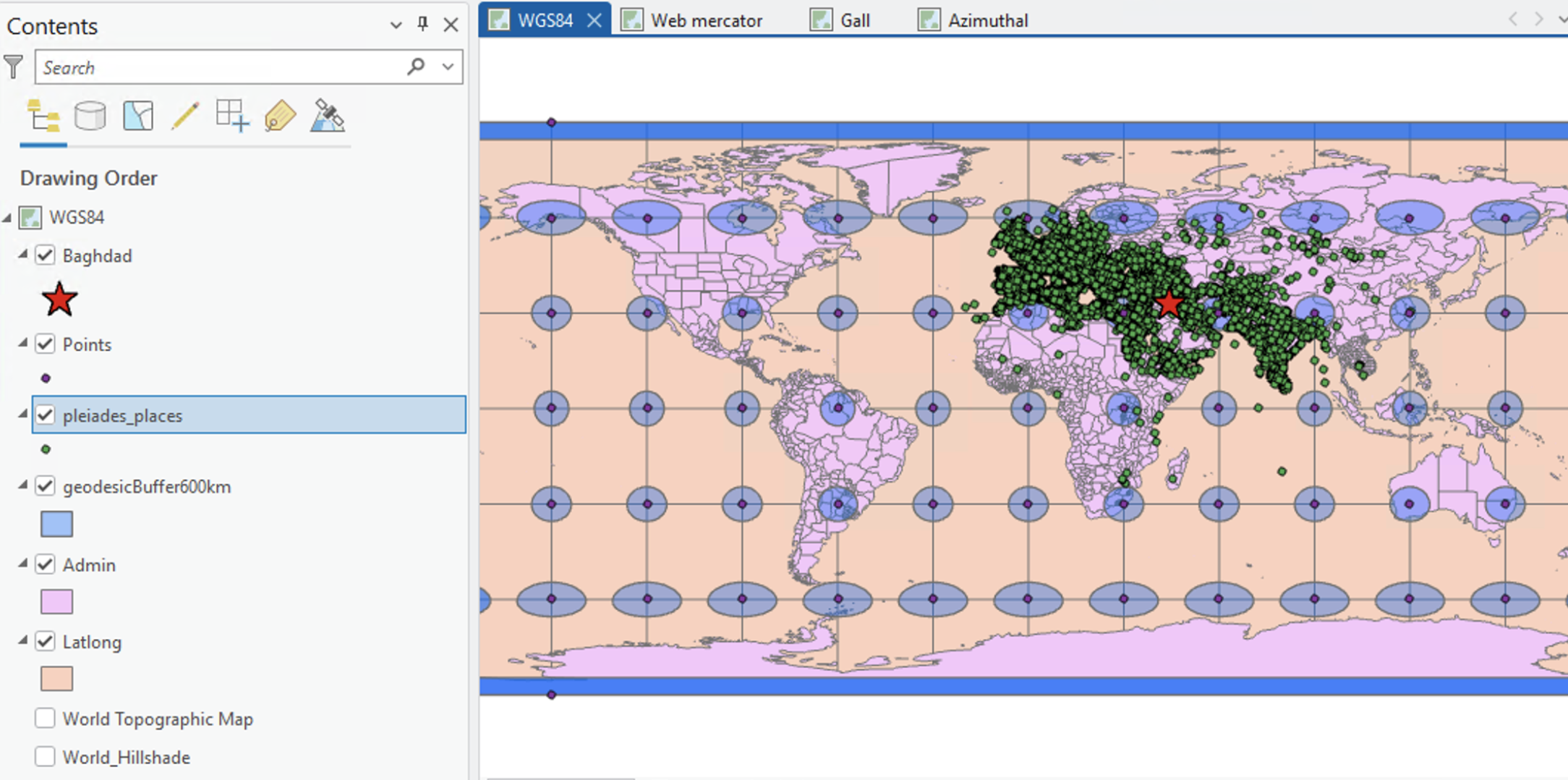
Open the catalog pane and rename your current map to “WGS84”
Then, right-click “Maps” and duplicate your “WGS84” map three times
Rename the first duplicated maps “Web mercator”; rename the second “Gall”; and rename the third “Azimuthal.” Then, open the maps, and you should see something like this:
- While we’re at it, let’s also make a new geodatabase for each of these maps, titled “mercator,” “gall,” and “azimuthal.” You can do this by going into the Catalog > right-click “Databases” > “New File Geodatabase” > name it and save it! These new geodatabases will hold some reprojected data in the next section.
Reprojecting data in Web Mercator
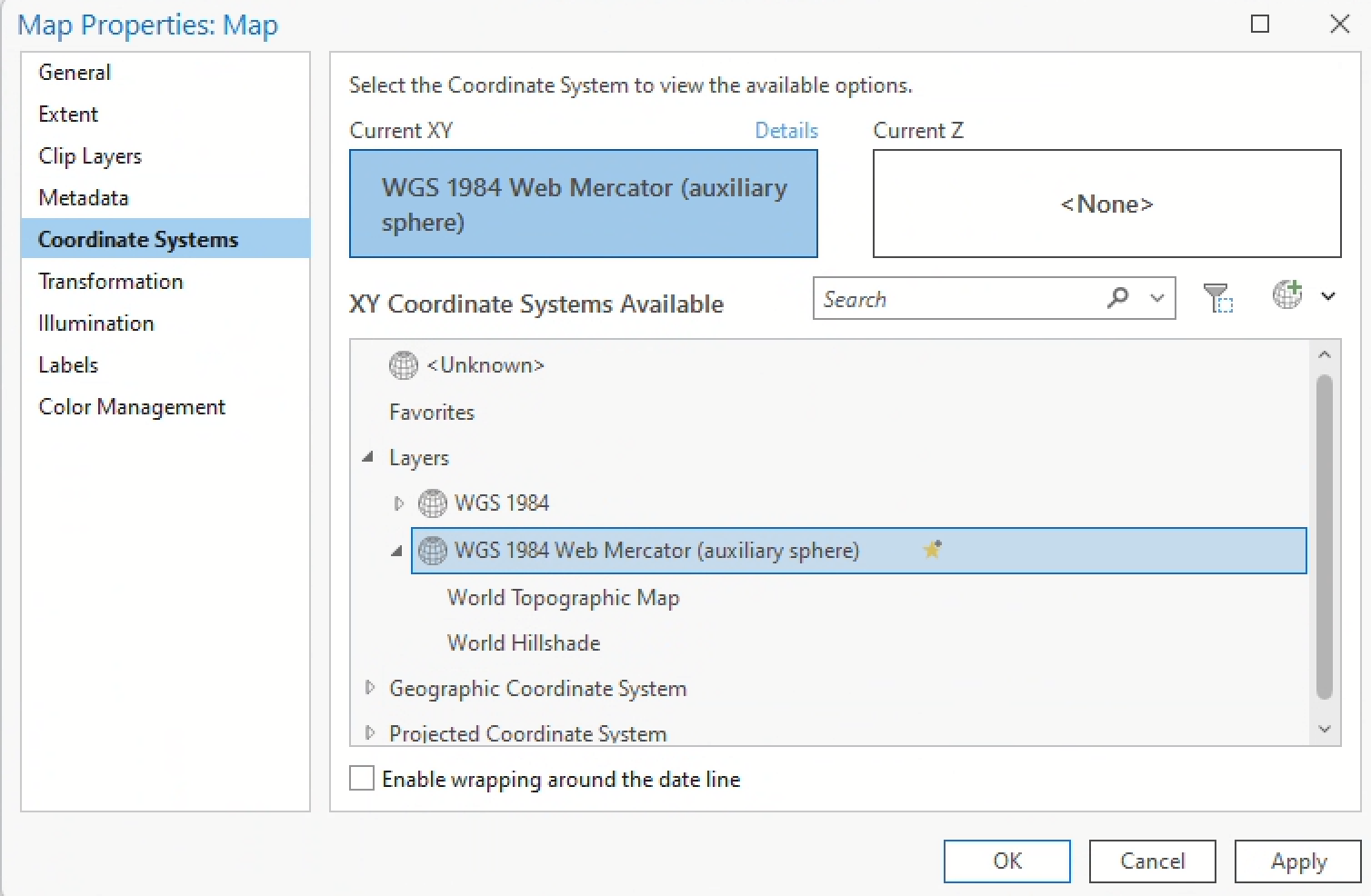
Open your map called “Web mercator.” In the Contents pane, right-click “Map” > “Properties.” Click “Coordinate Systems,” select “Web Mercator,” and click “OK”:
Now, all of the data layers in your map will project “on the fly” in Web Mercator, no matter how their underlying spatial data is projected:
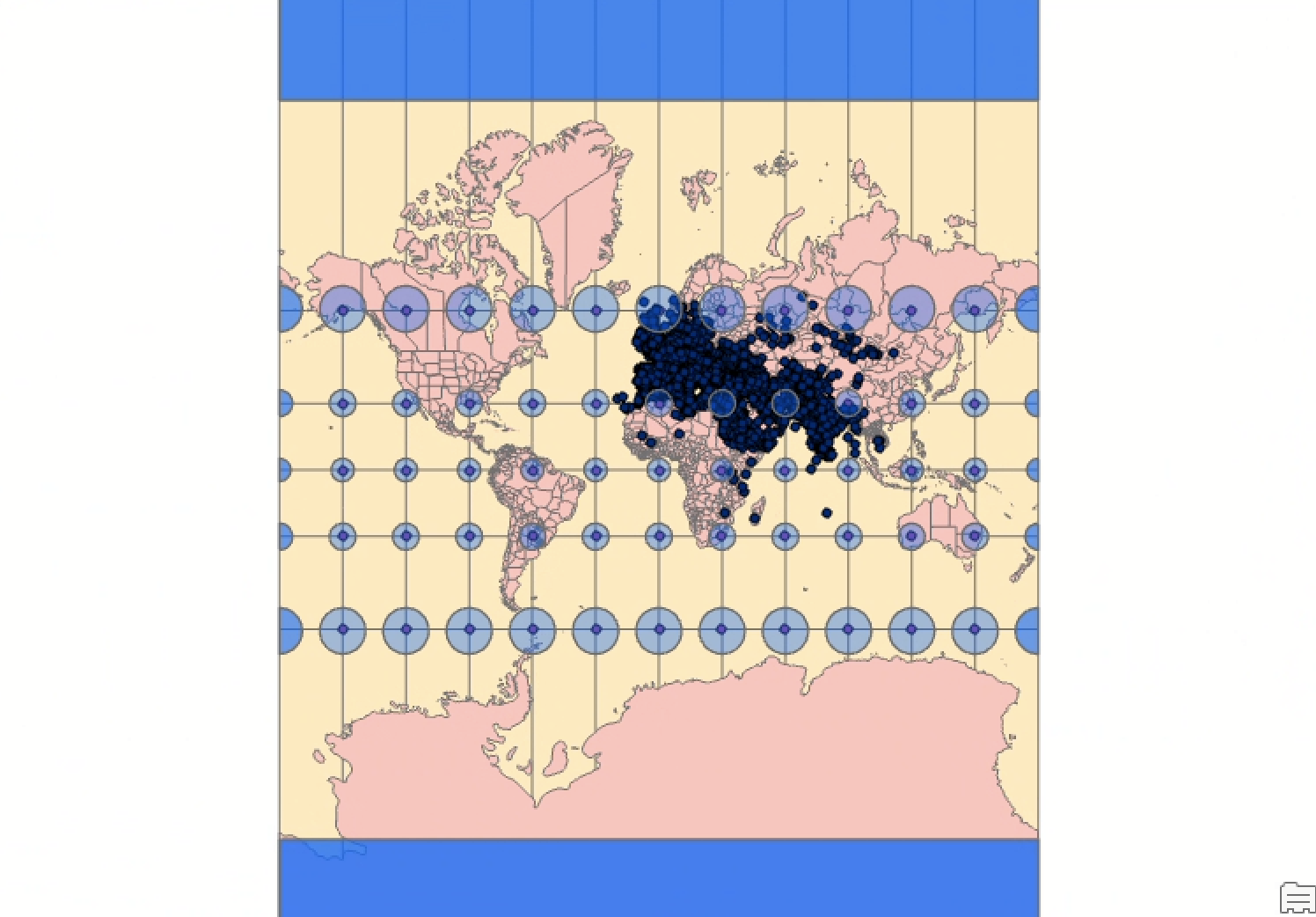
Web Mercator is a conformal projection. That means it preserves shape, but significantly distorts area. As a result, our Tissot circles all stay circular, but some are much bigger looking than others (hence the Mercator projection’s famous inflation of Greenland to appear as large as Africa).
Right now, all of our underlying data is… well, it’s not really projected at all! Everything is in WGS 84, which is a geographic coordinate system (GCS). But any time you are working with spatial data and you need to measure things, do math, or compute stuff geographically, you must reproject data into an appropriate projected coordinate system (PCS). Otherwise you’ll get big errors.
So, let’s reproject this data:
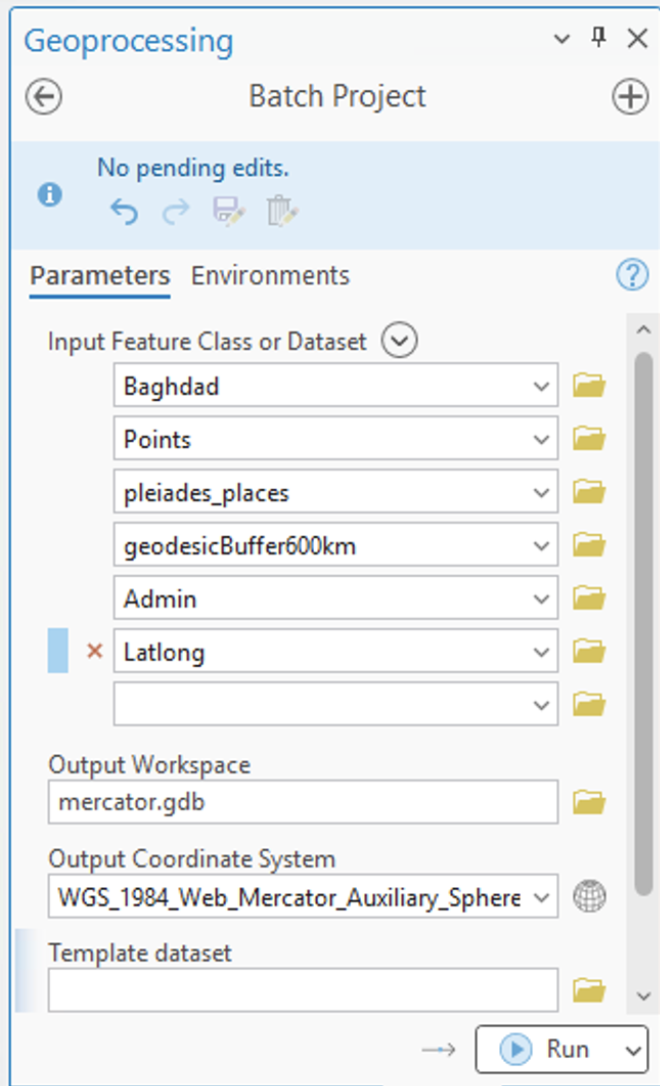
- First, search for “batch project” in the Command Search Bar and open it. The Batch Project tool makes it easy to export multiple data layers to a new projection in a single go
- The settings should resemble:
- Input feature classes = all of your active layers!
- Output workspace =
mercator.gdb - Output coordinate system = you should be able to select
Current map [Web mercator], and if you don’t see that, select it by clicking the globe - Click “Run”
After the tool runs:
- Select all the layers in your Contents pane > right-click > “Group” (this will help you keep things organized)
- Then, from the Catalog, select all the feature classes inside of
mercator.gdband add them to the map
You should see something like this:
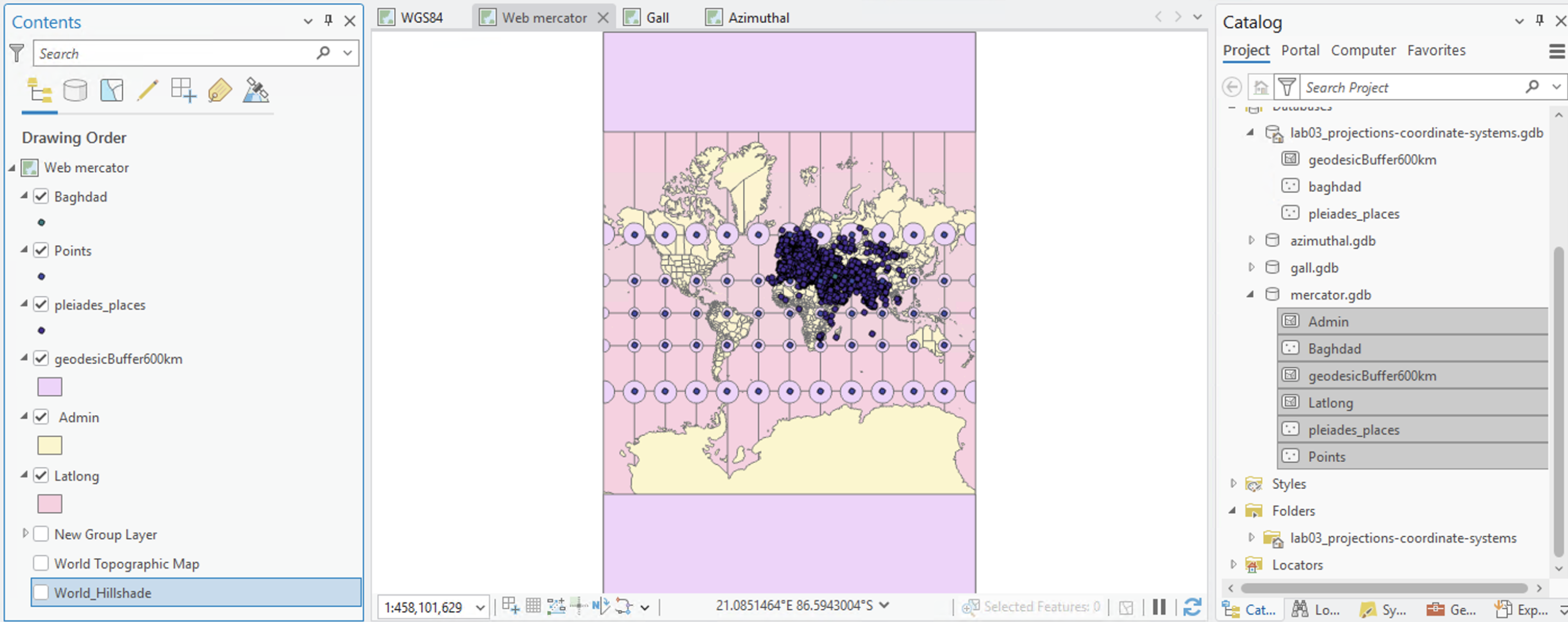
Double-click one of the newly projected layers to open its layer properties, click “Source,” and examine the spatial reference. It should say “Mercator Auxiliary Sphere.” Compare this to the corresponding input layer that you used, which should say “WGS 84.”
Q5
In 1 sentence, what is the main difference between units of measurement in WGS 84 versus Mercator?
Repeat for Gall and Azimuthal
Now, repeat each of those steps from reprojecting data in Web Mercator, but for Gall and Azimuthal. It should include:
- Setting the Map’s projection to
Gall Stereographic (world)andAzimuthal Equidistant (world), respectively - Batch reprojecting each layer to its respective geodatabase
- For data management purposes, grouping the old layers together before adding the reprojected ones to the map
- Checking a new reprojected layer’s spatial reference properties to confirm that it has the expected projection
Reprojections and new selections
Finally, let’s execute a few spatial selection queries to get a sense for how much distortion these projections create:
- Starting in your WGS84 map, open the “Select by Location” tool
- Build a query like so:
- Input features =
pleiades_places - Relationship = “Within a distance”
- Selecting features =
Baghdad - Search distance = 2000 Kilometers
- Selection type = New selection
- Input features =
Click “Run” and check the output in your attribute table for pleiades_places. You should have 9,613 features.
Now, re-run this query for each of the other 3 maps. I recommend closing the pleiades_places tab each time because you’ll need to re-open the attribute table for each new map!
Q6
How many Pleiades places are within 2,000 kilometers of Baghdad in the…
- Mercator-projected map?
- Gall-projected map?
- Azimuthal-projected map?
To conclude, run those three selection queries back again, but this time, use the relationship “within a distance geodesic.”
Q7
By comparison, how many Pleiades places are within 2,000 geodesic kilometers of Baghdad in the…
- Mercator-projected map?
- Gall-projected map?
- Azimuthal-projected map?
The key takeaway is this: projections matter. Using different projections can vastly impact distance and area calculations within a GIS environment. Take care to use the correct projections, and when possible, use the “geodesic” option, which minimizes the planar distortion that projected coordinate systems introduce to maps.
Submission details
| Assigned | Due | Submit |
|---|---|---|
9/7/26 |
9/14/26 |
Section 1, Section 2 |
Submit your work to Canvas as a .doc or .pdf file. No map due this week! Just answers to the questions.
| Question | Point Value |
|---|---|
| Question 1 | 1 |
| Question 2 | 1.5 |
| Question 3 | 1 |
| Question 4 | 1.5 |
| Question 5 | 1 |
| Question 6 | 3 |
| Question 7 | 1 |