Lab 04
Counting people
| Assigned | Due | Submit |
|---|---|---|
9/21/26 |
9/28/26 |
Section 1, Section 2 |
This lab walks you through downloading, joining, and mapping data from the US Census.
According to the 14th Amendment to the Constitution, we have a duty to count “the whole number of persons in each State.” Doing so is a massive undertaking, coordinated by tens of thousands of people within and beyond the government. The data that comes out of the census shapes the backbone of liberal democracy in the United States, quite literally, through the apportionment of political representation. This means the census is an expression of power: calculated power, calculating power, and more. This power makes our democracies but it can be turned around to deform and deny people’s political rights, too, as in the Chinese Exclusion Act of 1882 (and follow-up Immigration Act of 1924).
Today, the census remains a public good, albeit a contested one, and GIS methods provide some of the most efficient ways of engaging with census data. Let’s begin.
Before you get started, don’t forget to create a workspace. I won’t type out the instructions this time, but by now, you know the drill!
Understanding Census data
Data formats
The Census distributes its files in a variety of formats that can be divided into two types: spatial data files and data tables.
The spatial data files are available as TIGER/Line files in shapefile format. “TIGER” is short for “Topologically Integrated Geographic Encoding and Referencing,” which emerged out of a collaboration between the US Census Bureau and the US Geological Survey in the 1980s and yielded—in addition to spatial data files for mapping Census information—this really sick tiger logo:

The data tables are available as Excel spreadsheets and in simple .csv format from https://data.census.gov. It’s important to remember that the “mapping files” published by the Census do not, by default, contain any demographic attributes. Because there is just so much Census data out there, you need to download the tables yourself and table join the data on your own.
In many cases, you’ll be able to find Census data that has already been joined to the geographical units you are interested in. However, for any long-term project or a project that is focused on specific research questions, you’ll ultimately need to download your own data.
Decennial vs. ACS
For most of the United States’ history, Census data was only made available every ten years through the decennial Census. Beginning in 2000, however, the Census Bureau started conducting an annual survey called the American Community Survey (ACS). This makes Census data available with far greater frequency, but it cannot be compared to decennial Census data and it is generally subject to higher margins of error.
Universes
When you work with any Census dataset, you are also working with a particular universe of data. “Universe” is the Census’ term for the total group of units being measured. Sometimes the units are people, as when you are measuring something like race, gender, or ethnicity; sometimes the units are households, as when you are measuring median home price or housing tenure.
Pew Research, one of the most recognizable public polling and opinion organizations in the United States, deals with this problem in all of their surveying. Consider this conundrum, as recounted by Pew Research Associate Director John Gramlich:
In many cases, the universe of survey respondents we’re talking about is relatively straightforward. If we say that nearly two-thirds of U.S. adults think the national economic situation is good, we’re referring to the views of Americans ages 18 and older. But in other cases, additional clarification and context may be needed, particularly for readers who aren’t schooled in the art of interpreting poll results.
Consider one of our recent survey findings about Facebook users. The survey found that 74% of adult Facebook users in the U.S. have taken at least one of the following three steps in the past 12 months: adjusted their privacy settings, taken a break from checking the platform for several weeks or more, or deleted the app from their phone. The survey drew a lot of attention because it suggested – correctly – that adult Facebook users in the U.S. have a complex relationship with one of the major social platforms in their lives.
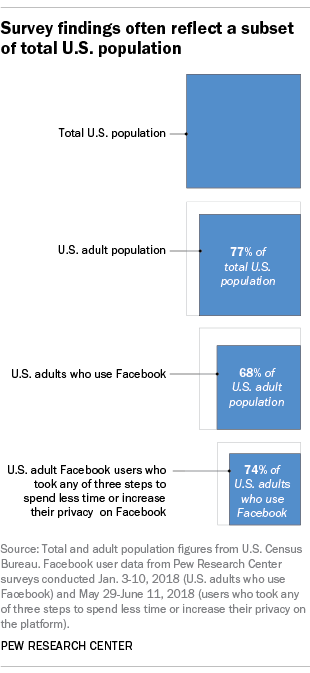
Understanding the universe of a given Census dataset should be among the first steps when you are working with Census data. This is especially pronounced within ACS data, which is designed as a survey and not a comprehensive census; for example, a comparison of ACS gross rent data with decennial Census gross rent data:
Data on gross rent in the ACS should not be compared with 2000 Census gross rent data. For the 2000 Census, tables were not released for total renteroccupied units. The universe in the 2000 Census was “specified renter-occupied housing units,” which excluded one-family houses on 10 acres or more, whereas the universe in the ACS is “renter-occupied housing units,” thus, comparisons cannot be made between these two data sets.
Chapter 9, Differences Between the ACS and the Decennial Census
Downloading Census data
To get started downloading Census data, first go to https://www.census.gov/geographies/mapping-files.html. This is the home base for Census data boundary files. There are many options to download stuff. Click the link to “TIGER Data Products Guide,” which provides useful info on which product you should use. Skim through the different products to get a sense of what’s availables.
Q1
What’s the oldest “vintage” available, and for what data product?
In this lab, we’ll be using the standard TIGER/Line shapefiles. Click that link, select the 2024 data, and click the “Web Interface” link:
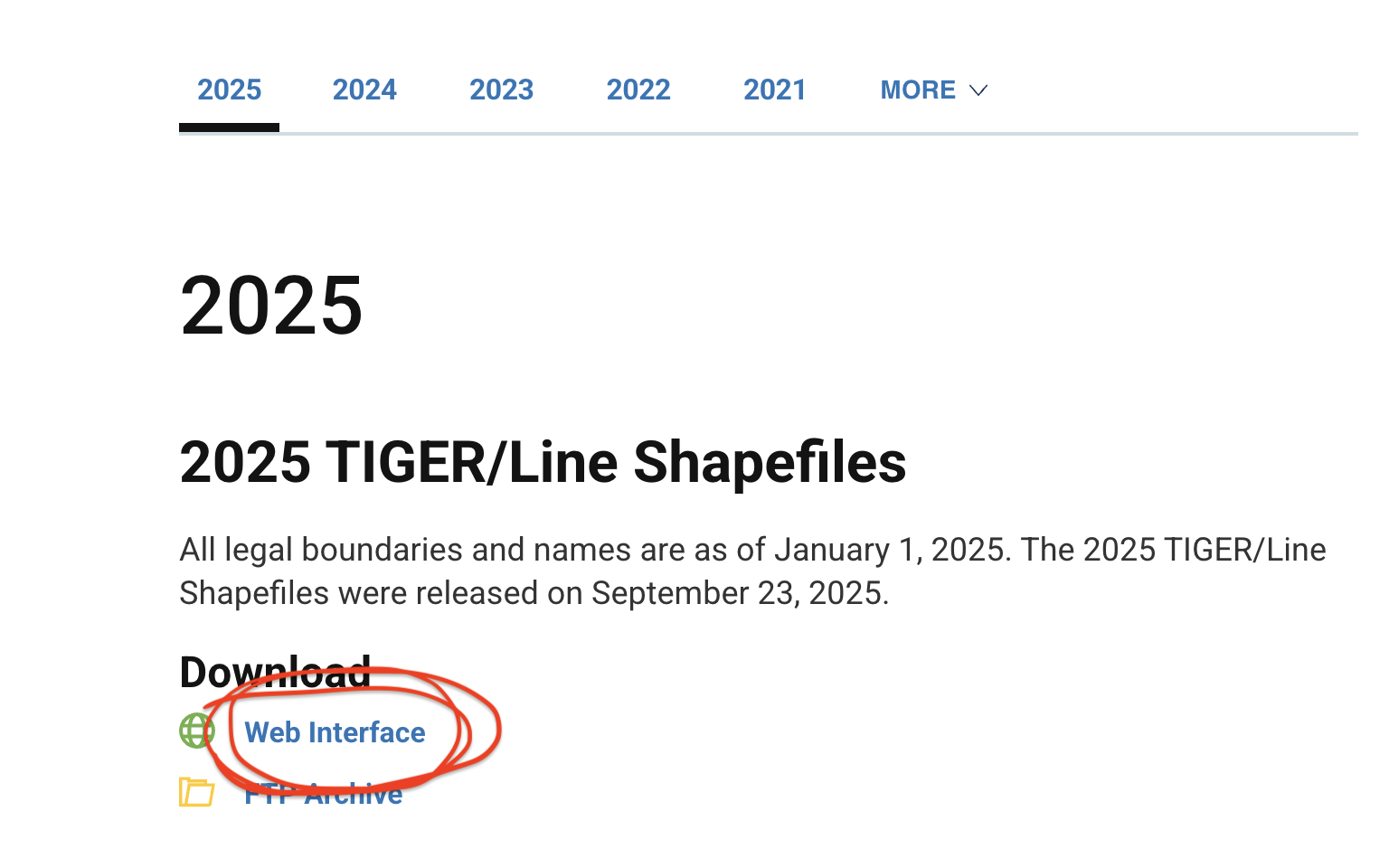
Set the year to “2024,” set the layer type to “Census tracts,” and click “Submit.” Then, select “Virginia” from the state drop-down bar, and click “Download.”
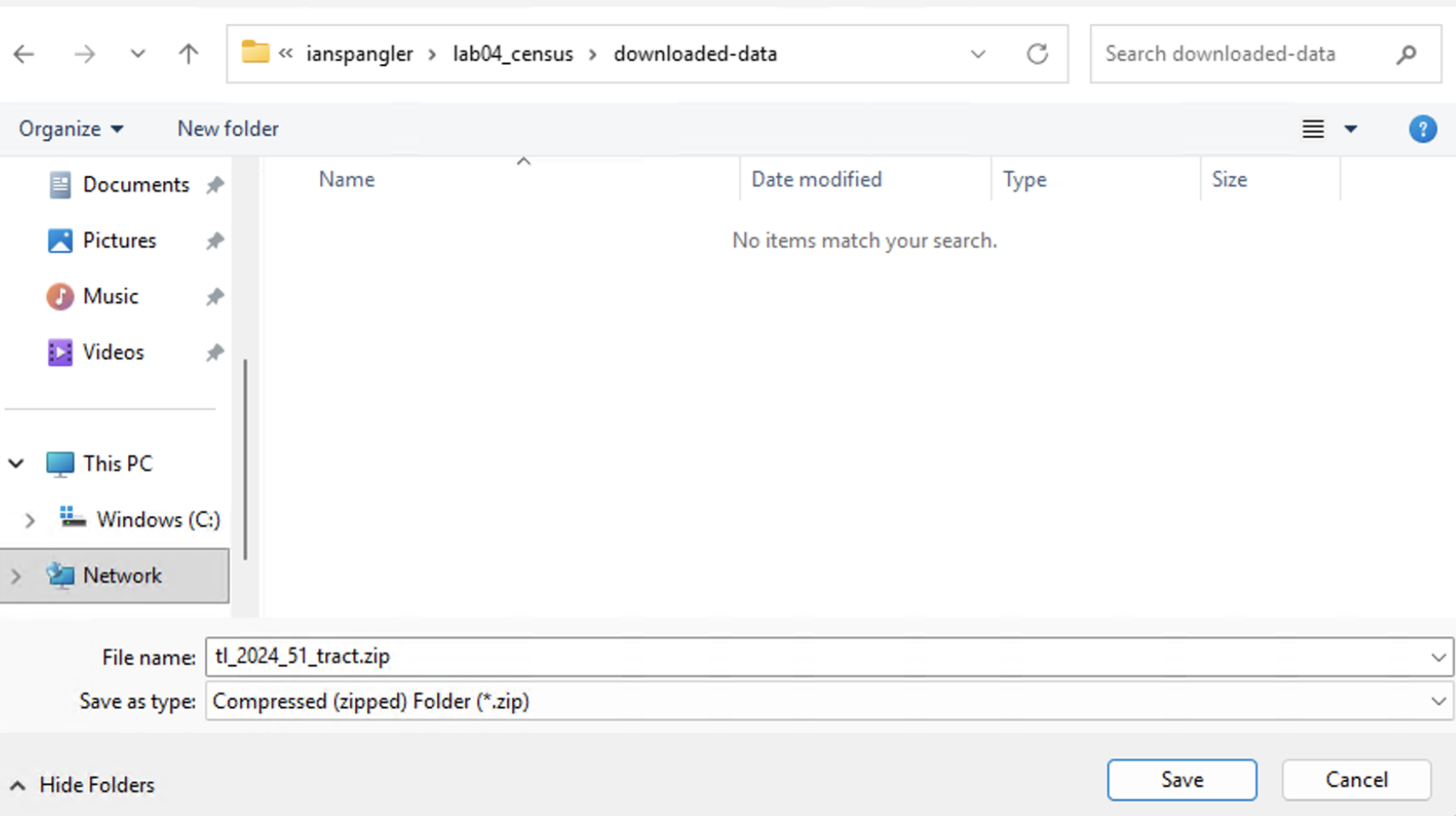
Save the data somewhere that makes sense to you, e.g., your project workspace. If you haven’t already created a folder for downloaded-data, I recommend doing so now:
Setting up the map
- Unzip and add the Census tracts that you just downloaded to ArcGIS Pro
- Uncheck or remove the standard basemap layers
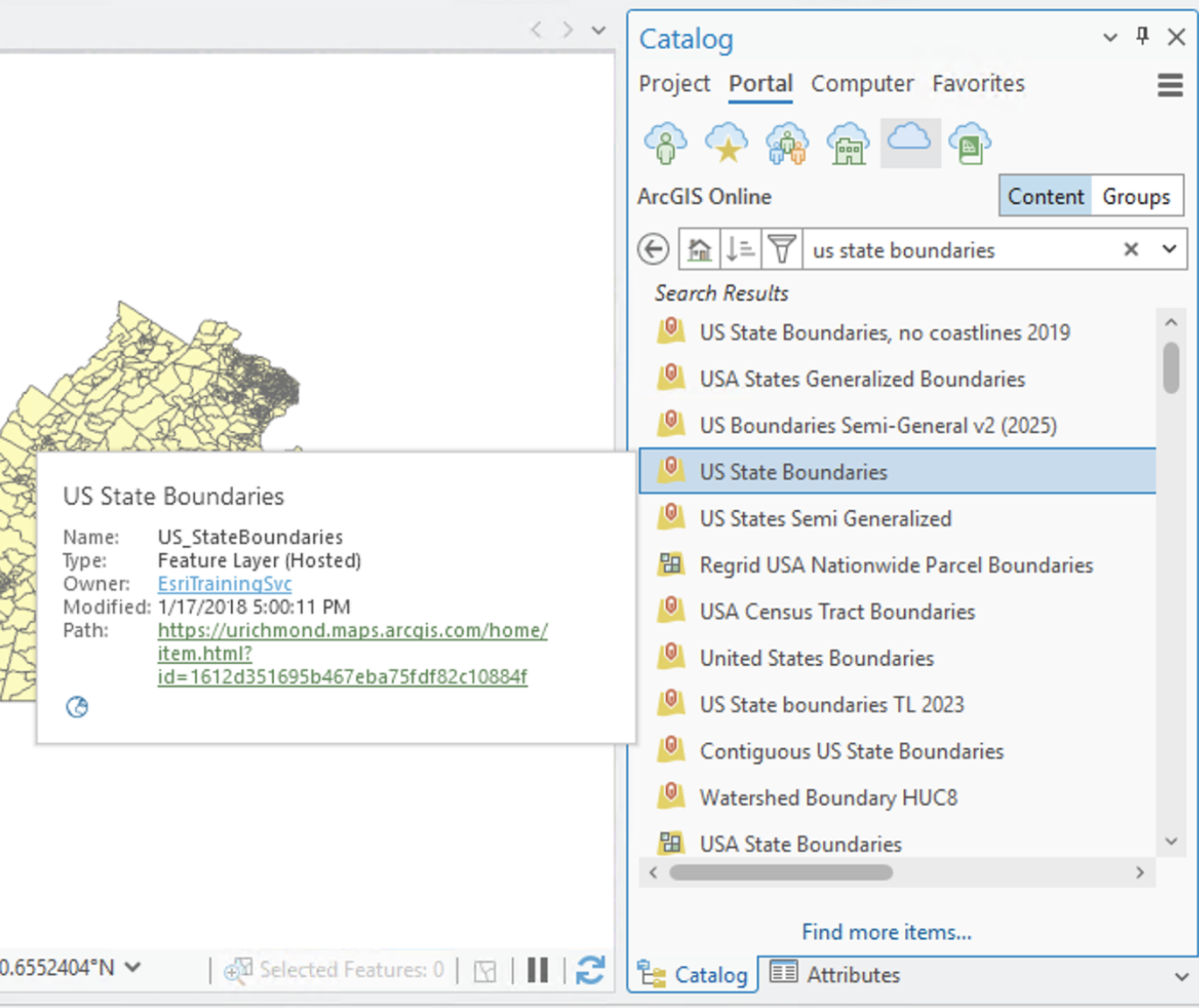
- Open the Catalog > click “Portal” > select “ArcGIS Online” > search “us state boundaries” > select the one that resembles this screenshot and add it to your map (if you hover your cursor over the layer, it should be “owned” by EsriTrainingSvc):
- Update your map’s projection to “NAD 1983 StatePlane Virginia North FIPS 4501 (US Feet)”
- Update your map’s background color to a dark gray
- Update your state boundaries to a much lighter gray fill and a slightly lighter gray line
The result should look something like this:
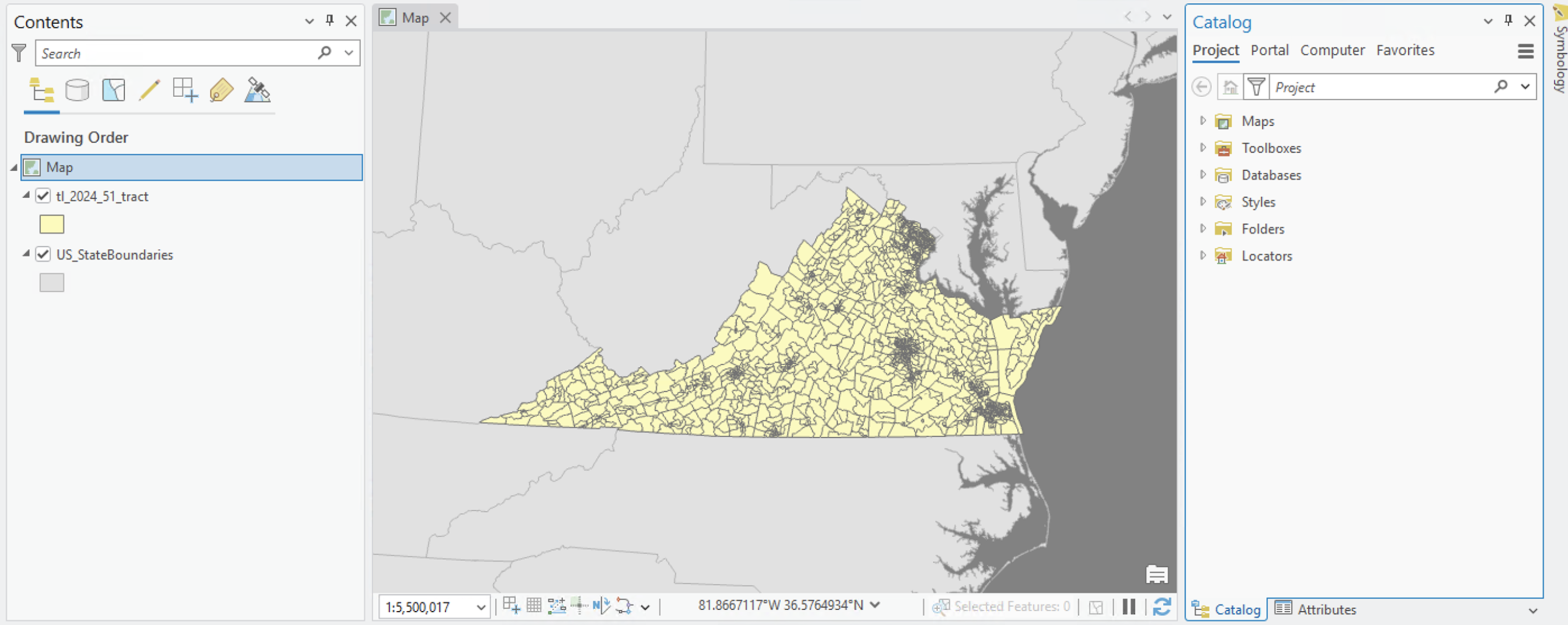
On average, 4,000 people live inside each of these Census tracts.
Explore the data
Open the attribute table of the layer tl_2024_51_tract. Take a moment to inspect it.
Q2
- What is the data type of the
GEOIDfield? - Using your own reasoning and knowledge from prior lectures/labs, explain in 1-2 sentences what the
GEOIDfield is and how you think each record’s number was derived.
Downloading tabular data
Right now, this data is essentially geometric: it only contains shapes, and a minimal attribute table. To make it into anything meaningful, we need to download tabular Census data. For this lab, we’ll just download a single dataset on income:
- Go to from https://data.census.gov
- Search “income” and select “Income (Households, Families, Individuals)”
- Click “S1901” > “View all 29 products” > “2024 ACS 5-Year Estimates Subject Tables”
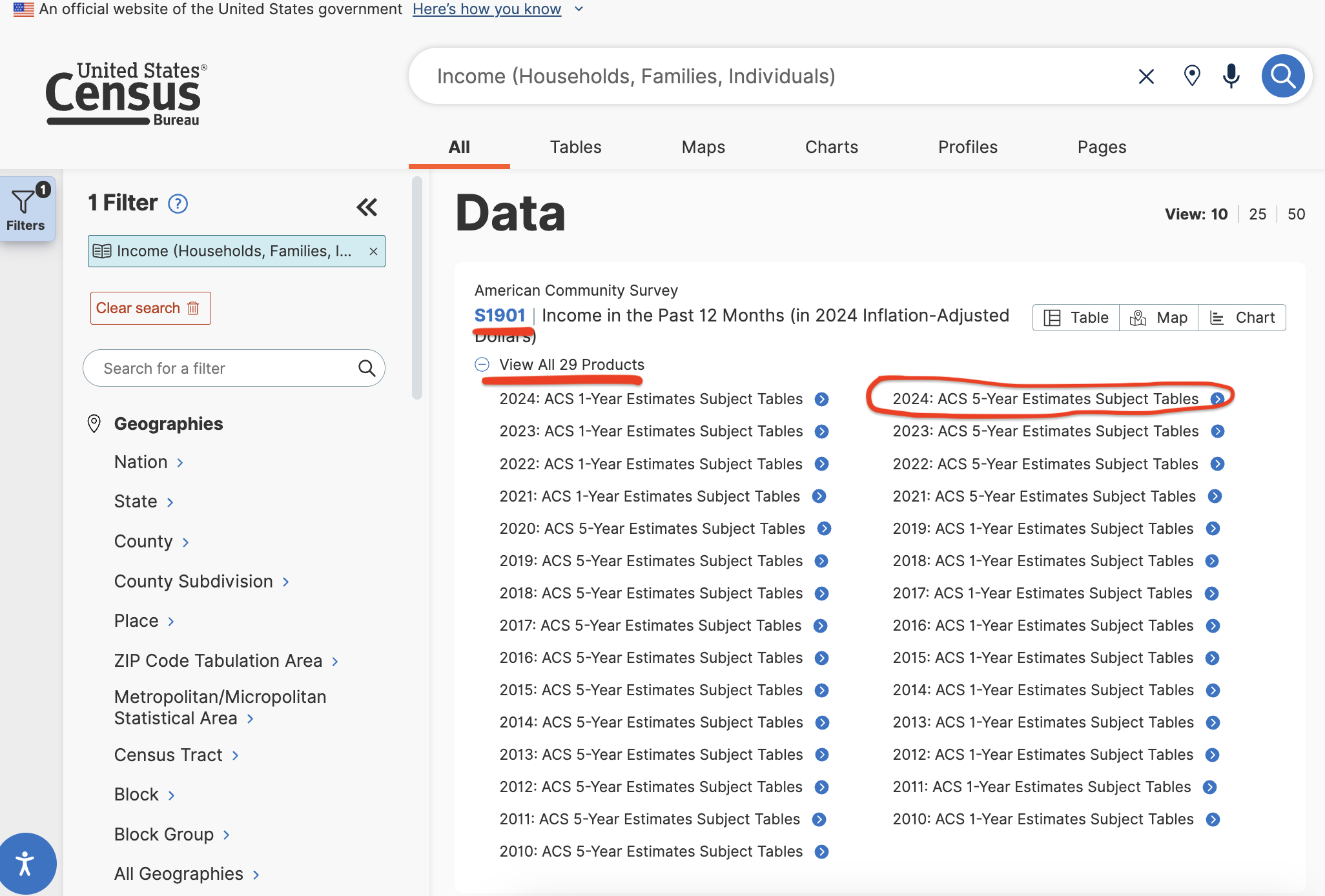
- You should now see a kind of complicated looking window with lots of buttons and links and data tables:
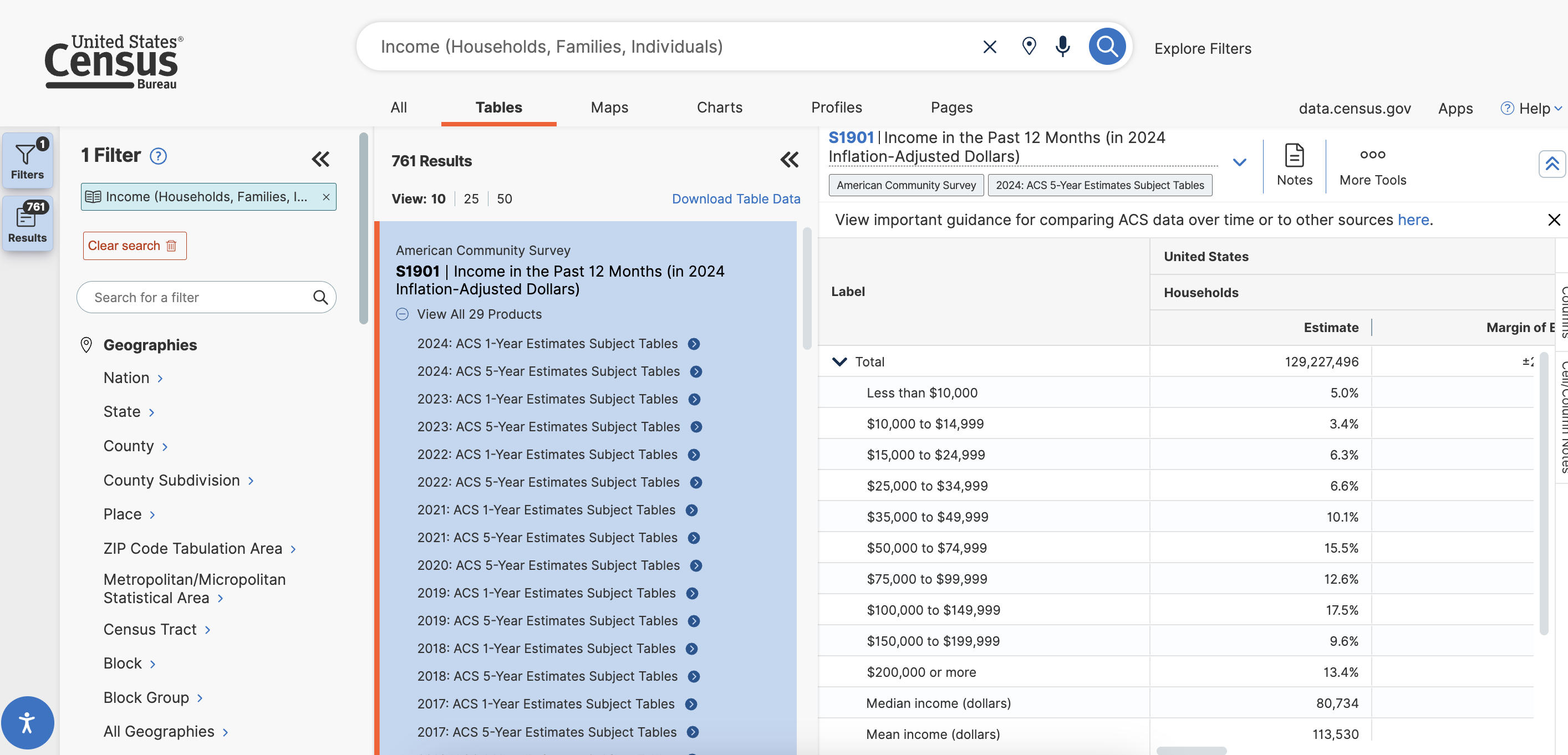
Basically, the left side shows your geographic filter; the middle column shows your data selection; and the right side shows a data preview. We want to download a data table that only includes Census tracts within Virginia. To do this, we can use the geographic filter on the left.
- Under “Geographies,” click “Census Tract” > type “Virginia” and click “Virginia” > check “All Census Tracts within Virginia.” The results should re-filter to show 387
- Click “Download Table Data” from the data preview on the rightmost column (you might need to re-check “S1901”), and when the new dialog box opens, make sure 2024 is checked and click “Download .ZIP”
Save this data to your downloaded-data folder.
Click into the search bar of your web browser and note the structure of this URL:
https://data.census.gov/table/ACSST5Y2024.S1901?q=Income+(Households,+Families,+Individuals)&g=040XX00US51$1400000In fact, this URL contains a series of unique identifier to this specific data table. That’s very cool! It means you can save this link and return to the dataset later on, which is convenient—but it also means you could theoretically pass different variables and codes to the base URL of https://data.census.gov/table/ and get back different data, which is powerful.
Cleaning the tabular data
As we discussed in class, the table join is a critcial GIS operation. We use table joins to attach descriptive, tabular information to geometric spatial data. Table joins depend on both join tables containing a common identifier for . In this case, we’ll be joining Census data about income to Census tracts across the state of Virginia—but first, we need to clean this data up a bit.
- Double-click the file titled
ACSST5Y2024.S1901-Data.csvto open it in Microsoft Excel - Click the
Acolumn, scroll all the way to the rightmost end of the spreadsheet, and while holding theshiftkey, click theDZcolumn. Then, click one of the little gray bars separating each column and drag it to the right slightly. This will make every column a little wider, and make the field names easier to read. - Consider the following things about the spreadsheet:
- The first row contains Census code names, while the second row contains human-readable names. We’ll ultimately have to delete that second row, but let’s leave it in the spreadsheet while we’re cleaning
- The data contains different categories of incomes—households, families, and individuals—broken up across different income brackes, where each column corresponds to a particular bracket
- Now, go ahead and delete some data from the spreadsheet, getting rid of things you don’t need and keeping only that you do need:
- For the purposes of this lab, we’re only interested in households. This means you can delete columns
AIthroughDZ. Go ahead and do that. - Right now, we also are not interested in margins of error (although they are really interesting and important parts of the Census), so delete all the columns where the field name ends with
M - You can also delete the two columns with code of
S1901_C01_015EandS1901_C01_016E, because they don’t contain any valuable information (in this case, all the records have a value of(X)) - You can delete the second row with human readable names (the file called
ACSST5Y2024.S1901-Column-Metadata.csvis a codebook for field names, so we can still interpret them later on)
- For the purposes of this lab, we’re only interested in households. This means you can delete columns
- This is the most important step:
- Select all of the columns that contain data you want to map, click into the “Home” group, and change the data type of everything to “Number”
- Then, “Save As” > save the spreadsheet in
.xlsxformat, with a shorter title likedata_numeric
- Save the spreadsheet and quit Excel
Step #5 is very important because if you try to load a .csv into ArcGIS Pro, it is harder to enforce data types on a field-by-field basis. ArcGIS and Excel play nicely together. Arc understands when something is a number in Excel, but if you loaded the plain .csv into Arc, everything would probably get interpreted as a text field, which is not compatible for choropleth mapping.
Cleaning Census data can be pretty demanding. In this case, all you needed to do was delete a few columns and rows/enforce a data type. Sometimes it will require way more data munging.
Joining the data
Let’s return to ArcGIS Pro to join this freshly laundered tabular data:
- Load your tabular data into ArcGIS Pro
- At this point, I am renaming the data layer to
dataand the Census tracts layer totracts, just for simplicity - Open both attribute tables and take a moment to compare them. There is only one field in each table that contains the same values matched up to each record:
tracts= “GEOIDFQ”data= “GEO_ID”
- That “GEOIDFQ” field means “Geographic identifier, fully qualified.” You can read more about it on the Census’ website, but basically, it’s just a single unique identifier that contains a unique ID for every depth of Census geographies—the tract in the county, the county in the state, the state in the country.
- To create the join, follow these steps:
- Right-click
tracts> “Joins and relates” > “Add join” - Input table =
tracts - Input field =
GEOIDFQ - Join table =
data - Join field =
GEO_ID - Click “Validate join” to confirm it works; if 2,198 records successfully matched, click “Close,” then click “OK” to complete the join
- Right-click
At this point, the income data should be joined to our Census tracts. Scroll around the attribute table to confirm.
Normalize and symbolize the data
Data normalization is incredibly important when working with any kind of population-dependent data. Normalization is just how cartographers/geographers say, “map rates instead of raw counts.”
When you normalize data, you map it as a rate or percentage—and if you don’t normalize your data, you’ll just end up with a map of general population trends.
This is so important that I am going to say it again! If you don’t normalize your data, you’ll just end up with a map of general population trends.
Mathematically, normalization looks something like this equation:
\[{\text{normalized field}} = \frac{\text{field value}}{\text{normalization field value}} * 100\]
All we’re doing here is getting the field value as a percentage of its universe. Normalizing data is really easy in ArcGIS Pro. You can just select a field from the drop-down in the Symbology pane. Here, we are mapping income by households. According to the metadata file, S1901_C01_001E is Estimate!!Households!!Total—so, whatever variable we want to map, we just need to normalize it against S1901_C01_001E, the total number of households.
Q3
What is the universe for the Census data we are using in this lab?
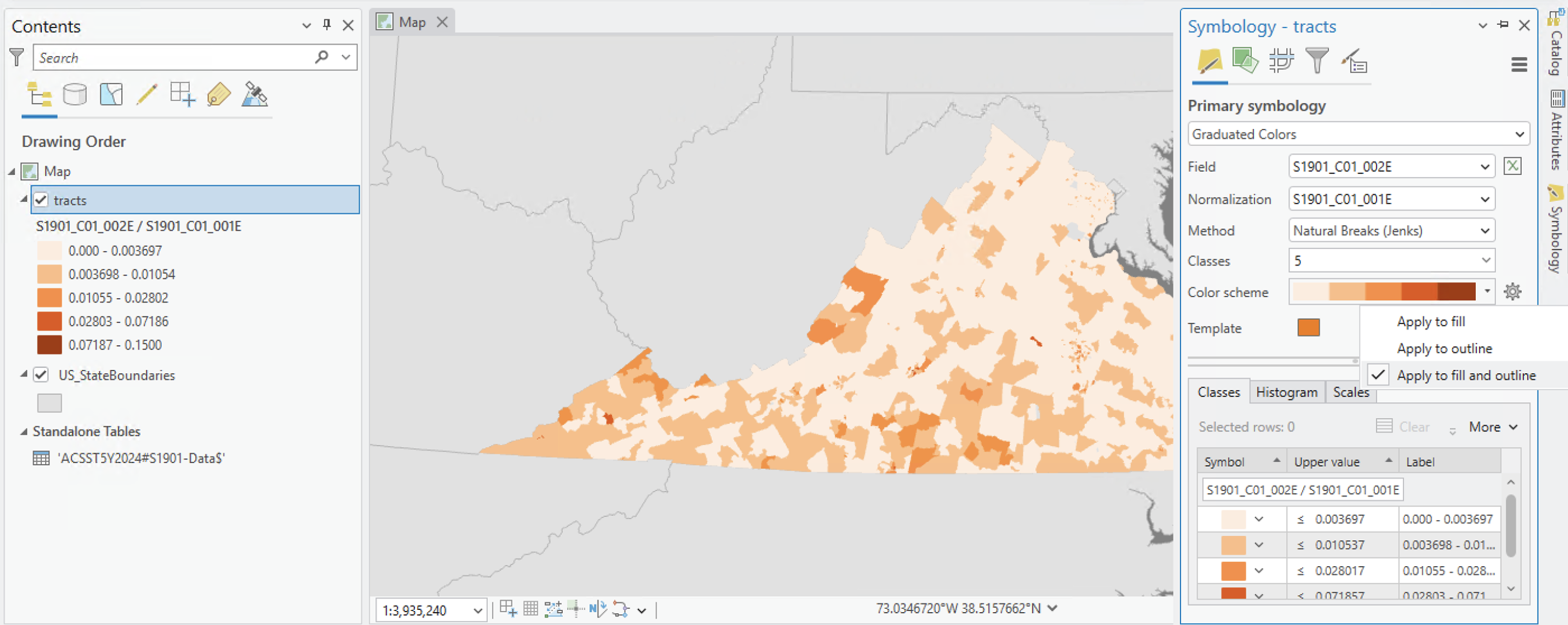
Try recreating Figure 9 below, which shows households with an income of less than $10,000 as a percentage of total households across Virginia. I symbolized the data with an orange color ramp, and I clicked the gear next to “Color scheme” > “Apply to fill and outline” to remove Census tract boundaries, which are a little too busy at the scale of the entire state.
Symbology through expressions
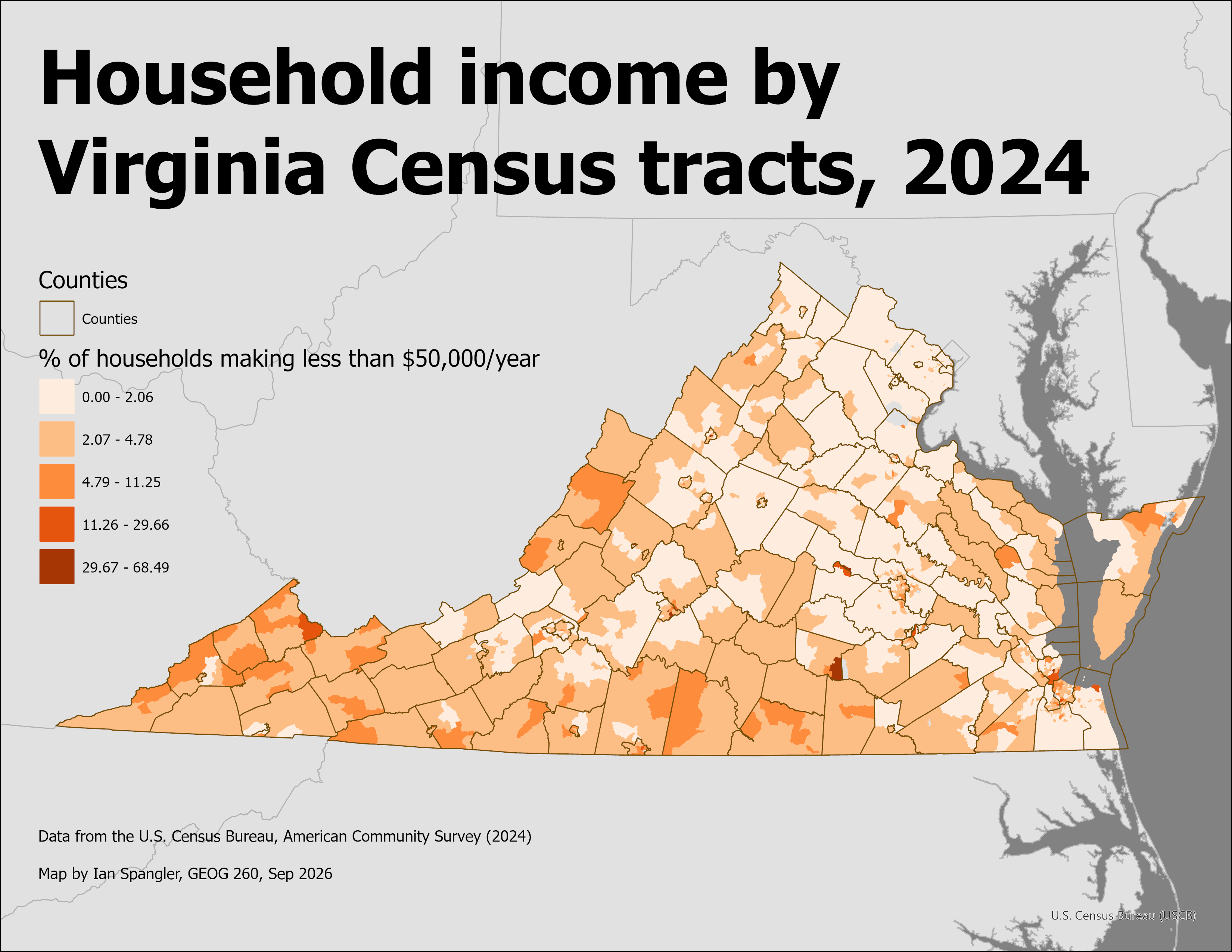
What if we want to better understand a more specific question that is not immediately answered in the dataset, like: which Census tracts contain an outsized portion of the lowest quartile of household earners across the state?
To answer this question, we need to do two things:
- First, determine the lowest and highest household incomes, as a number
- Second, summarize the lowest quartile (lowest quarter of the distribution) within each Census tract
In our case, the full range is about $0-$200,000, which would make the lowest quartile $0-$50,000. This means we need to add together all of the fields where the household income is lower than $50,000. We can do this with custom expressions for symbology.
First, click this “expression builder” button from the Symbology tab:
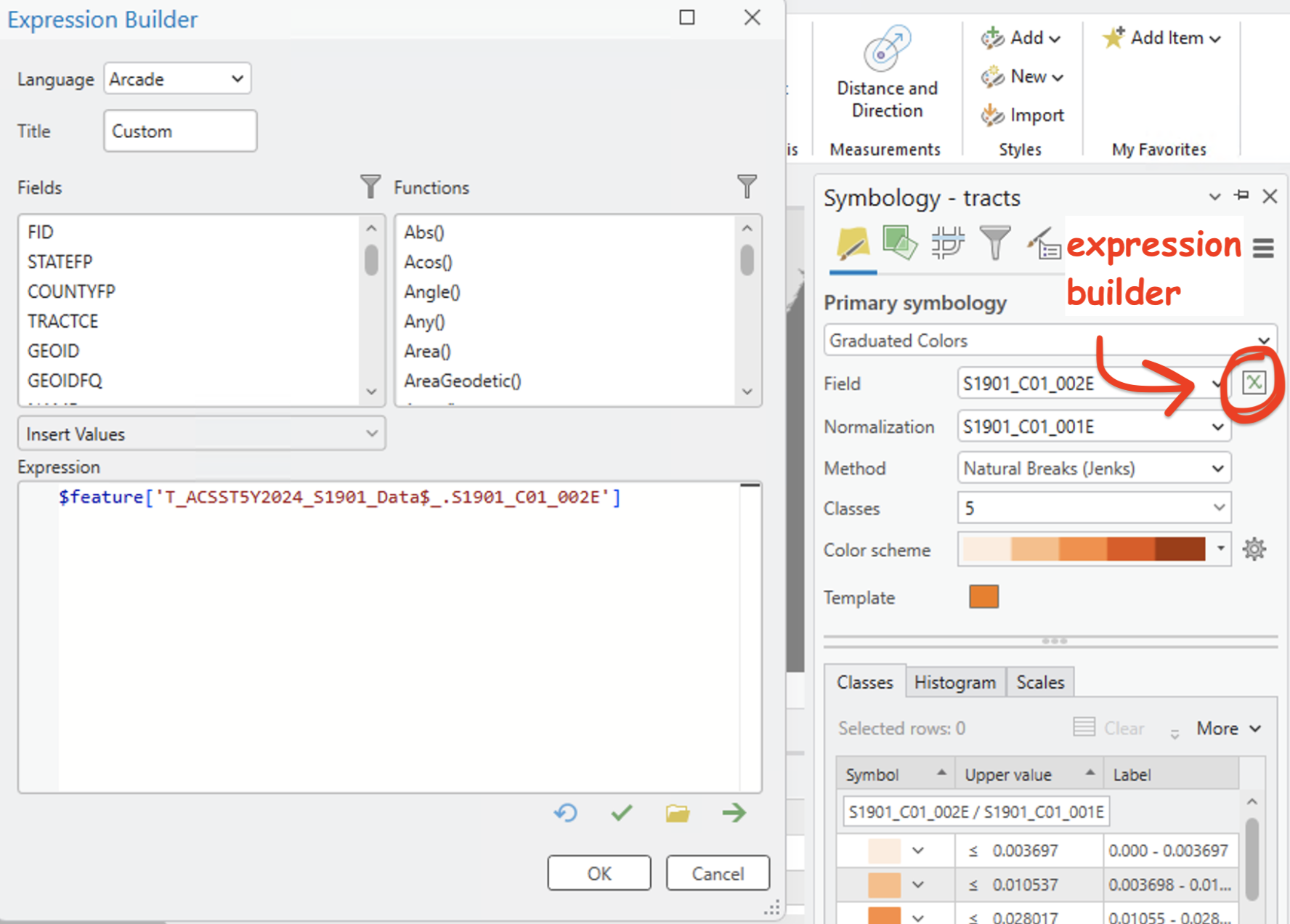
Copy and paste the following expression into the expression builder input box:
(
    (
        $feature['T_ACSST5Y2024_S1901_Data$_.S1901_C01_002E'] +
        $feature['T_ACSST5Y2024_S1901_Data$_.S1901_C01_003E'] +
        $feature['T_ACSST5Y2024_S1901_Data$_.S1901_C01_004E'] +
        $feature['T_ACSST5Y2024_S1901_Data$_.S1901_C01_005E'] +
        $feature['T_ACSST5Y2024_S1901_Data$_.S1901_C01_006E']
    ) / $feature['T_ACSST5Y2024_S1901_Data$_.S1901_C01_001E']
) *100
This expression, or sequence of mathematical calculations, is written in a language called Arcade. Arcade is an expression language specific to ArcGIS Pro. (Later, you will write expressions in a language called SQL which is encountered more commonly outside of ArcGIS environments.)
Click “OK” and your map should update to resemble something like this:
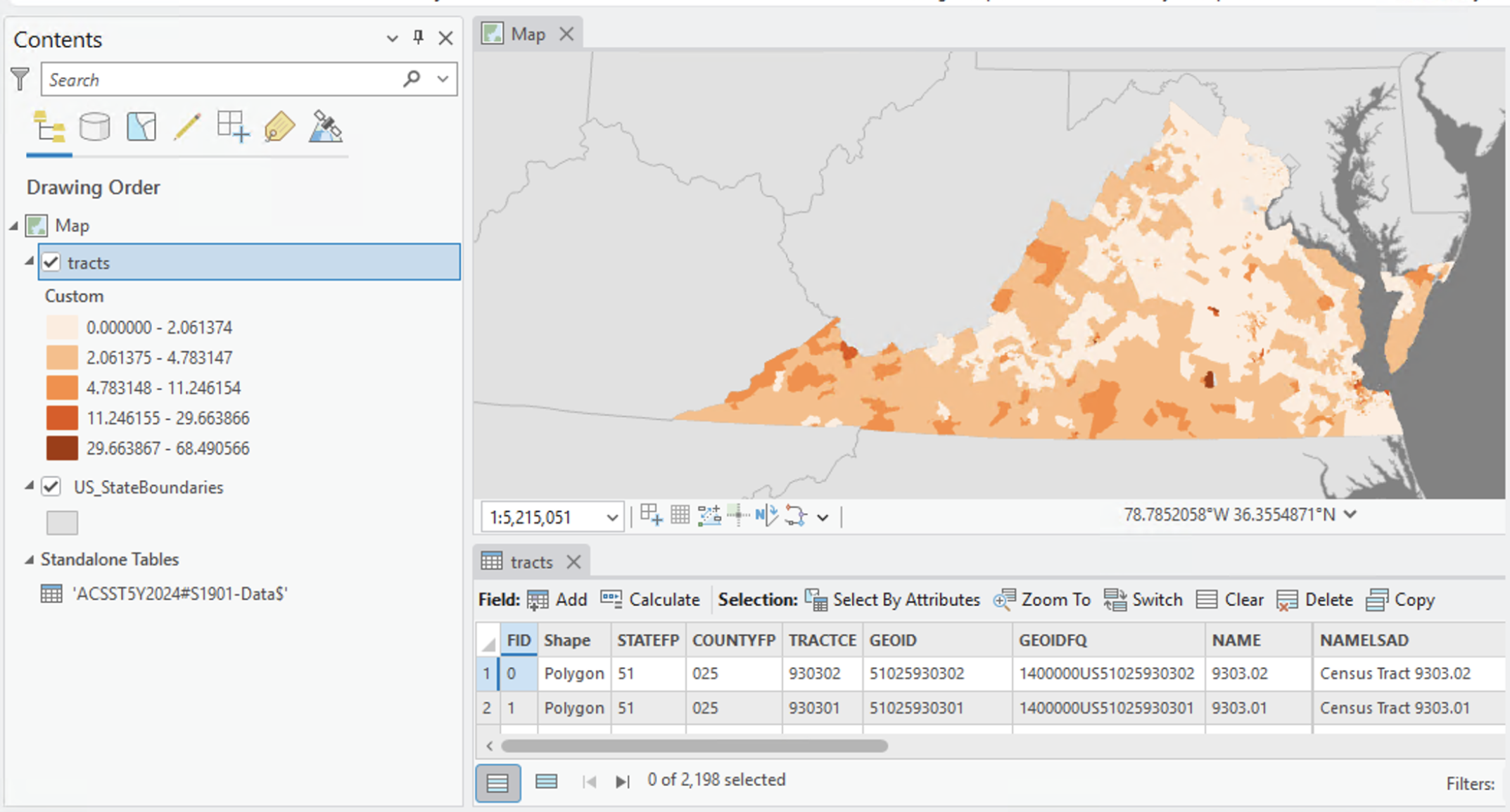
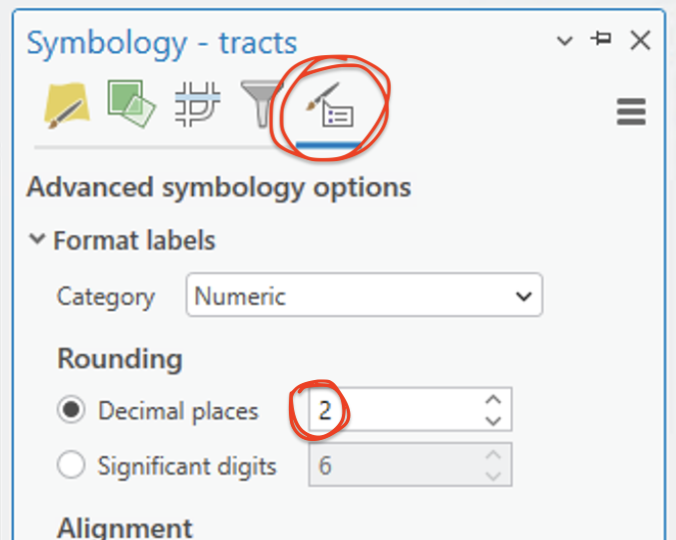
We have too many decimals in the legend, so let’s limit the precision before wrapping up this section. Click “Advanced symbology options” > under “Rounding,” change “Decimal places” from 6 to 2:
Q4
Inspect the expression you’ve written, as well as the legend of the map. In 1-2 sentences, explain what the expression is doing and what the legend represents.
Finish up and make a simple map layout
To finish this assignment, add a data layer from Living Atlas for US Counties (try searching “u.s. counties & equivalent entities”). When you’ve loaded it, filter the display by double-clicking the layer > “Definition query” > like so:
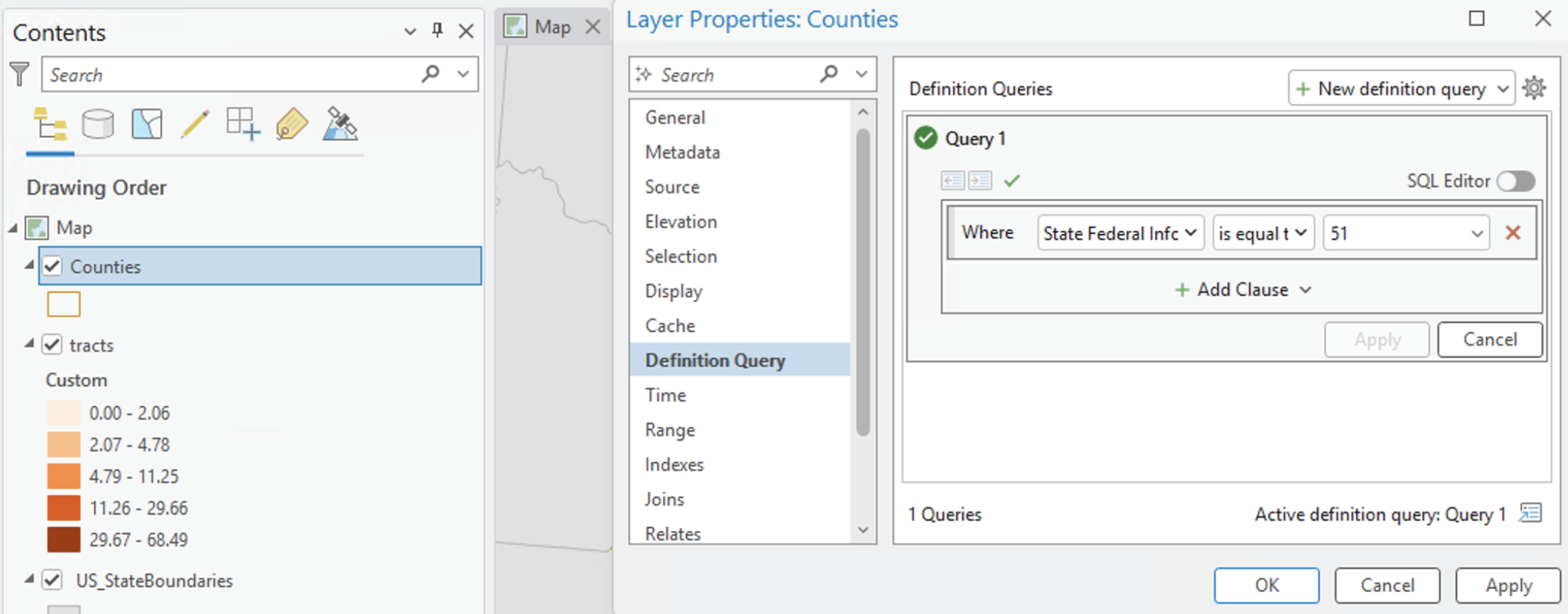
Then, fiddle with the color until it looks okay, I went with a sort of burnt orange/brown to emphasize my color ramp.
Finally, create a simple map layout resembling the one below:
Submission details
| Assigned | Due | Submit |
|---|---|---|
9/21/26 |
9/28/26 |
Section 1, Section 2 |
Submit answers to the questions to Canvas as a .doc or .pdf file, as well as a map resembling the one Figure 14.
| Question | Point Value |
|---|---|
| Question 1 | 1 |
| Question 2 | 2 |
| Question 3 | 1 |
| Question 4 | 2 |
| Final map | 4 |