Lab 02
Power plants vs. plant power
| Assigned | Due | Submit |
|---|---|---|
8/31/26 |
9/7/26 |
Section 1, Section 2 |
There are tens of thousands of power plants in the United States. They consume a lot of fuel, emit a lot of CO2, and occupy land near a lot of people. Using GIS software, we can query and visualize spatial data about those power plants to better understand their spatial distribution and relationships.
In this lab, we’ll also combine the power plants—gathered from the EPA’s eGrid dataset—with another very cool dataset on their inverse: plant power. Forests, in particular, are really good at trapping or “sequestering” carbon emissions. GIS tools allow us to compare and combine different data layers and examine how carbon that is sequestered in the nation’s forests stacks up against carbon that is emitted from power plants.
At the end of the lab, you’ll submit two things:
- A Word or Google doc containing answers to the questions throughout the lab
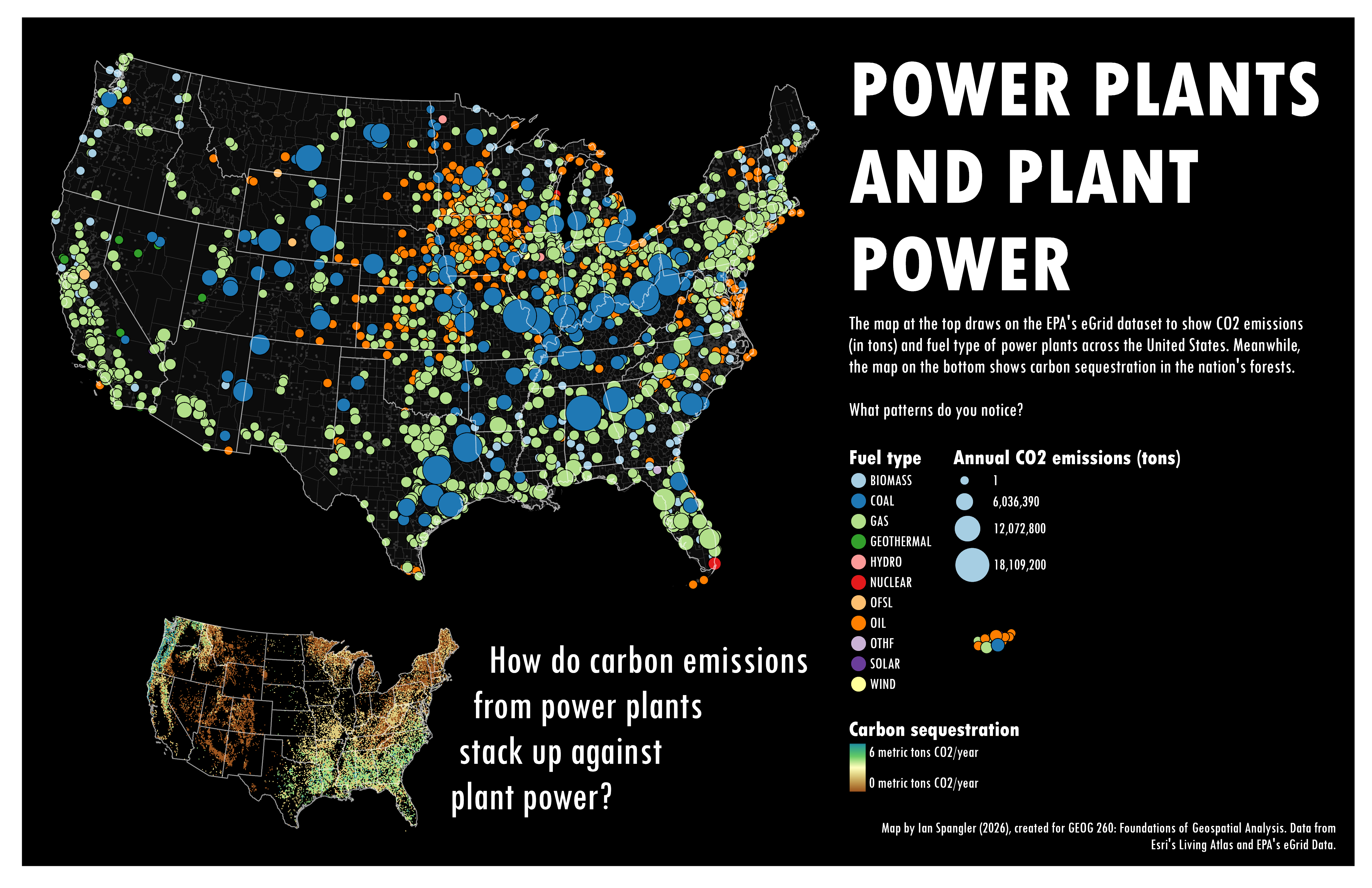
- A map like the one below:
Set up your workspace
First, set up a workspace. Go ahead and let Arc do it for you:
- Open ArcGIS Pro
- Click “Map”
- Navigate to your folder in
hemisphere. For example, mine is\\hemisphere\geopower\STUDENTS\GEOG260_01\ianspangler - Click on, not into, your named folder, and click “OK”
- Rename the new project to something like
lab02_power-plants - Make sure the “Create a folder for this project” box is checked, and click “OK” again
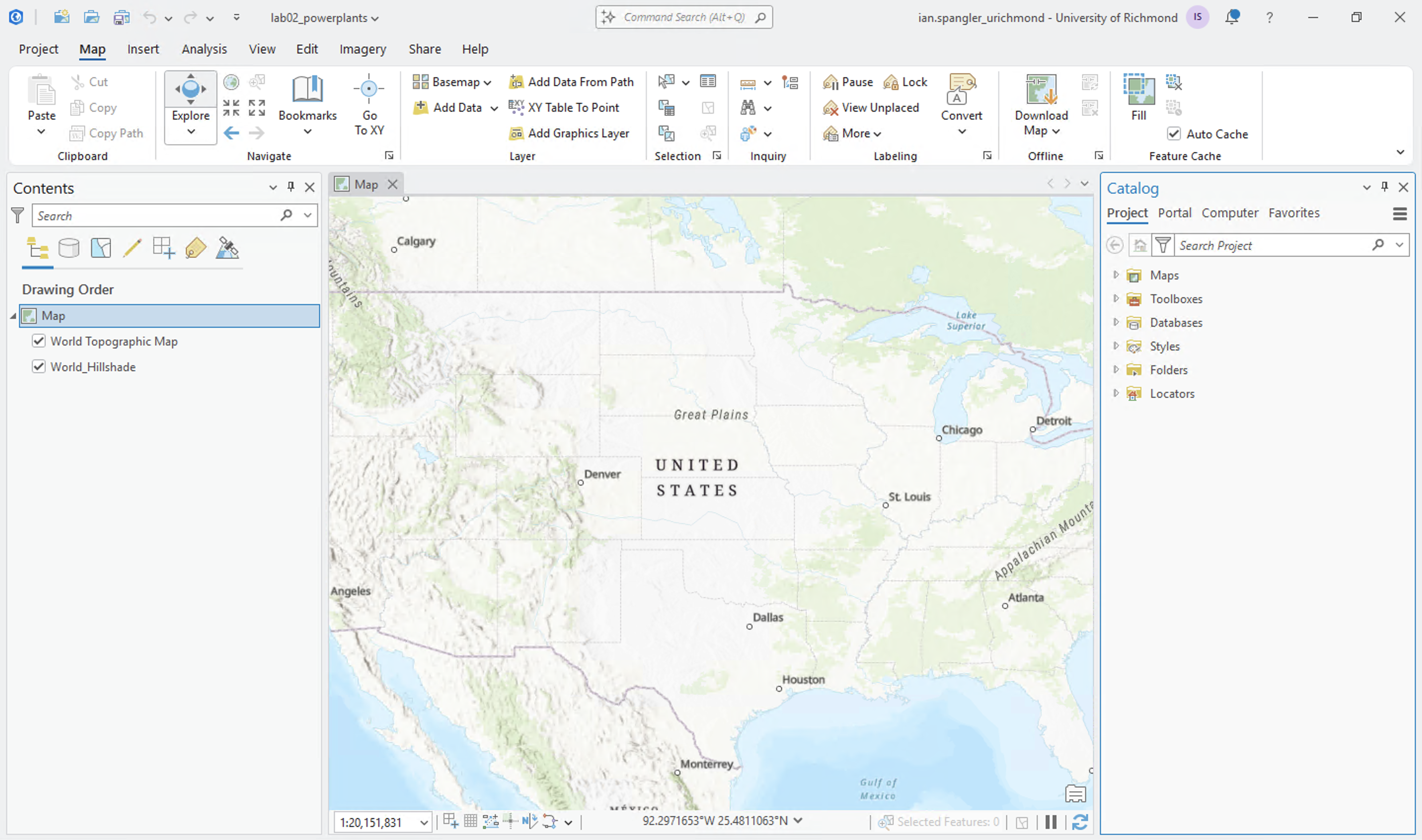
ArcGIS Pro should create a new folder for your project workspace. When the application opens up and you see something like the image below, you’re off to the races.
Get to know your data
We’ll use a few different datasets in this lab:
- The Environmental Protection Agency’s eGrid dataset about power plants
- Some pre-processed data about forest carbon sequestration from Esri’s Living Atlas
- U.S. counties, also from Living Atlas
- U.S. states… also from Living Atlas
Before you map, you should always spend some time getting to know the data you’ll be working with. Let’s start by exploring the eGrid dataset:
- Click this link to access eGrid
- The EPA publishes an online map of this data that allows us to make some basic comparisons. Click “Maps” and open the “eGrid Mapping Tool” in a new tab
- I think it’s hard to see the data on the default base map, so you can click the “Basemap Gallery” and select a better one (I chose “Enhanced Contrast Dark Map” but “Dark Gray Canvas” would also work well)
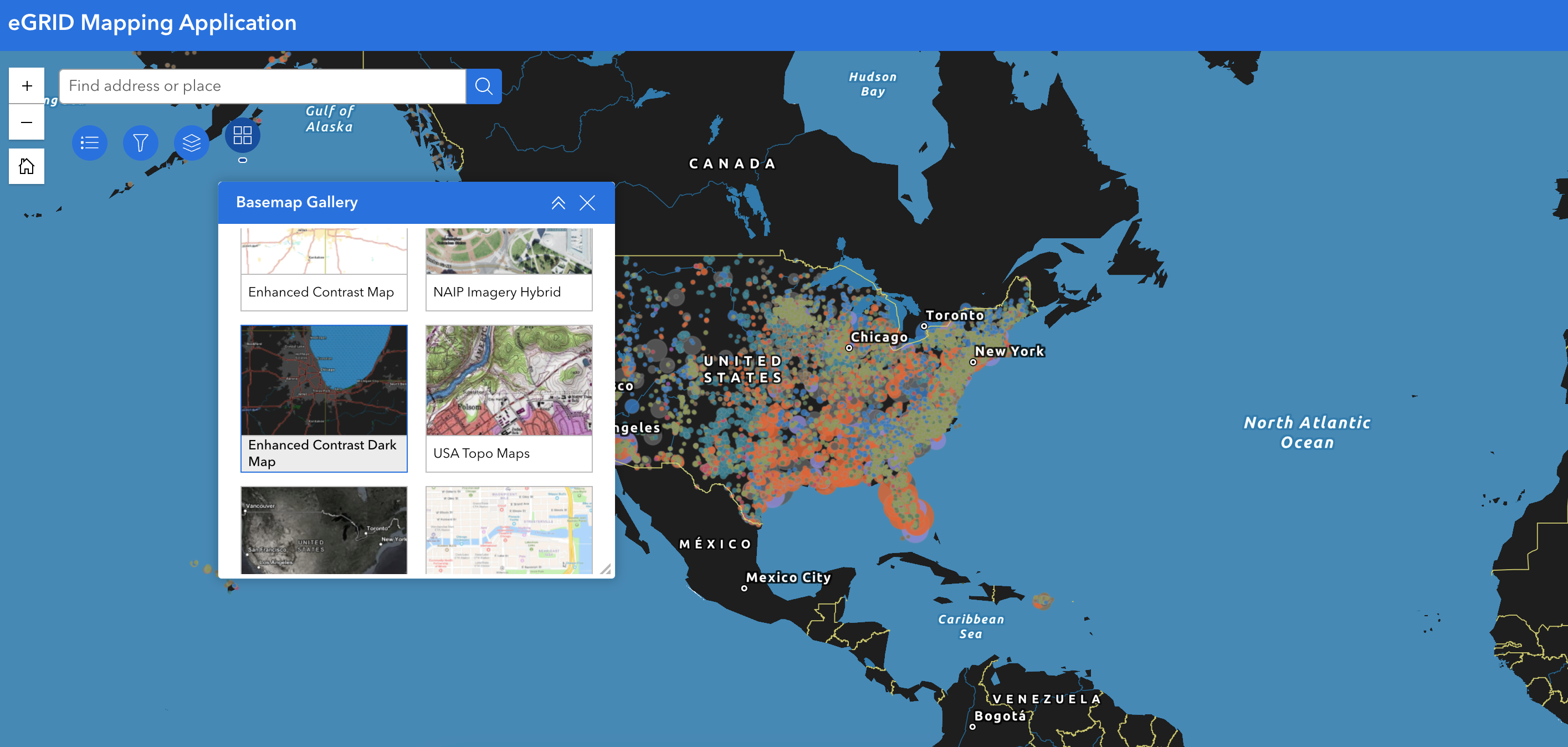
- Take a moment to pan around the map and click a few points. Can you tell what kinds of data are being displayed here? What information do they contain?
- If you haven’t already, click the “Legend”—this will make it easier to see what the colors actually mean
Q1
In no more than 2 sentences, what patterns do you notice in the spread of the data?
Now, return to the EPA’s eGrid page and click “Technical Resources” > “Technical Guide” and open “eGRID2023 Technical Guide (pdf)” in a new tab. This massive technical guide puts into perspective how demanding it is to create and maintain this eGrid dataset.
You don’t need to download the eGrid technical guide, but spend a few minutes reading the introduction (Section 1) and the summary of eGrid files (Section 2.1). Use the information you learned to answer the questions below:
Q2
- According to the technical guide, what is eGrid?
- What kinds of data points does eGrid include?
- When was the current version of the data (the eighteenth edition!) released?
- According to section 2.1, how many levels of data aggregation does eGrid contain?
Download the data
eGrid
The EPA’s dataset takes some pre-processing to get it “GIS friendly.” I took the liberty of doing that for you and you can download it by clicking this link. It will immediately start downloading as a .zip file.
Once it downloads, I highly recommend the following:
- Inside of your
lab02_power-plantsdirectory, create a folder calleddownloaded-data - Move the
.zipfile intodownloaded-data - Extract the
.zipfile by right-clicking > “Extract All…” > “Extract”
You should see something like this:
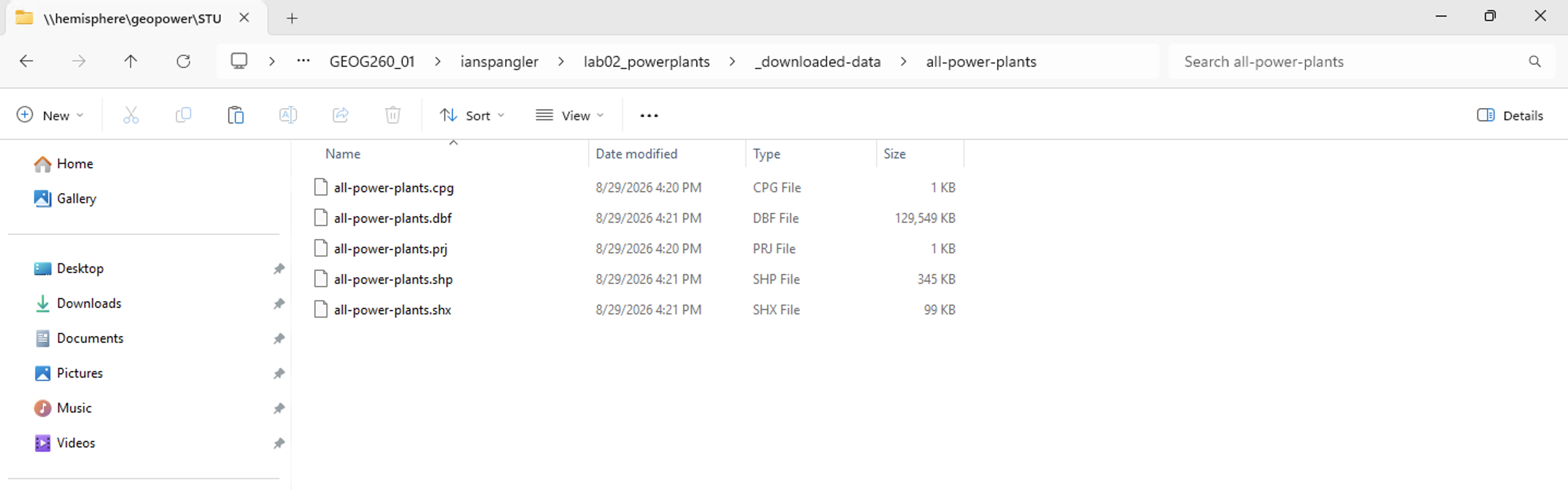
Now, add the data to your project by dragging all-power-plants.shp from your Windows File Explorer into the ArcGIS Pro “map” view. Make sure you are dragging the file that ends in .shp!
You should see something like this:
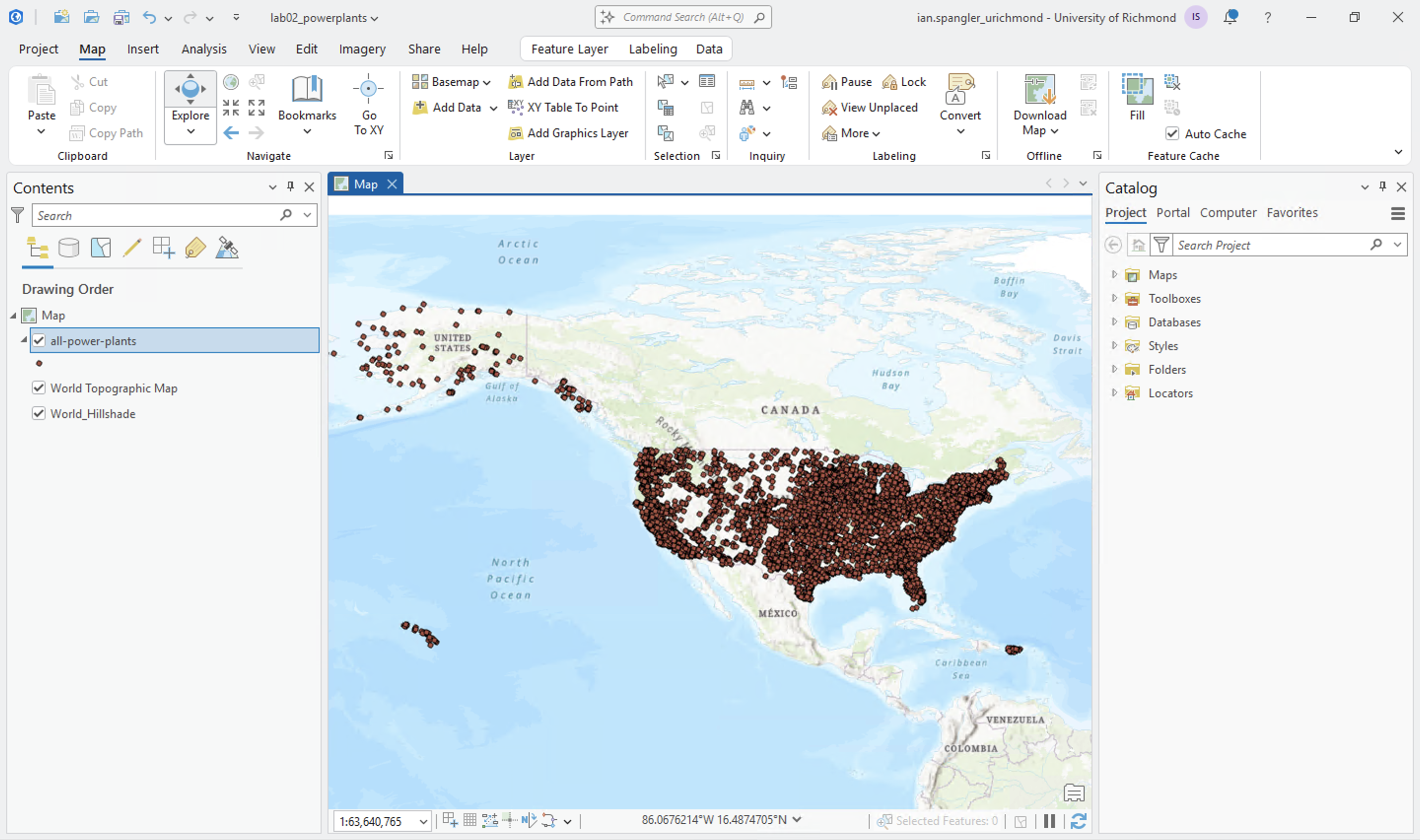
Counties
Now, let’s load the U.S. counties data. Nothing you need to download for this—we’re just going to load the counties data directly from Esri’s Living Atlas, which is a big spatial data repository that comes pre-processed, pre-styled, and conveniently hardwired into ArcGIS Pro.
To load the counties data, click “Add data” > “Portal” > “Living Atlas” > search for "USA Census Counties" with quotations (this will force the file explorer to search for exactly that phrase):
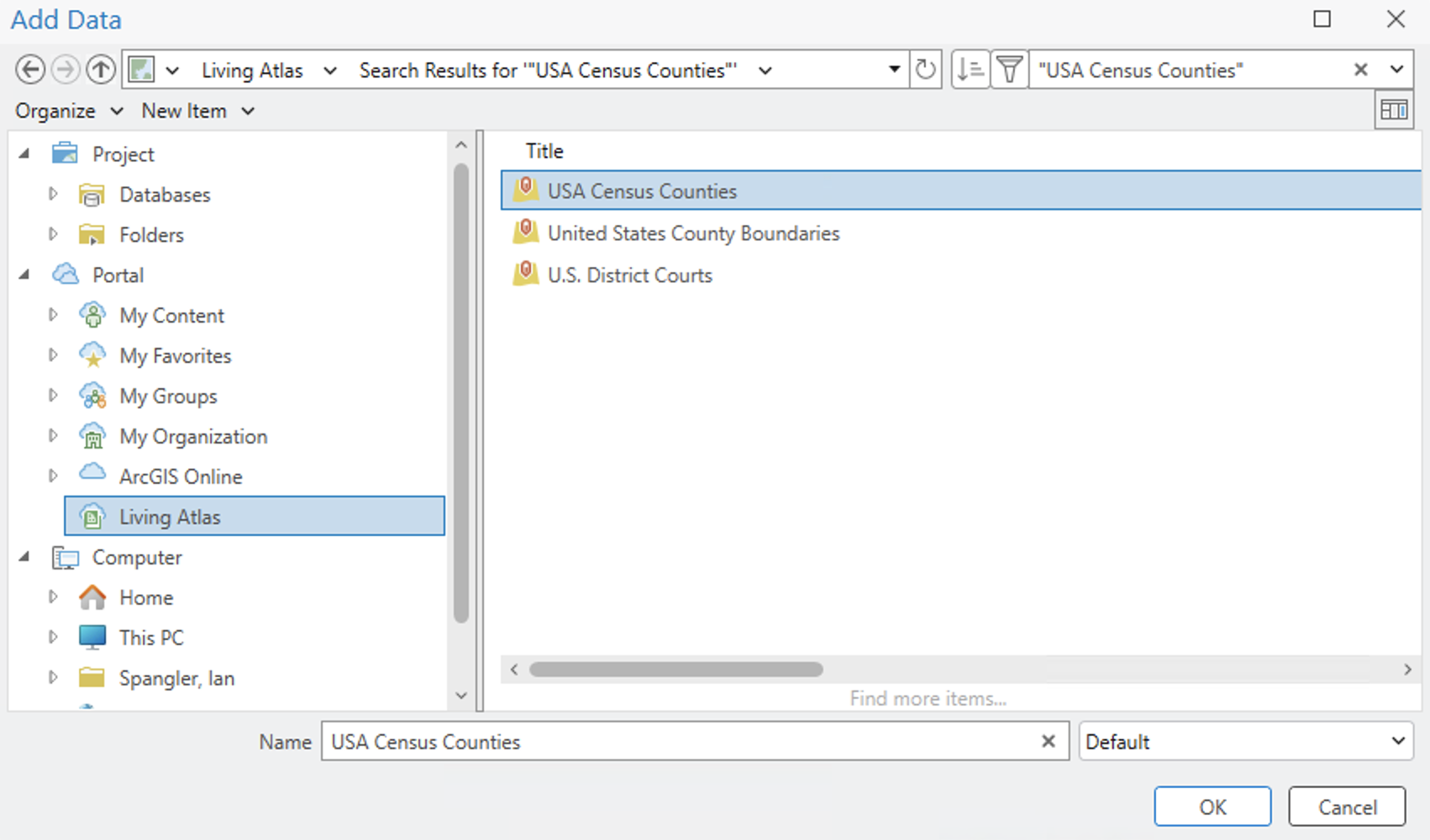
Click “OK” and the data will load right in ArcGIS Pro as a layer titled dtl_cnty. Nice!
States
For states, do the same thing as counties, except search for "USA States Generalized Boundaries".
We’ll skip adding the forest carbon sequestration layer until the very end but it will be similarly easy because we’re getting it from Living Atlas.
Living Atlas provides a lot of great data… but don’t become too reliant on using it! You’ll need to explore and process data from other sources as part of your final project.
Confirm that your project resembles the screenshot below, and then you can proceed to the next section:
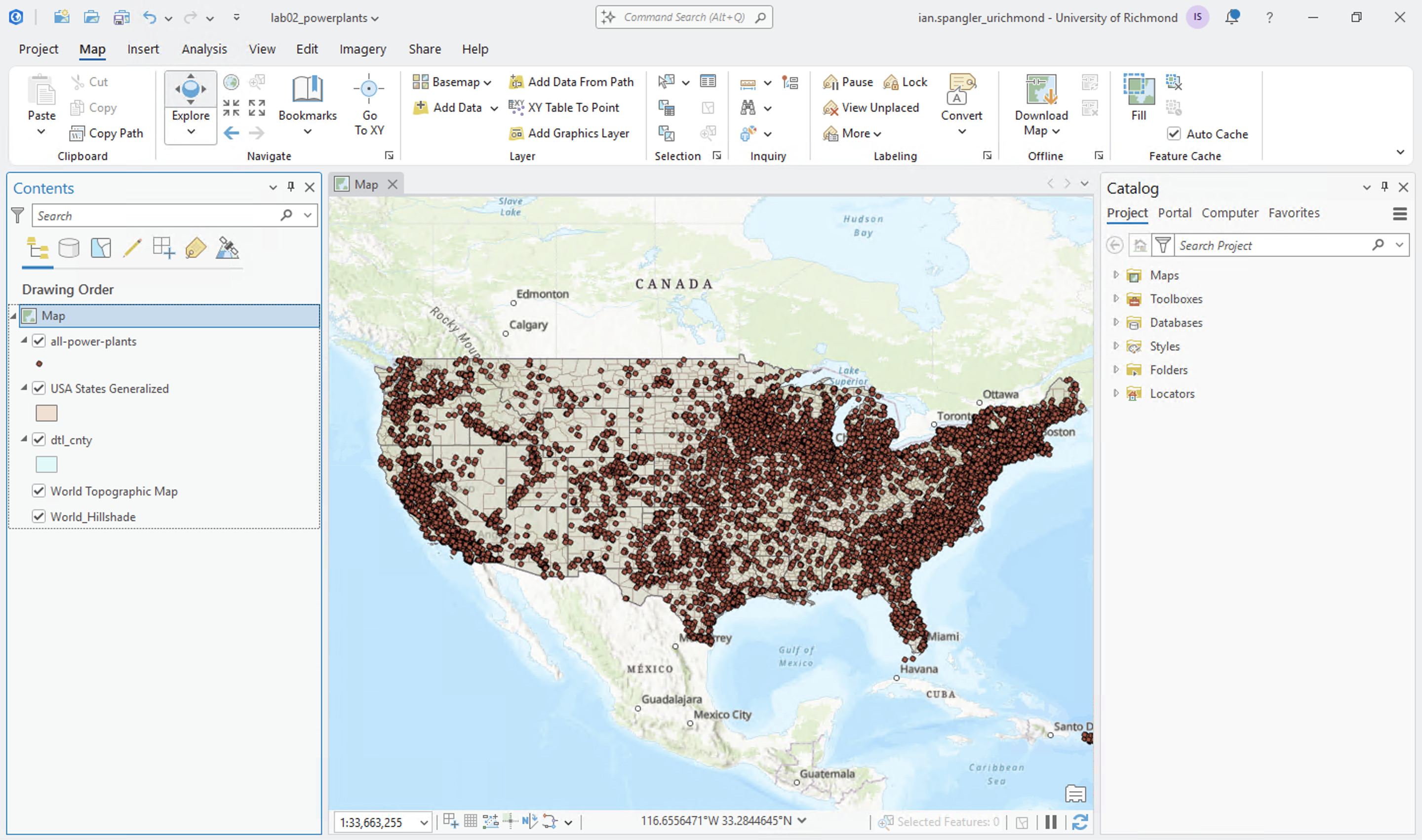
Explore the map
Take a moment to explore the data in ArcGIS Pro.
First, click the “Map” tab on the Ribbon and ensure the “Explore” button is selected:

Click a feature somewhere on the map (I clicked near Richmond). A pop-up window will appear, showing the attributes associated with the feature(s) you clicked. In the bottom left-hand corner, you can see how many features were captured by your click:
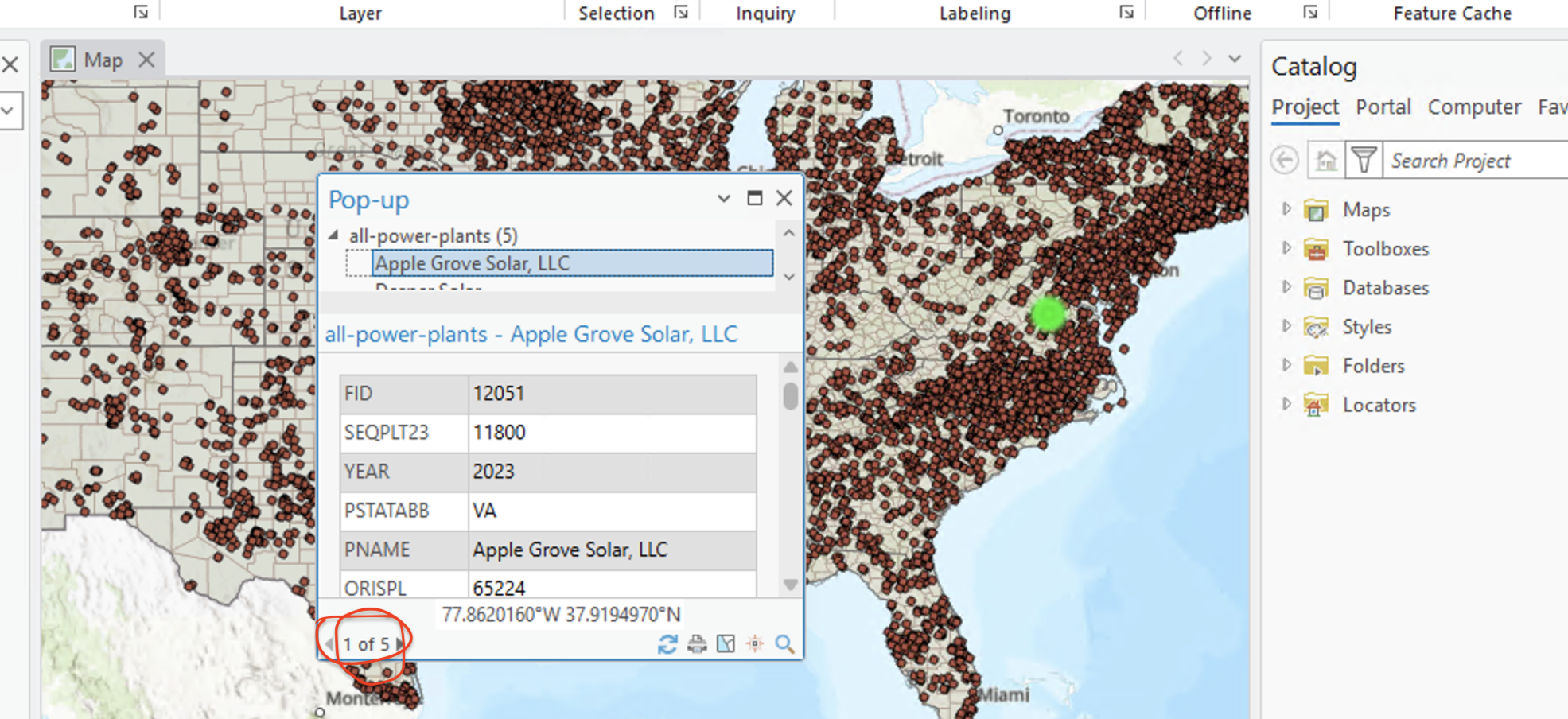
If you click the map when you are zoomed pretty far out, multiple features will be included. My click yielded 5 features, which I can cycle through by clicking the left and right arrows in the pop-up.
Scroll through the pop-up window. There are so many attributes associated with each of these features. And because the field names are labeled with codes, we don’t know what they even mean!
Thankfully, a codebook exists for the data. Download it by clicking this link. It’s common for spatial datasets to contain metadata, or data about data, which explains how a dataset was constructed and what it contains. Codebooks are a common type of metadata.
Q3
- What are the
PNAME,PLPRMFL, andPLFUELCTvalues of one of the features that you clicked? - Using the codebook as a reference, what do each of those field names mean?
If you haven’t already, try zooming in more deeply to the feature that you used to answer Question 3. You can do this a few ways:
- Simply zoom in with the scroll wheel of your mouse
- Holding the
shiftkey while “Explore” is selected, draw a box around an area for a quick zoom to that extent - Use the zoom in/out buttons

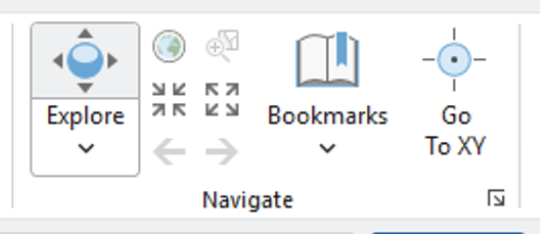
In the section on the ribbon in the first lab, we discussed using bookmarks to “save” places on the map. Those can be handy, especially if you accidentally scroll too far in or too far out and get lost in the map.
If you get lost, you can also:
- Right-click a layer in the Contents pane and click “Zoom to layer”
- Click the “Full Extent” button
 to return to a view of the whole world
 - Click the “Previous Extent” button (back arrow) until you recognize the territory
Update the symbology
Right now, the data is just symbolized with whatever default settings ArcGIS Pro picked at random when we loaded each layer. Let’s change that so things are a little easier to see.
First, make sure your layers are stacked so that all-power-plants is on top of USA States Generalized, which is on top of dtl_cnty—and while we’re at it, let’s rename the two polygon layers to states and counties.
- Click the
stateslayer in the Contents pane, then in the Ribbon, “Feature Layer” => “Symbology”;
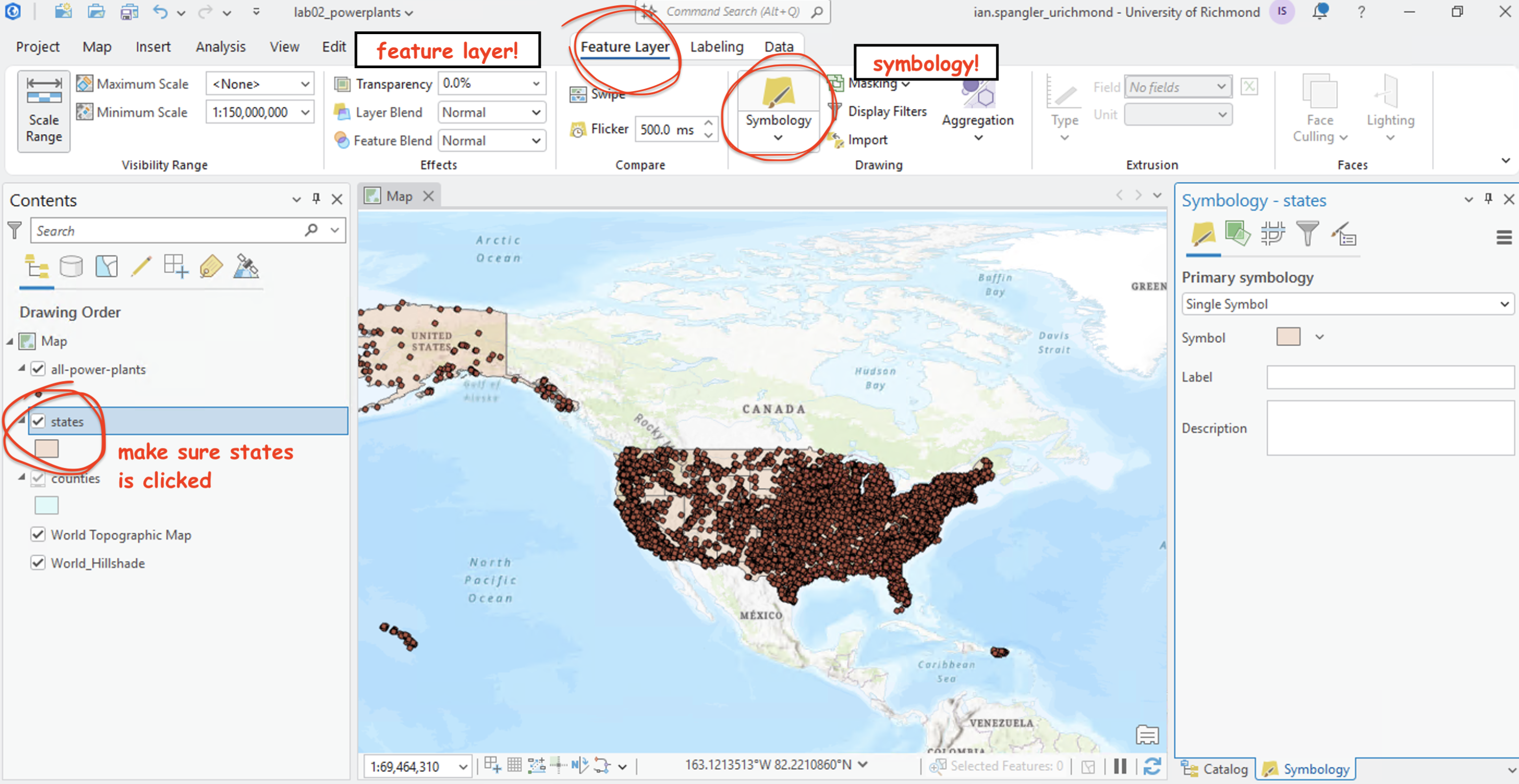
- Let’s uncheck the
World Topographic MapandHillshadelayers for now - Click the symbol’s color swatch, then select “Properties” from the tab—we’re going to keep the borders but drop the fill.
- Set “Color” to
No color - Set “Outline width” to
1.2 pt - Now bump over from the “Symbol” tab
 to the “Layers” tab
  . The layers tab here is for symbology layers, different from the feature layers that we have in the Contents pane—these are our settings for graphic symbols that represent spatial data, instead of actual spatial data
 - Change the “Color” to a full white, all the way in the top left-hand corner. You’ll see why we are making the borders white in a minute
- Now, click on
countiesin the Contents pane - Click into the symbol swatch, click the “Properties” tab, then click into “Layers”
- There are two layer color options. You can lock and unlock them to prevent changes. If either one is locked, go ahead and unlock it:
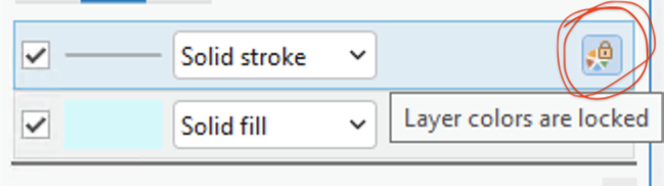
- Now you can edit the fill and outline colors/properties from the “Symbol” view
- Click back into the “Symbol” tab (the brush). We’re going update the “Color” and “Outline color” with specific color values:
- Color: click the swatch and select “Color properties.” You can either set the “Red,” “Green,” and “Blue” values (RGB values) to
20, or paste141414into the “HEX #” field. Both of these will produce the same gray color
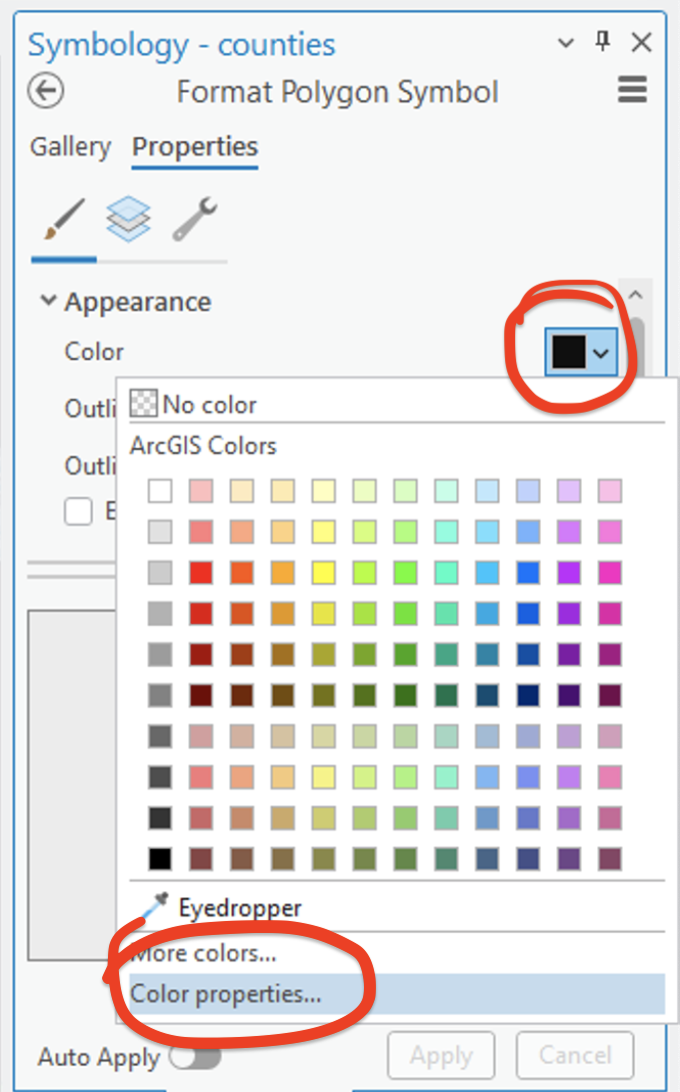
Figure 13: Color properties - Outline color: Open “Color properties” and set each outline color RGB value to
104or paste686868into the “HEX #” field
- Color: click the swatch and select “Color properties.” You can either set the “Red,” “Green,” and “Blue” values (RGB values) to
This will leave you with a reasonably high-contrast, dark base map.
Now, click all-power-plants > “Symbology” > click the point symbol. Set the layer’s “Color” to bright yellow (red=255, green=255, blue=0) and set the outline to a light gray color at a width of 0.5 pt. Then, in the Contents pane, right-click Map > “Properties” and in the “General” tab, change the “Background color” to full black.
While we’re in the Map properties, let’s change the project’s projection. We’ll talk more about projections next week, but even without training in projections and coordinate systems, you can probably tell that this very wide United States looks a little off…
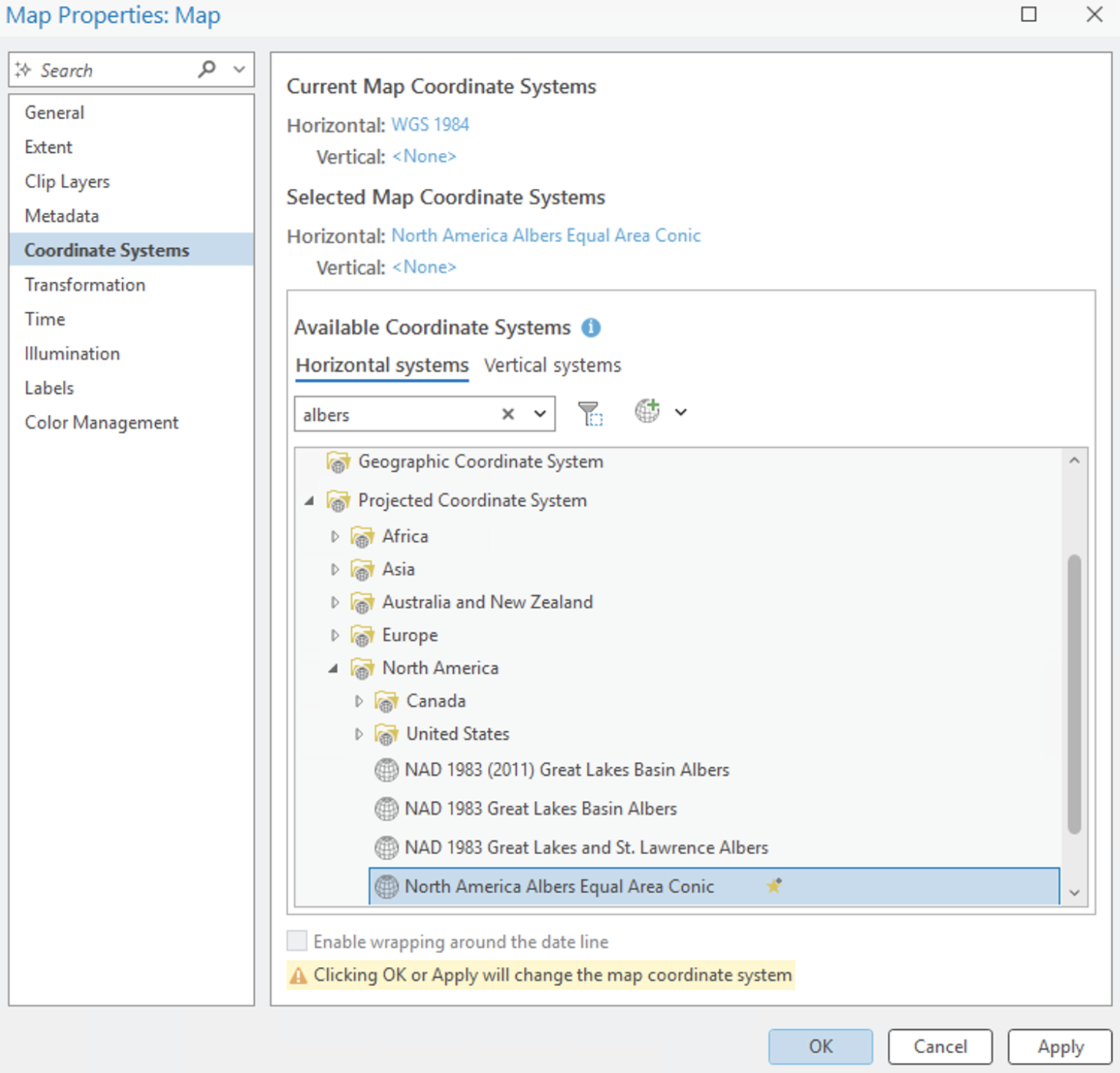
In the “Properties” tab, click “Coordinate systems” > search for “albers” > unfold “North America” > select North America Albers Equal Area Conic.
You should now see something like this:
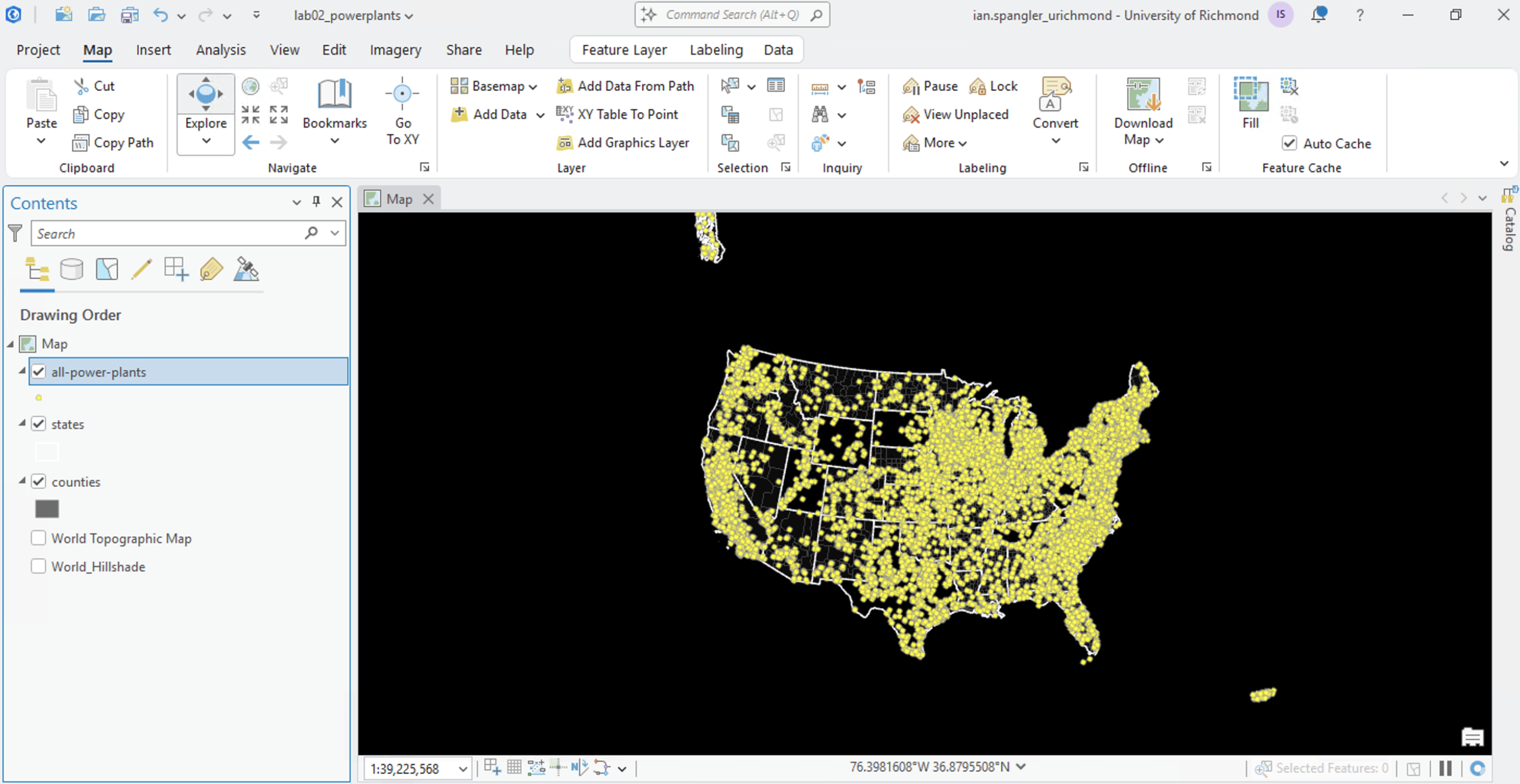
We’re going to use this simple black background to stand in for a basemap, but you should note that ArcGIS Pro makes it easy to change the standard basemap by simply selecting “Basemap” from the “Map” tab in the Ribbon.
Save your work
Now is a fantastic time to save the project. You can do so by clicking the “Save” icon at the very top of the application, or by clicking “Project” > “Save Project.”
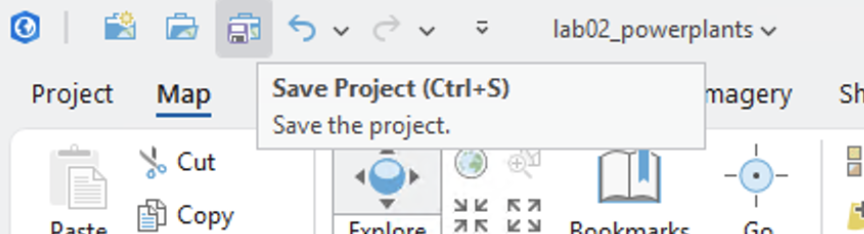
ArcGIS Pro will automatically back up your work. Those backups are stored in a directory inside the project workspace called .backups, so if you get disconnected, the application crashes, etc., you should be able to pick up reasonably close to where you left off. But still get in the habit of saving as you go.
Your project is saved as a .aprx file. If you close ArcGIS Pro, you can reopen the project by navigating to your workspace in hemisphere and double-clicking the .aprx file.
Project files only point to where the data is saved. If you moved project files around and then tried to open the .aprx, your ArcGIS Pro session would start up fine—and it would probably list the data in the table of contents—but nothing would appear because it would not be able to find the where the data is saved. A little red exclamation point would appear in the table of contents, informing you that it has lost the connection to the data.
Study the attributes
Now, let’s gain a better understanding what each of these layers represent and look at the descriptive information attached to them—a.k.a., their attribute tables. It is important to examine and understand the data in the attribute table, as that is where the bulk of descriptive qualitative and quantitative data is stored. Right now, we’re working with vector data, or points, lines, and polygons.
In the attribute table, each row represents an observation (e.g., a point) and each column contains additional information, or “attribute,” about the observation. These attributes can be qualitative data (e.g., categorical data) or quantitative data (e.g., numerical data). Thankfully, the data we are working with in this lab is suitably “tidy,” which is to say, each variable has its own column and each observation has its own row—so we can get right into mapping and symbolizing attributes more effectively than these thousands of yellow points.
Right-click on
all-power-plantsand select “Attribute Table”This layer consists of point features. In general, vector data must be one of three geometric types—points, lines, or polygons—and it can only be one of them at a time. In other words, you can’t have a data layer that consists of points and lines, polygons and points, etc.
The point features in this attribute table contain detailed informatin about each power plant. You can determine what the values mean by checking against the codebook that you downloaded earlier (the
metadata.xlsxfile).Let’s break down this attribute table:
- Each power plant is represented by a row in the table
- Each row in the table is attached to a point on the map
- Each column in the table represents an attribute about the power plants (e.g.,
YEAR= year,PSTATABB= abbreviated state name,PNAME= power plant name)
The bottom of the attribute table shows you how many records the layer contains. In this case, we have 12,162 power plants.
Figure 17: Saving your work Now, click the
stateslayer, and try opening the attribute table by using a keystroke:ctrl+TSome features here are inherent qualities of states; for example, we have
State Name,State Abbreviation, andState FIPS. Note that FIPS codes are a convention of the U.S. Census; they uniquely identify geographic areas and you can read more about them here if you are so inclined.Because we loaded the
stateslayer from Esri’s Living Atlas, it has also got some interesting attribute data already attached to it: namely, area in square miles, total population, and population density.Rhode Island serves as a convenient example of how we got population density. It’s just
2020 Total Population/Area in square miles. Rhode Island’s population is about 1,000,000 and its area in square miles is about 1,000; hence, the population density is about 1,000.Now open the
countieslayer. Explore the attribute table a bit. Note that this layer also contains some population data and a pre-computed value for population density.
Notice how when you have multiple attribute tables open, they all stay open unless you close one, so it is easy to flip back and forth between them by clicking on the tabs.
Answer questions with spatial queries
Most geographic information systems contain built-in features for selecting features within a data layer that meet certain criteria. ArcGIS Pro has two point-and-click tools that make data selection fairly easy: the “Select by Attributes” and “Select by Location” tools.
Select by attributes
You can “select by attributes” by clicking the corresponding button in the attribute table itself…
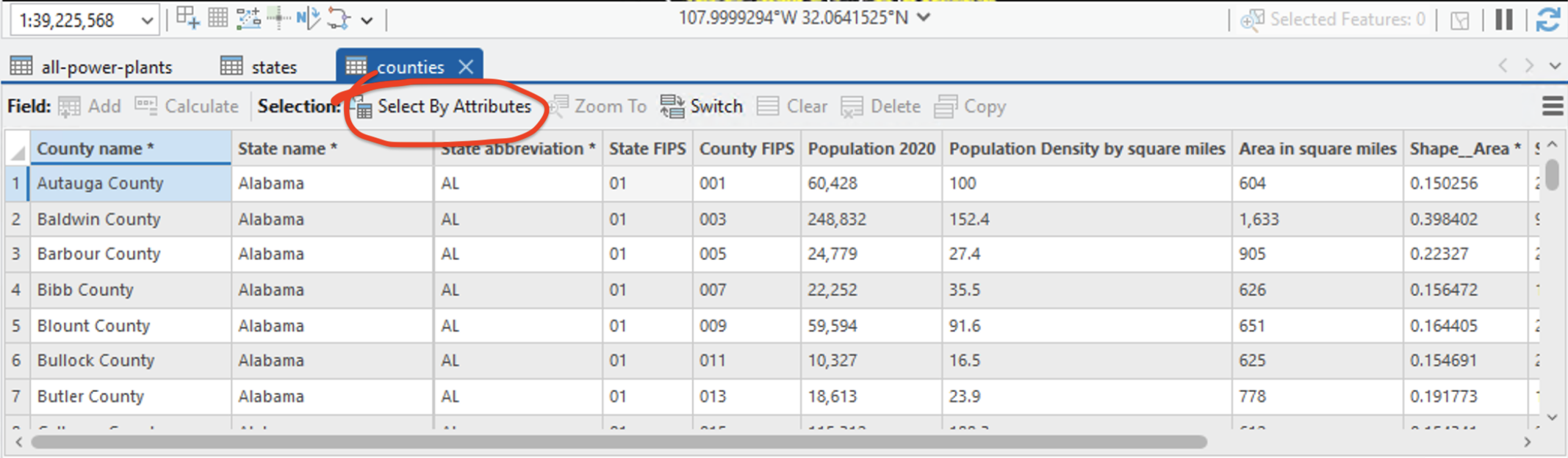
… or by clicking the same button from the “Selection” group in the Ribbon:

Once you’ve opened the “Select by Attributes” tool, build a “New selection” query where the County name contains “Richmond, like so:
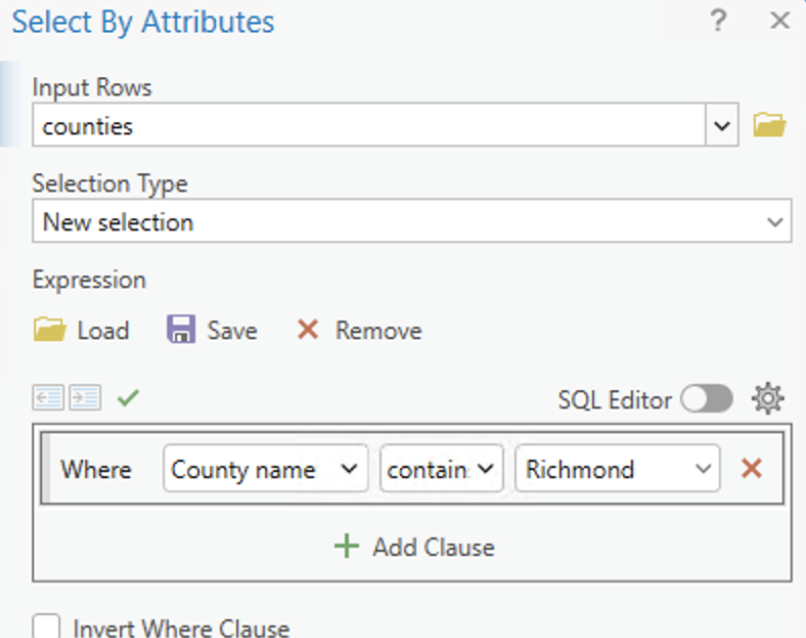
Click “OK” to close the window (clicking “Apply” would apply the selection while leaving the window open).
For visual clarity, let’s uncheck the all-power-plants layer. This should make it easier to see the 5 selected counties, which are highlighted on the map in a light blue color. You can show only the selected features by clicking the “Show Selected Records” button at the bottom of the attribute table:
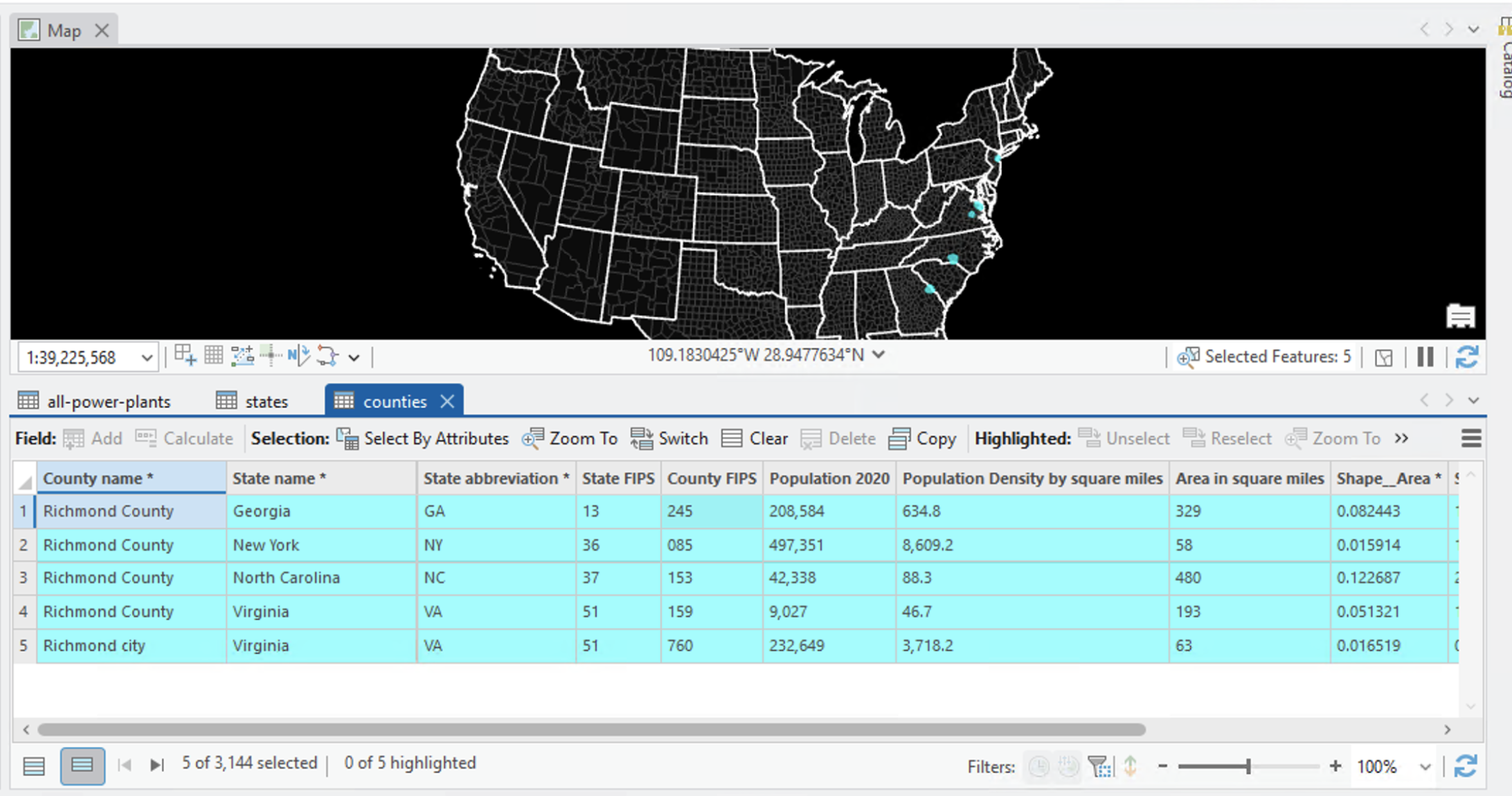
Nice! But what if we wanted to select all the counties in Virginia?
There are a couple of ways to do this. You could use the hand selection tool and invidiually click on all of the county shapes in the state while holding down the shift key. You could also do a “select by location” query for counties that have their centroids inside of the Virginia state boundary. Both of those are needlessly complicated, however; the easiest way is to just select by the FIPS code attribute:
- First, figure out the FIPS code for Virginia (you can see it in the screenshot above)
- Then, construct a “New selection” query where
State FIPSis equal to that number - Click “OK”
Every county in Virginia should now be highlighted in light blue, and your table should be updated to reflect an active selection of 133 out of 3,144 counties.
Explore statistical patterns
Exploratory data analysis is part of many geospatial workflows. You can do some really quick exploratory analysis with a few clicks in ArcGIS Pro.
- Right-click the “Popluation 2020” field
- Click “Explore Statistics”
- Answer the question below
Q4
- What’s the median value of the data points in “Population 2020”?
- What’s the sum of all values in the “Population 2020” field?
Click the “Clear selection” button  , which you can find in the “Selection” group of the “Map” tab in the Ribbon. This time we are going to create a slightly more complex query, with multiple conditions.
Open the select by attributes tool again and turn the all-power-plants layer back on. Set up the query such that Input Rows = all-power-plants and Selection type = “New Selection”. Then, create two clauses:
- The first should read Where “FIPSST” is equal to
51 - Then, click “Add clause”, select the “PLFUELCT” field, and select “is equal to”
- Instead of typing directly into the white space, click the arrow and choose
SOLARfrom the dropdown menu
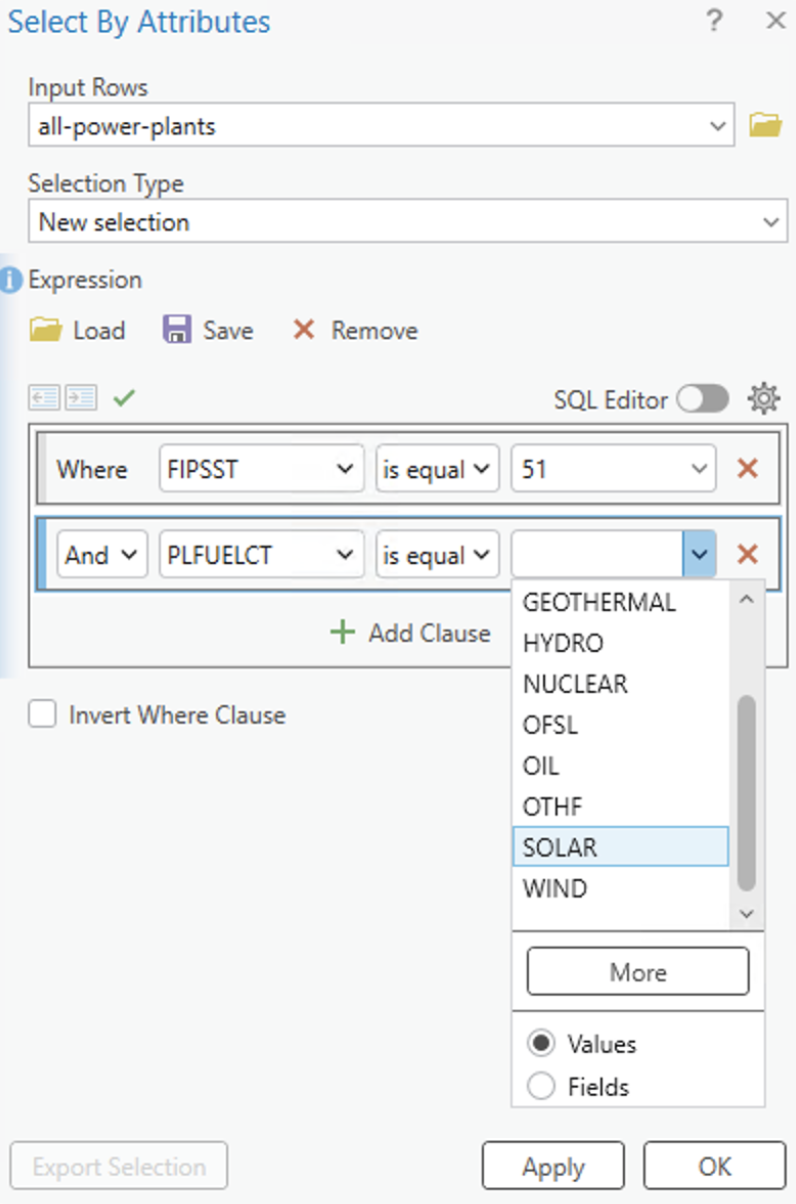
Note that if you toggle the SQL Editor to “On,” you’ll see a different interface for building queries:
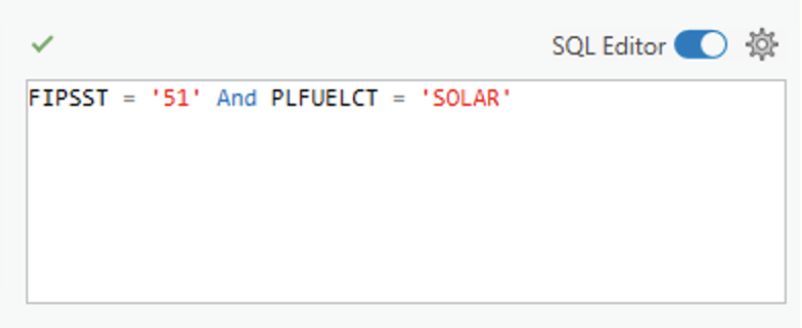
SQL is short for structured query language. It is a common language for querying structured data, especially within relational databases. We’ll cover relational databases another day, but for now, just note that if you do enough of this stuff you will probably get good enough at it that you don’t use the point-and-click interface anymore because it is just easier and faster to type the SQL.
Anyhoo—click “OK.” 95 rows should now be selected. Using your newfound powers of data interpretation and attribute selection, answer the following:
Q5
- What does your current selection represent? (Hint: you might need to use the codebook that you downloaded to answer this precisely)
- How many coal-fueled power plants are in the state of Kentucky?
Be sure to click the “Clear selection” button on all of your layers before proceeding to the next section!
Select by location
In addition to attribute queries, we can select features on the map based on their spatial relationship to other data layers.
Click the “Select by Location” button  . Then, construct a spatial selection query like so:
- Input features =
counties - Relationship = Contains
- Selecting features =
all-power-plants - Click “OK”
This query selects all the counties in the United States that have a power plant inside of them. The attribute table contains a handy tool for inverting your selection, so let’s go ahead and click that:
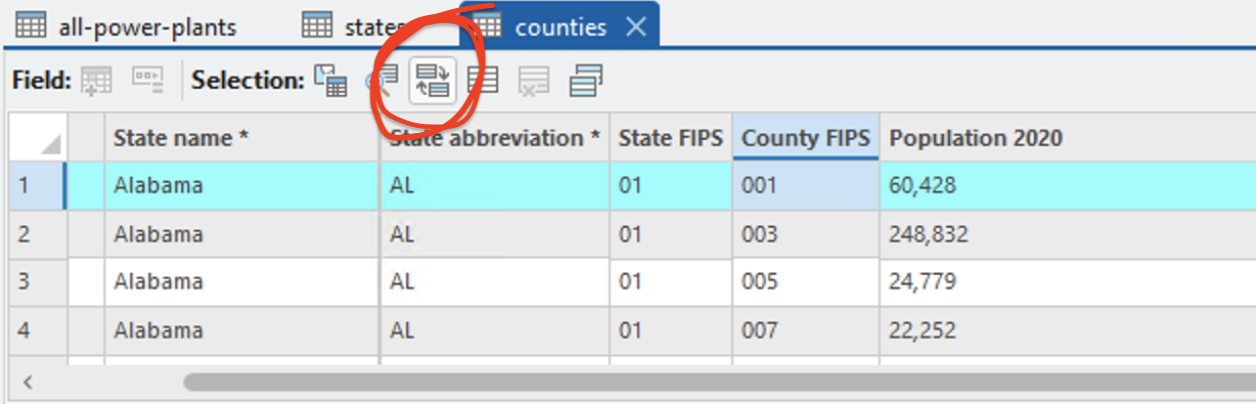
Q6
How many U.S. counties do not contain power plants?
Exporting new data layers
Before you do anything else, make sure you have cleared all your selections. You can leave all 3 daya layers on but at this point in the lab I bumped the symbology down to a 2 point size, which you can do in the “Properties” tab of the symbology.
We’re going to start sorting through this data in order to make a map of CO2 emissions. Because our data includes many power plants that don’t actually emit CO2 (like solar and wind), it’s going to be easier to split the data into two subsets before we do anything else.
This is pretty easy to do in ArcGIS Pro:
- First, use the attribute selection tool to select only power plants where the plant annual CO2 emissions (in tons) with a value greater than 0
- Click “OK”—this should yield a selection of 2,886 plants
- Once you have the correct selection, right-click the
all-power-plantslayer > “Data” > “Export Features” - This opens up a new tool called “Export Features” which allows you to export a selected subset of a data layer as an entirely new feature class
- Set up the tool to resemble the screenshot below, taking care to rename the feature class to something short and obvious and free of spaces—I’ve chosen
co2_plants—and make sure the option to “Use the selected records” is checked!
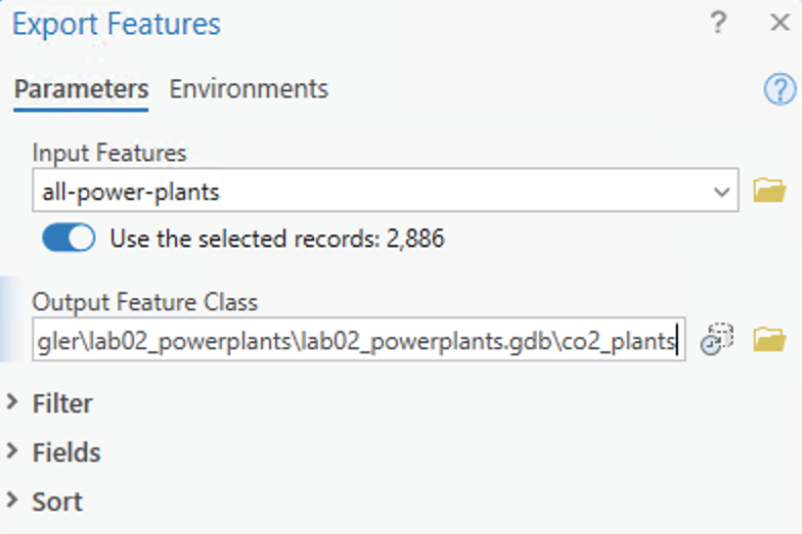
- Now, a new layer titled
co2_plantsshould appear at the top of your Contents pane - Invert the selection from your
all-power-plantslayer and export another feature class to the same location, with a name likeno_co2_plants - When the
no_co2_plantslayer is added to your Contents pane, you should update the symbology so it fades into the background a bit. I removed the outline and used the second darkest gray, nearly black, and I think it looks good for now (we’ll continue to fiddle with the design before exporting the final map) - At this point, pop into your Catalog—that’s the pane, usually on the right-hand side of your screen, which functions as an integrated file explorer from within ArcGIS—and open the
Databasesfolder, then unfoldlab02_powerplants.gdb - That geodatabase should contain the two feature classes that you just exported
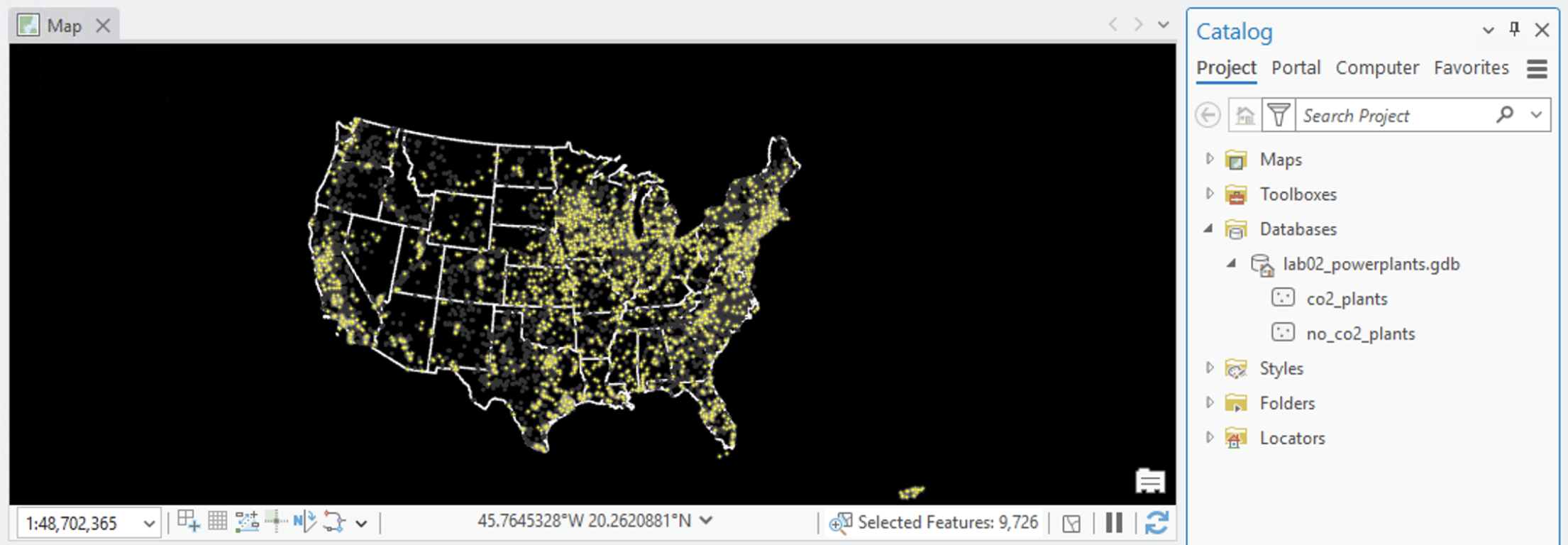
- In your Contents pane, select all three of your power plant layers (hold down
shiftwhile you click each one), then right-click one of them, click “Group,” and rename the group something likepower plants—now your data is nicely organized
Interlude and recap
Let’s quickly recap what you’ve done so far, because you’ve done a lot:
- downloaded and added complex spatial data to a project and workspace of your own making
- studied the data and its metadata to better understand the information you’ll be mapping
- intentionally chosen symbology
- tested a variety of and attribute- and location-based queries in order to export a subset of the data
Take a moment to pat yourself on the back and get a coffee/tea/snack before moving on to the final parts of this lab. This stuff is hard! And it is not intuitive for everyone.
Next, you’ll be using this data to map power plants vs. plant power.
Improving power plant symbology
Before proceeding, click the states layer and drag it to the top of the Contents pane. Then, click into the Ribbon’s “Feature Layer” and crank the transparency value up to 40%. This will make it easier to see things moving forward. (At this point, I also bumped the stroke width of the states down from 1.2 pt to 0.8 pt, which you can do if you want.)
Right now, our power plants look fine… but they don’t tell us much other than “tons of gray dots, lots of yellow dots.”
I want a map that communicates at least two things:
- How are fuel types across CO2-emitting power plants distributed?
- At what magnitudes do power plants emit CO2 according to their fuel type?
We can answer these questions using the same data layer, with the help of symbology and data visualization tools in ArcGIS Pro. The table below (adapted from Esri’s documentation on symbolizing features) provides an overview of different symbology types, with examples for eGrid data:
| Symbology Method | Description | Example using eGrid data |
|---|---|---|
| Single symbol | Draw all features in a layer with a common symbol | All power plants shown with the same triangle symbol |
| Unique values | Apply a different symbol to each category of features within the layer based on one or more fields | Color power plants by primary fuel type (coal, gas, nuclear, wind, etc.) |
| Graduated colors | Show quantitative differences in feature values with a range of colors | Shade eGRID subregions by CO2 emission rate using a color ramp |
| Graduated symbols | Show quantitative differences in feature values with varying symbol sizes | Size power plant points by net emissions |
| [Bivariate colors]https://doc.esri.com/en/arcgis-pro/latest/help/mapping/layer-properties/(bivariate-colors.html) | Use graduated colors to show quantitative differences in feature values between two fields | Map subregions by both CO2 emission rate and NOx emission rate simultaneously |
| Unclassed colors | Show quantitative differences in feature values with a range of colors not broken into discrete classes | Continuous color gradient of plant-level heat input rate without binning into classes |
| Proportional symbology | Represent quantitative values as a series of unclassed, proportionally sized symbols | Circles sized proportionally to each plant’s nameplate capacity |
| Dot density | Draw quantities as point symbols distributed within polygons (this method is only available for polygon features) | Dots representing megawatt-hours of generation distributed within each eGRID subregion polygon |
| Charts | Draw quantities from multiple fields using chart symbols | Pie charts at each subregion showing generation mix by fuel type |
| Heat map | Draw the density of points as a continuous color gradient | Density heat map of power plant locations concentrated by region |
| Dictionary | Apply symbols to data using multiple attributes | Plant icons that vary by both fuel type and capacity size class combined |
Let’s test mapping these power plants three different ways: a heat map, proportional symbols, and unique values.
Heat maps for distribution
A heat map shows the density points as a continuous color gradient. Since there are over 12,000 records in this dataset, it’s really hard to tell how they actually cluster. Especially when we look at the map of the entire U.S., the points appear to overlap with one another and patterns are kind of hard to distinguish. A heat map helps (and it is super easy): just click the co2_plants layer > open “Symbology”, and then from the “Primary Symbology” drop-down menu, select “Heat map.” You should see something like this:
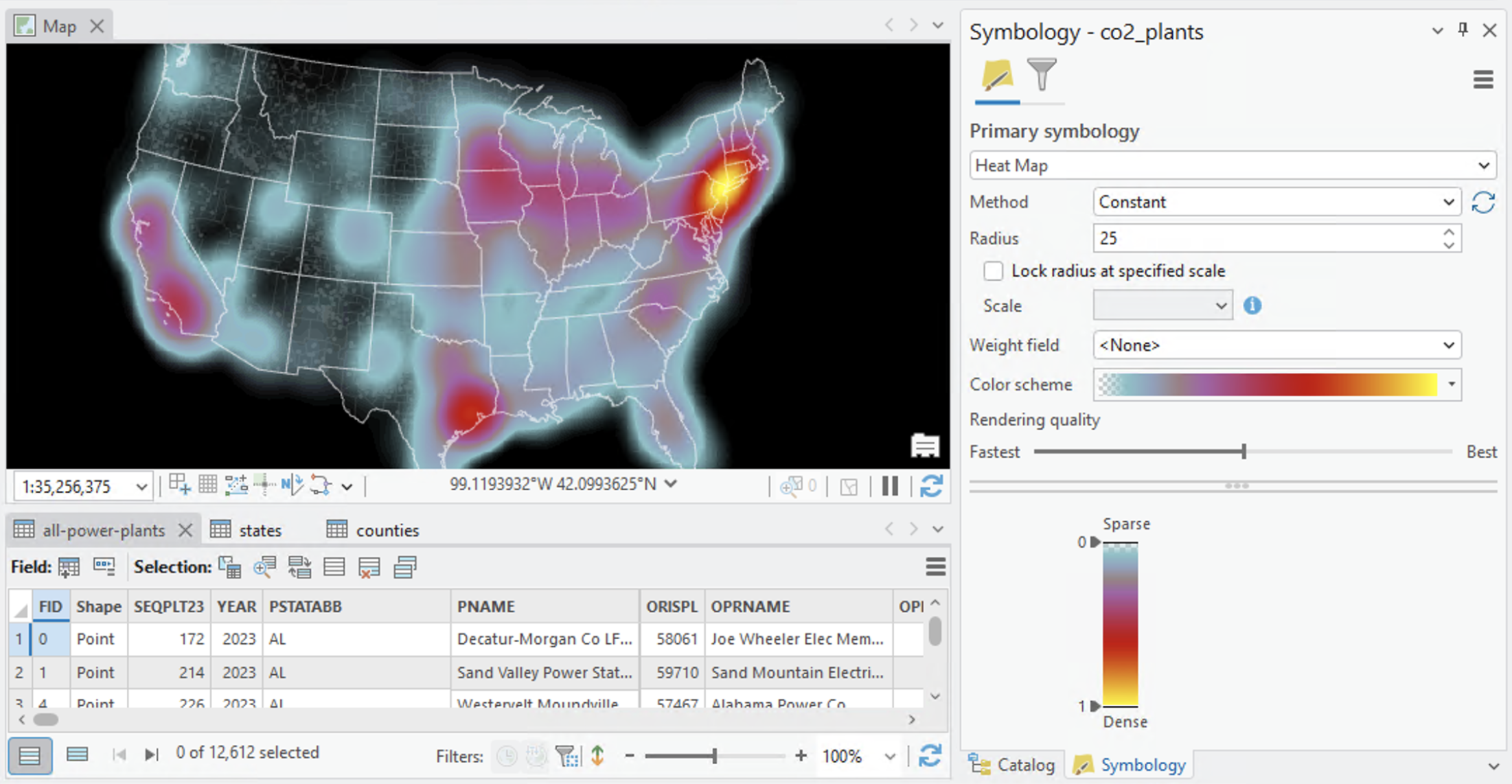
Try changing the radius from the default value of 25. How does it look at 100? What about 15? What about 5? You can also try adding a “Weight field,” which emphasize a particular feature from the attribute table in the calculation of heat map density.
Q7
In 1-2 sentences, consider: what does the heat map accomplish well, and what data does it struggle to show us?
Graduated symbols for emissions
Graduated symbols create scaled symbols (usually circles, but not always) according to an underlying data atttribute. This method lets us view emissions data more effectively.
It’s also pretty easy: co2_plants > Symbology > Primary Symbology > Graduated Symbols, then set the “Field” to PLCO2AN (short for “Plant annual CO2 emissions (tons)”). You should see:
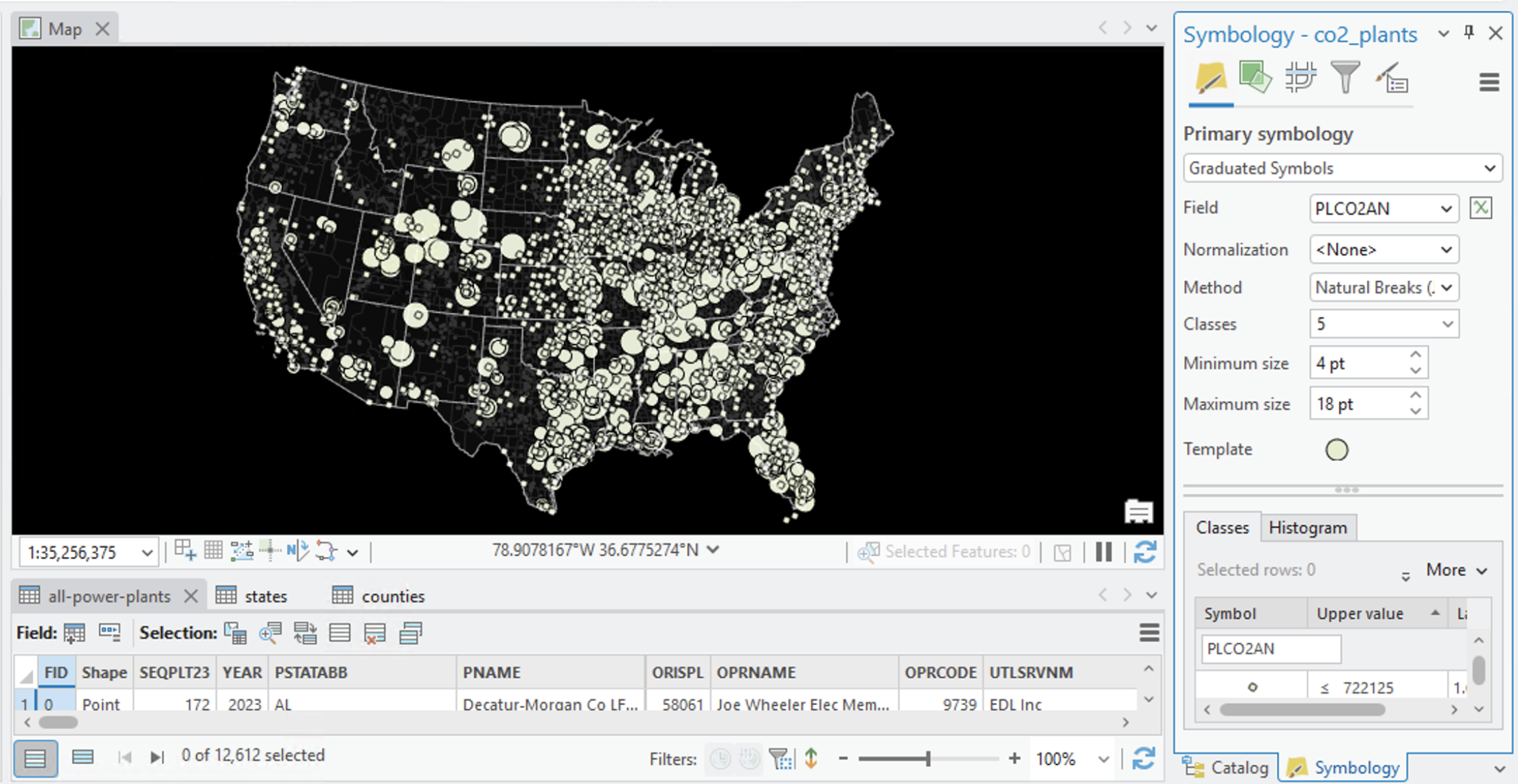
Try fiddling with the minimum and maximum point sizes, as well as the number of classes. How do these help or hinder your visualization of the data?
Q8
Using the attribute table for the co2_plants layer, what is the plant owner names (OPRNAME) of the largest CO2 emitting plant?
Unique values for fuel types
Unique values is ArcGIS Pro’s term for categorical data, or non-numerical data that can be split into different categories. To use it:
- Click the
co2_plantslayer and open its Symbology tab - Select “Unique Values” from the “Primary Symbology” dropdown
- Set the value of “Field 1” to
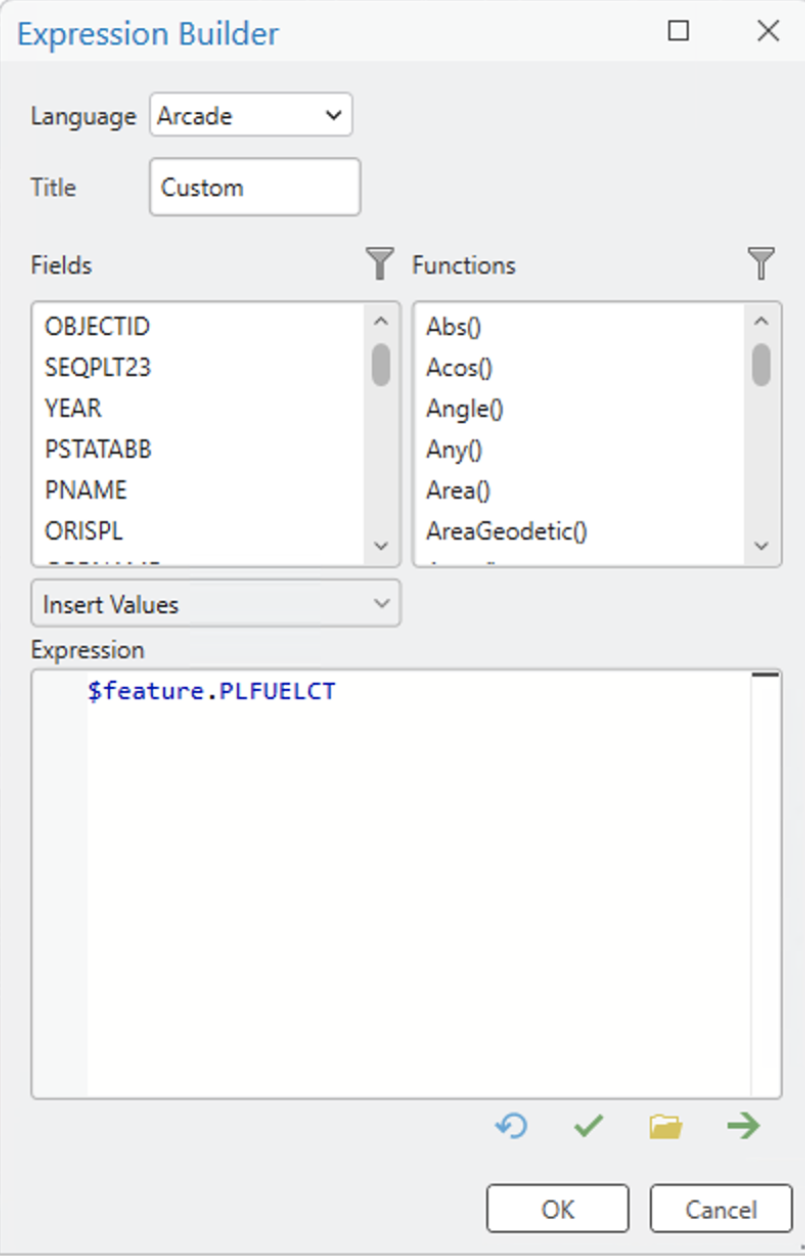
PLFUELCT(the code for “Plant primary fuel category”). Since there are so many fields in this dataset, it may be tricky to findPLFUELCTby scrolling through, so try opening the “Expression Builder” and manually typingPLFUELCTinto the “Expression” box, like so (Expression Builder has a handy autocomplete):
- Now, click the “Color scheme” and find this one:

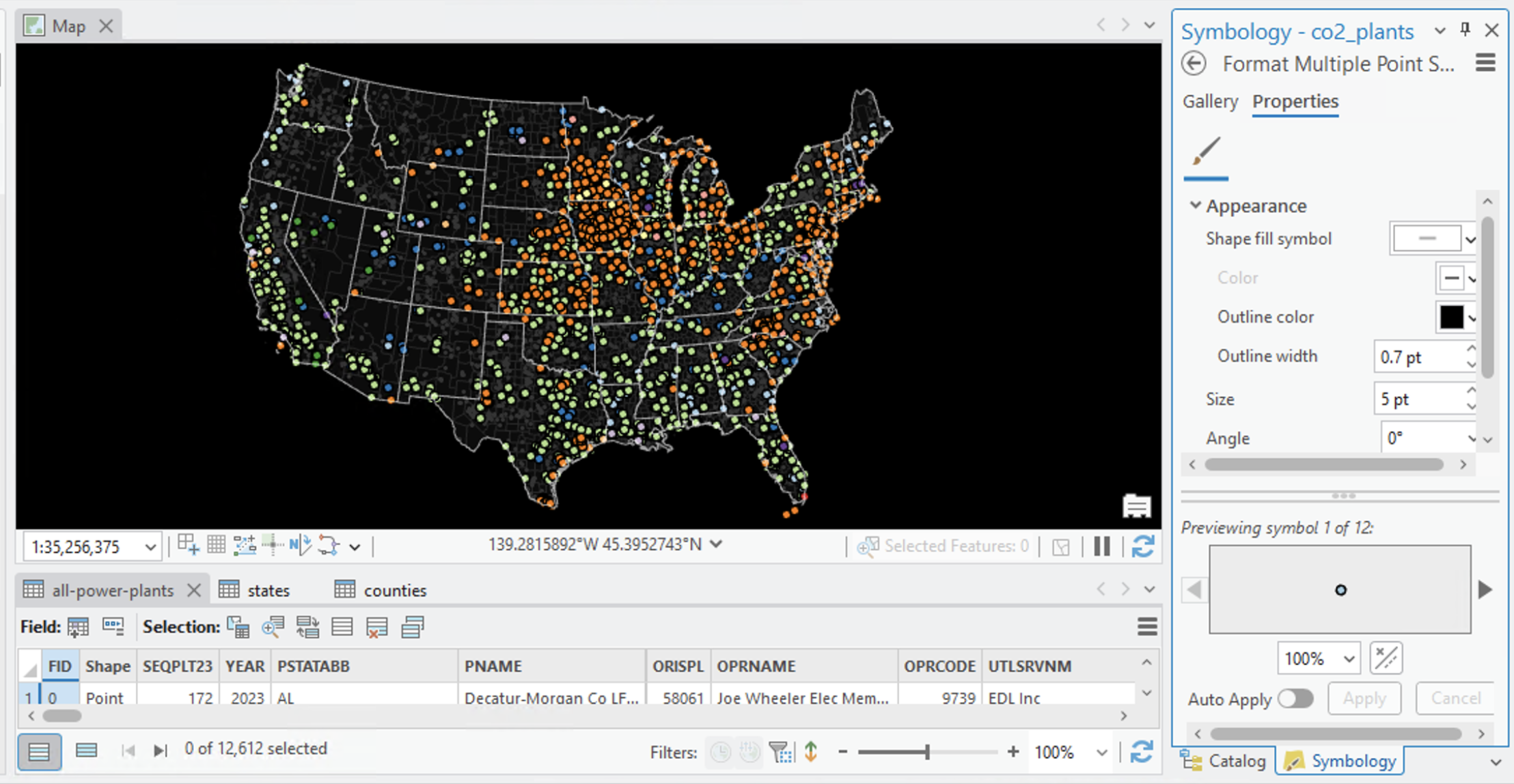
- The Map view should now update with a bunch of categorized points. Nice!
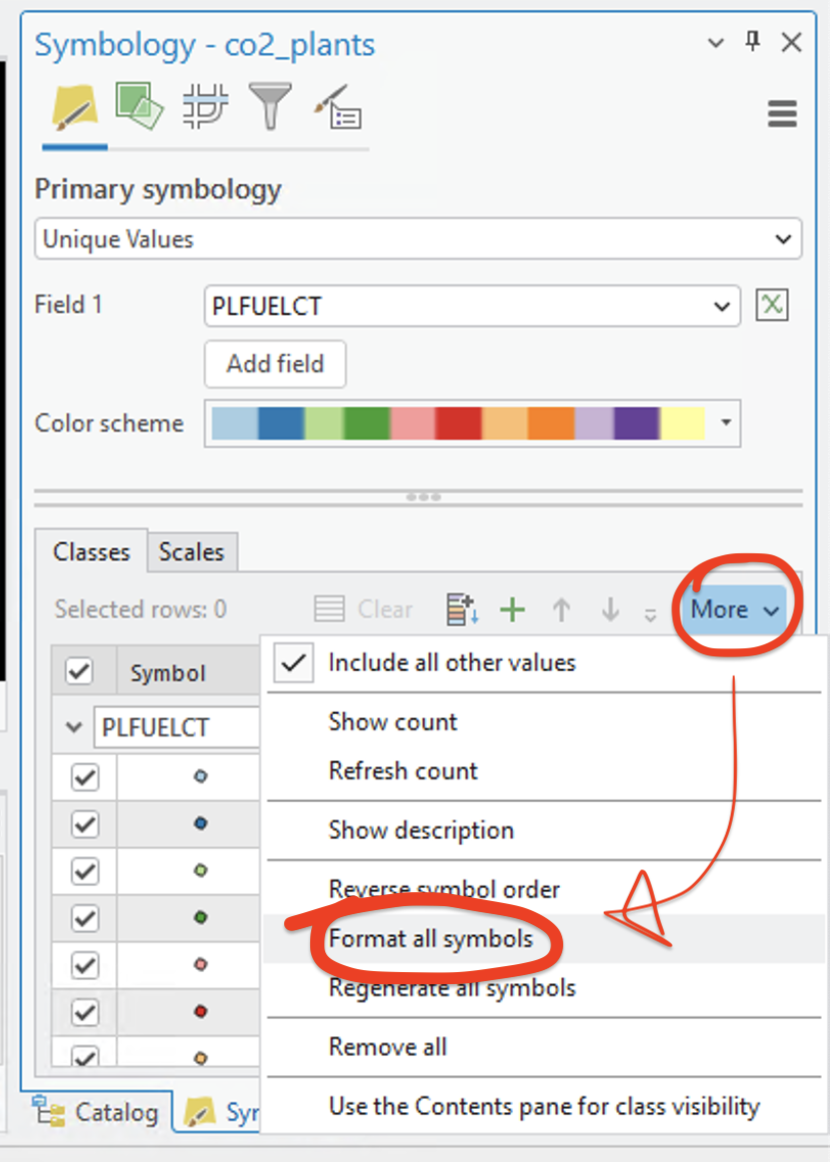
- To my eye, the points are a little small, so I am going to bump them up in size just a little bit by clicking the “More” tab > “Format all symbols” > bump “Size” from
4 ptto5 pt:
Your map should now resemble:
Q9
What spatial patterns can you identify through unique category symbolization that were harder to see with the heat map?
Putting it all together
All of these symbology types revealed something interesting about the data, but they also all made significant omissions:
We can bring elements from each of these symbolization styles to get a map that communicates the two things I wanted…
- How are fuel types across CO2-emitting power plants distributed?
- At what magnitudes do power plants emit CO2 according to their fuel type?
… and we’re already part of the way there.
Your power plants should currently be symbolized in unique categories. We’re only one step away from graduating those unique values by emissions size.
In the Symbology tab, click the “Vary symbology by attribute” button:
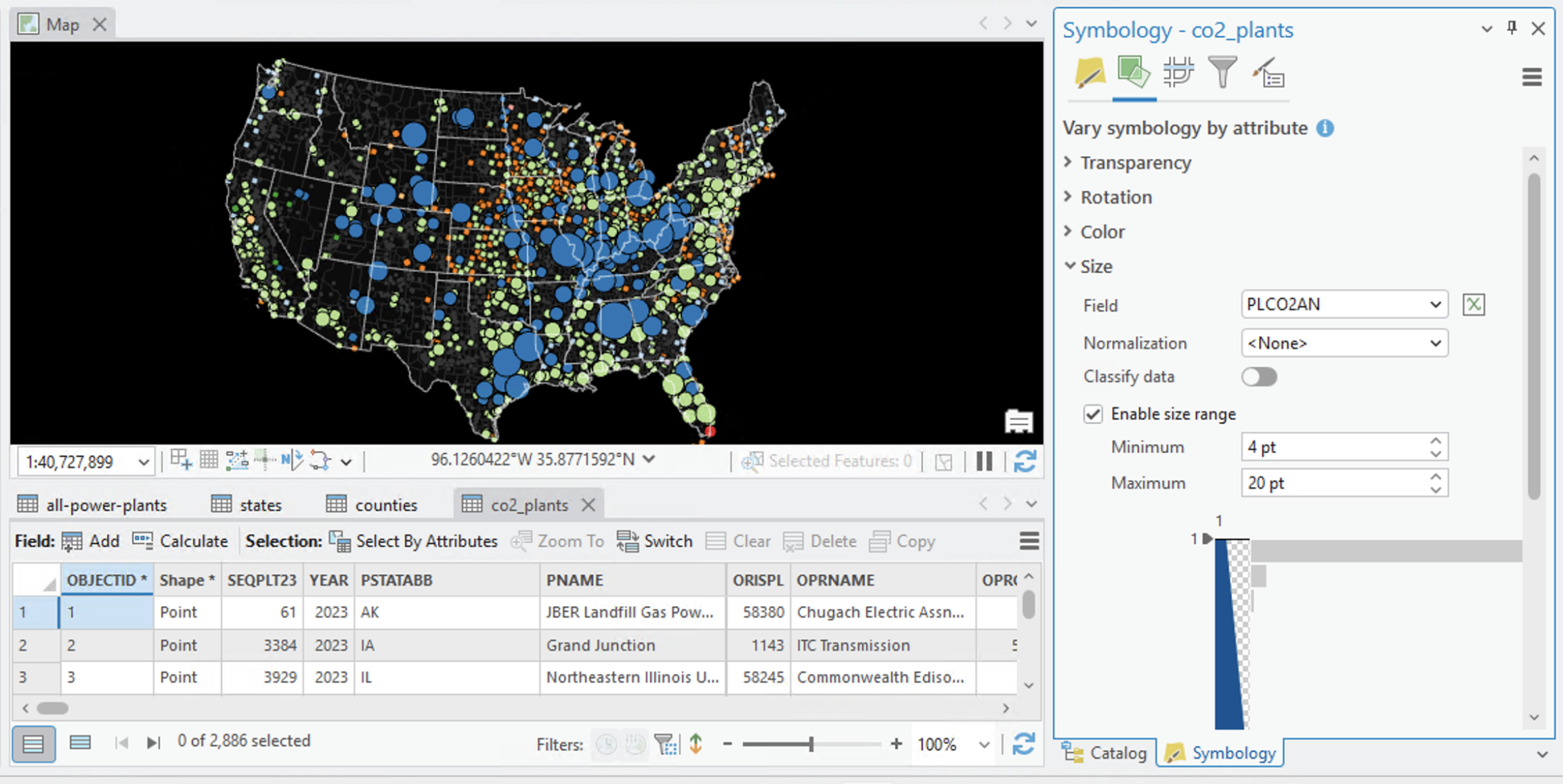
Then, just unfold “Size” > set the “Field” to PLCO2AN, taking care to set the maximum size range to 20 pt. Your features might spasm for a second while they calibrate, but you should end up with a symbology that combines (1) fuel types as unique values and (2) CO2 emissions by circle size:
Enter plant power
Now that we have our power plants symbolized appropriately, let’s add our carbon sequestration data to the mix.
It’s available from the Living Atlas, so “Add Data” > “Living Atlas” > search for “NFMCS Annual Forest Carbon Sequestration Potential CO2 Equivalent per Acre (2020-2050)” and add the layer. You should see:
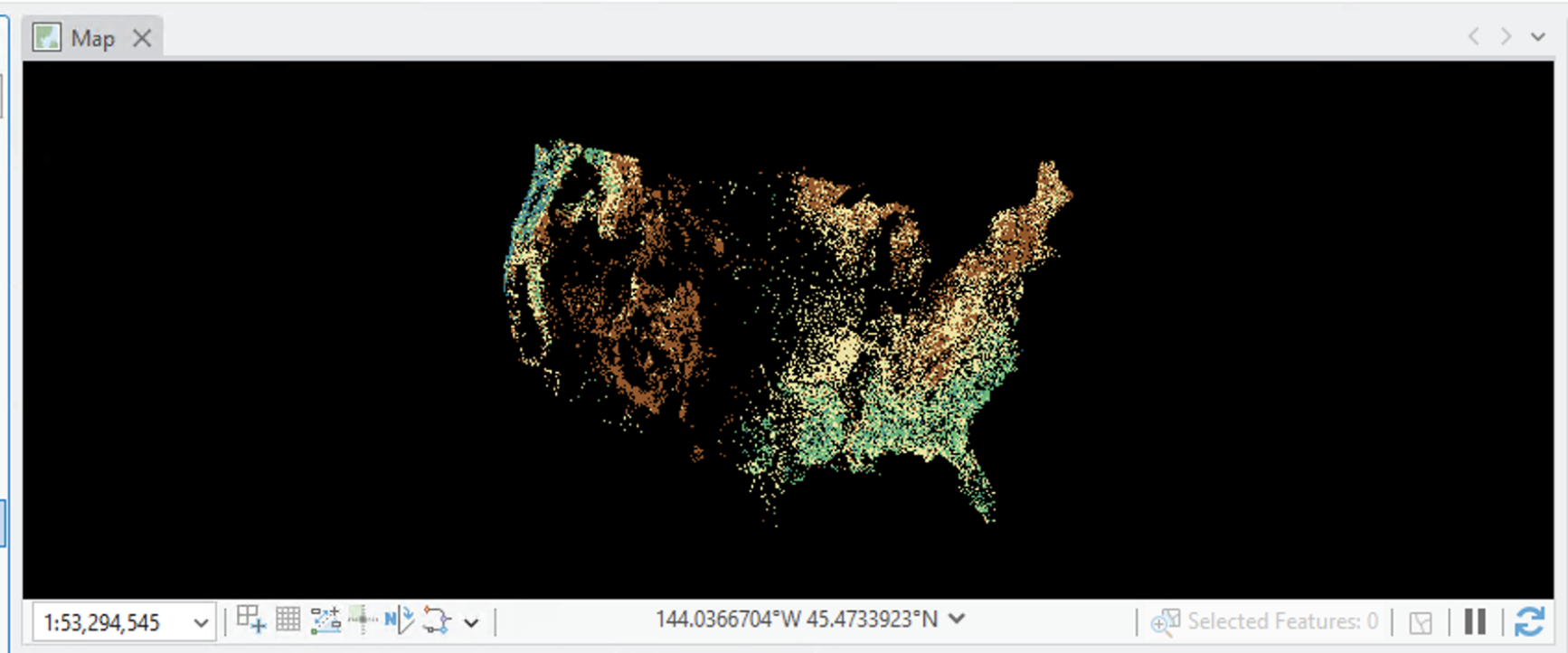
Unlike the other datasets we’ve been using so far, this is a raster dataset, or a continuous grid of cells where each pixel corresponds with a value. The range of values in this dataset is 0-6. The authors of the data published a guidance document that explains what the values mean:
Forest carbon stocks range from 40 to 1,200 metric tons of CO2e per acre, while annual carbon sequestration ranges from 0 to 7 metric tons of CO2e per acre per year.
So, in short, the green areas sequester more carbon (in this case, CO2e, or a carbon dioxide equivalent), while the brown and empty areas sequester less.
There are a lot of cool things we could do to aggregate, summarize, and compare the sequestration data against power plant emissions, but we aren’t going to do them today. Raster analysis is not something we’ll get into until the second half of the semester. In this lab, just having the sequestration data as a visual comparison will have to suffice.
For now, go ahead and make a new “Map” view for the sequestration data: Open Catalog > unfold “Maps” > right-click “Map” > “Duplicate”. Rename the map you’ve been working in so far power-plants and rename the new map sequestrastion. You can remove the sequestration data from the power-plants map and remove power plant data from the `sequestration map.
Making a final map layout
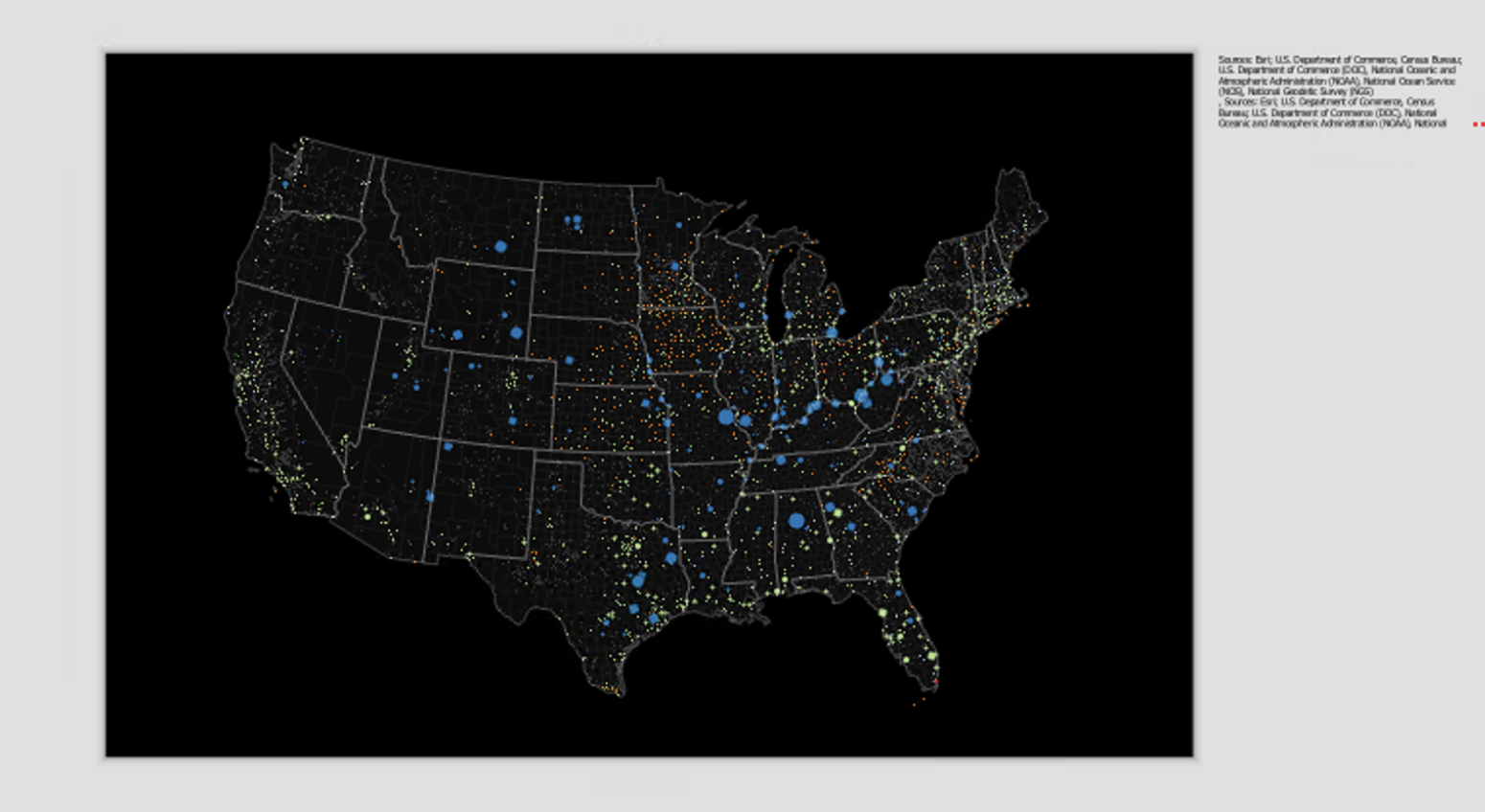
Using the skills you tested out last week to make a very bad map, try laying out the data you’ve symbolized here as a more traditional piece of cartography. The map should be laid out to ANSI - landscape, tabloid size (11”x17”), and it should include:
- A title
- Cartographer information (your name, the date, the class)
- Data sources (compiled from throughout the lab)
- Both map views (
power-plantsandsequestrations) with appropriate legends
Don’t spend too much time on this layout!!! It’s important to get reps for map composition, but don’t sweat it too much if you get stuck on updating the legend, etc. Especially at this stage, I’m grading the final layour more for (1) appropriate representation of the data itself and (2) effort than I am grading for overall design.
Some tips and tricks that will help you smooth out during layout mode:
- Select the “Map Frame” > Click “Activate” to zoom in and out of the map
- In map design, little things go a long way. Here were three small things I did that I thought gave the map some nice texture:
- The phrase “How do carbon emissions …” is staggered to roughly match the eastern coast of the U.S.
- I used two different fonts:
Tw Cen MT Condensedfor basic paragraph/labels, andTw Cen MT Condensed Extra Boldfor headers - Capitalized the title
- When you can, use the rulers & guides. We will talk more about this in the week on cartography
- At this tabloid paper size, the graduated circles are kind of small. Consider bumping them up to a min size of
8 ptand a max size of32 pt - Real talk, legends suck to make in ArcGIS Pro. They’re super annoying and you have to click a lot of dumb stuff to make it do what you want it to do. Note that:
- All the different parts of the legend (title text, label text, color swatches, etc.) are considered different “Legend items” and must be stylized separately
- For this map, I think we really only need the
co2_plantsand the graduated symbol sizes. To ensure the symbol sizes appear, you can go into
- To remove the massive chunk of auto-formatted bibliographic credits, go to the Ribbon > click “Map Frame” > “Dynamic Text” > “Service layer credits”, and then just… move it off the canvas like so:
Questions and deliverables
| Assigned | Due | Submit |
|---|---|---|
8/31/26 |
9/7/26 |
Section 1, Section 2 |
Your final map could resemble:
Make sure you submit the questions below, either via Google Doc (shared with me) or Word Doc upload:
| Question | Point Value |
|---|---|
| Question 1 | 0.5 |
| Question 2 | 1 |
| Question 3 | 1 |
| Question 4 | 0.5 |
| Question 5 | 2 |
| Question 6 | 0.5 |
| Question 7 | 0.5 |
| Question 8 | 0.5 |
| Question 9 | 0.5 |
| Final map | 5 |