Loading feature services
How to bring feature services directly into your ArcGIS Pro project
What’s a feature service?
Lots of the spatial data that you encounter online will be easily available as a feature service, or a feature class served over the internet. The SAL has an ArcGIS Hub page with a bunch of spatial datasets that you can access as feature services.
You can easily add data layers from across the UR organization by simply clicking “Add Data” and selecting “My Organization.” However, this gives you a full view of every table and feature layer associated with any user in UR’s ArcGIS ecosystem—so it’s actually quite hard to find what you’re looking for (especially if you don’t yet know what you’re looking for).
Adding data from a URL path
The right way to use feature services in your local ArcGIS Pro project is to add it via URL path. This process is straightforward:
- Open ArcGIS Pro
- Click “Add Data” > “From Path”
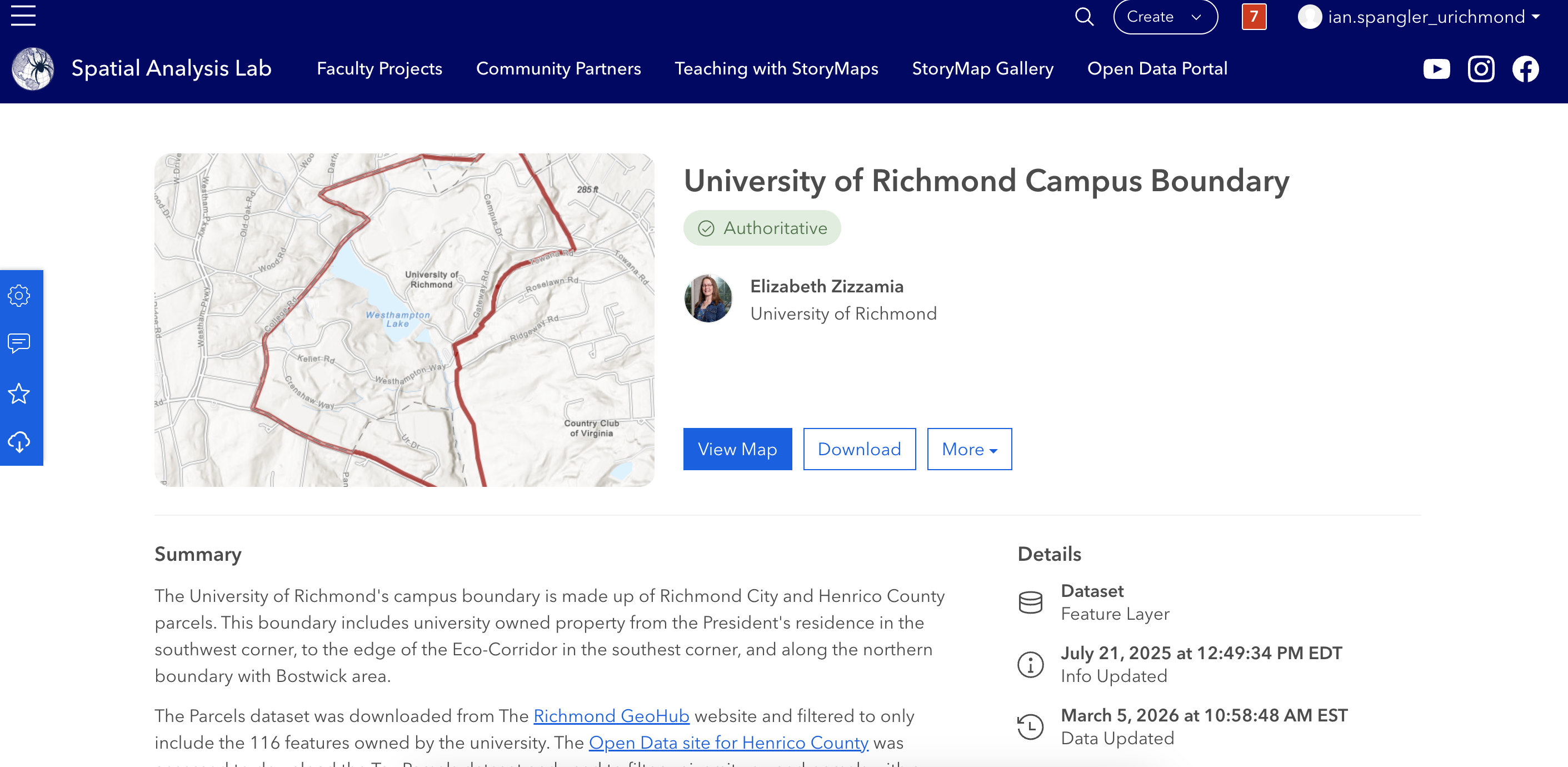
- Find a feature service that you’re interested in, like the University of Richmond campus boundary. Note that if you are searching from the SAL’s Hub page, you might need to click the dataset and then click “View Full Details” in order to see this page:
- Scroll down until you see the “API Resources” tab and click the blue button by the “GeoService” link:
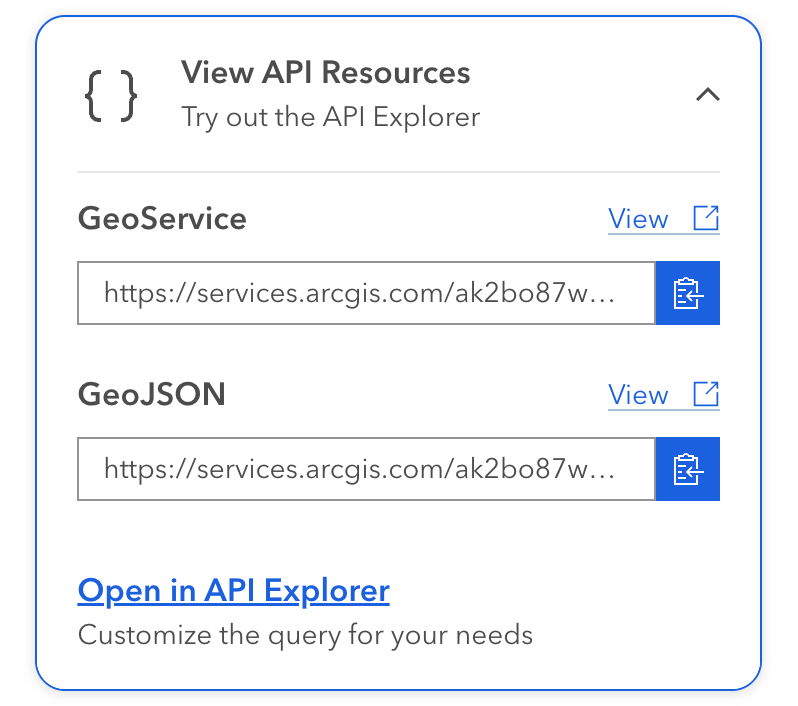
It should copy this to your clipboard:
https://services.arcgis.com/ak2bo87wLfUpMrt1/arcgis/rest/services/UR_Bnd_2023/FeatureServer/10/query?outFields=*&where=1%3D1- Just delete the stuff after
FeatureServer/10and paste the link into ArcGIS Pro. In this case, you should be pasting:
https://services.arcgis.com/ak2bo87wLfUpMrt1/arcgis/rest/services/UR_Bnd_2023/FeatureServer/10/The application will automatically detect the feature service as a data layer and render its geometry and symbology in the map pane:
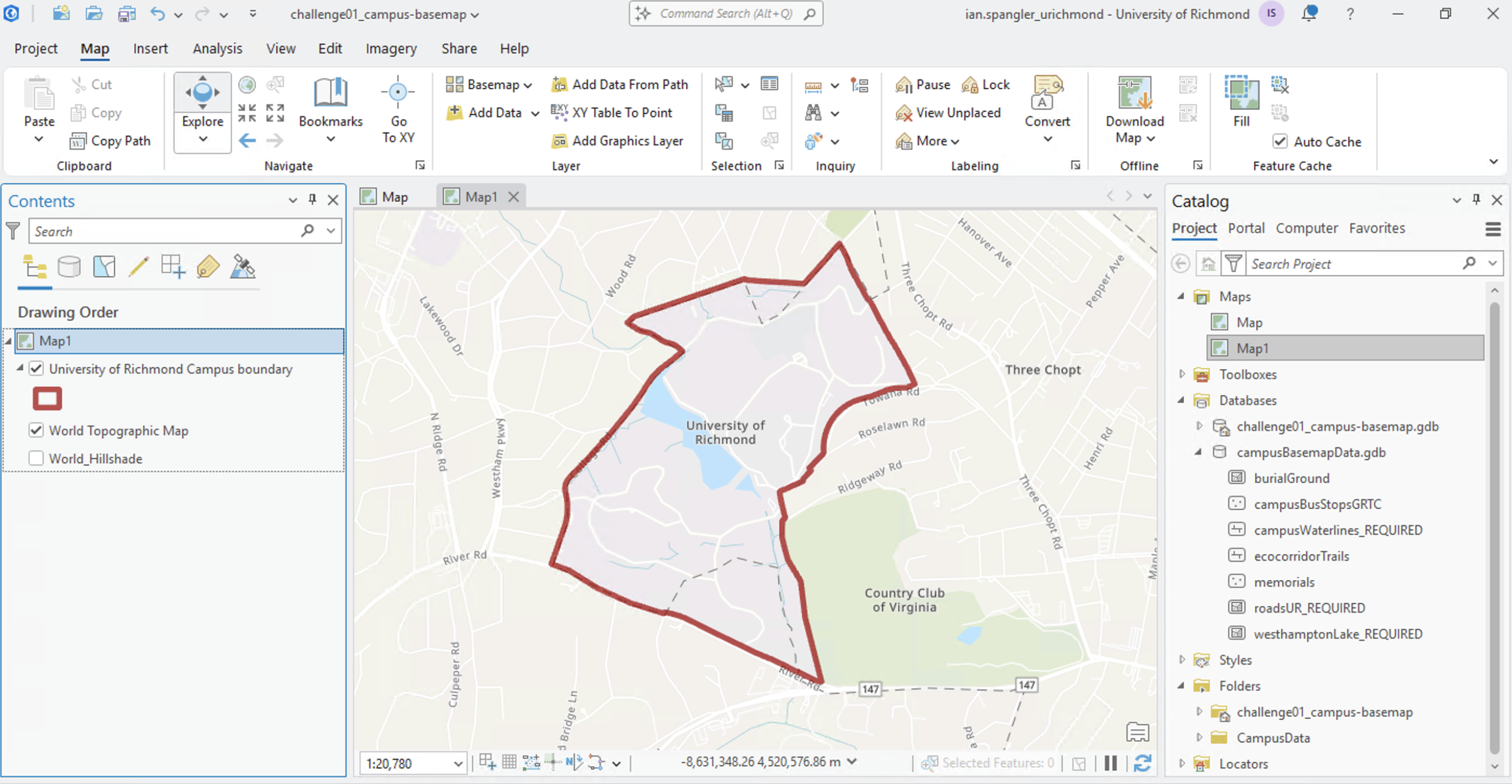
Nice!
You can replicate this process for any feature service you find out in the world. It also works with slightly different conventions in other geographic information systems like QGIS.