Introduction to hemisphere
Accessing the GIS network drive for data storage
What’s hemisphere?
In addition to being exactly one-half of our beautiful earth, hemisphere is the University of Richmond’s GIS network. While you’re a student at UR, you can store your data and projects in the \\hemisphere\geopower\students directory.
I highly recommend doing this! It’s best data storage practice and you really need a central place to keep your files. If you don’t use hemisphere, you’ll need to figure out an alternative setup (like a thumb drive).
Your hemisphere folder
There are two sections of this class. Before we get rolling this semester, navigate to your section—it’s either GEO260_01 (which meets at 12pm) or GEO260_02 (which meets at 1:30pm)—and make a folder with your name on it.
You’ll use this folder the entire semester to create workspaces. Whenever you start to work on a new project or assignment, you should create a new folder titled “week01” or “final-project” or some such. By the end of the term, it might resemble this:
hemisphere/
└── geopower/
    └── students/
        └── ispangler/
            ├── week01/
            │   └── reading-notes.docx
            ├── week02/
            │   └── lab-01/
            │       └── raw-data/
            │       └── workspace/
            ...
            └── final/
                ├── project-pitch/
                ├── draft-map/
                └── data/
There’s not really a universal way to arrange your folder/workspaces. Just figure something out that works for/makes sense to you. I’ll be available for advice and guidance on this front… and creating a workspace is also going to the first step of basically every lab!
You’ll notice that the contents of \\hemisphere\geopower\students are visible to everyone, so be careful when you’re copying data and moving things around. You don’t want to accidentally fuss with a classmate’s workspace.
Using hemisphere from campus
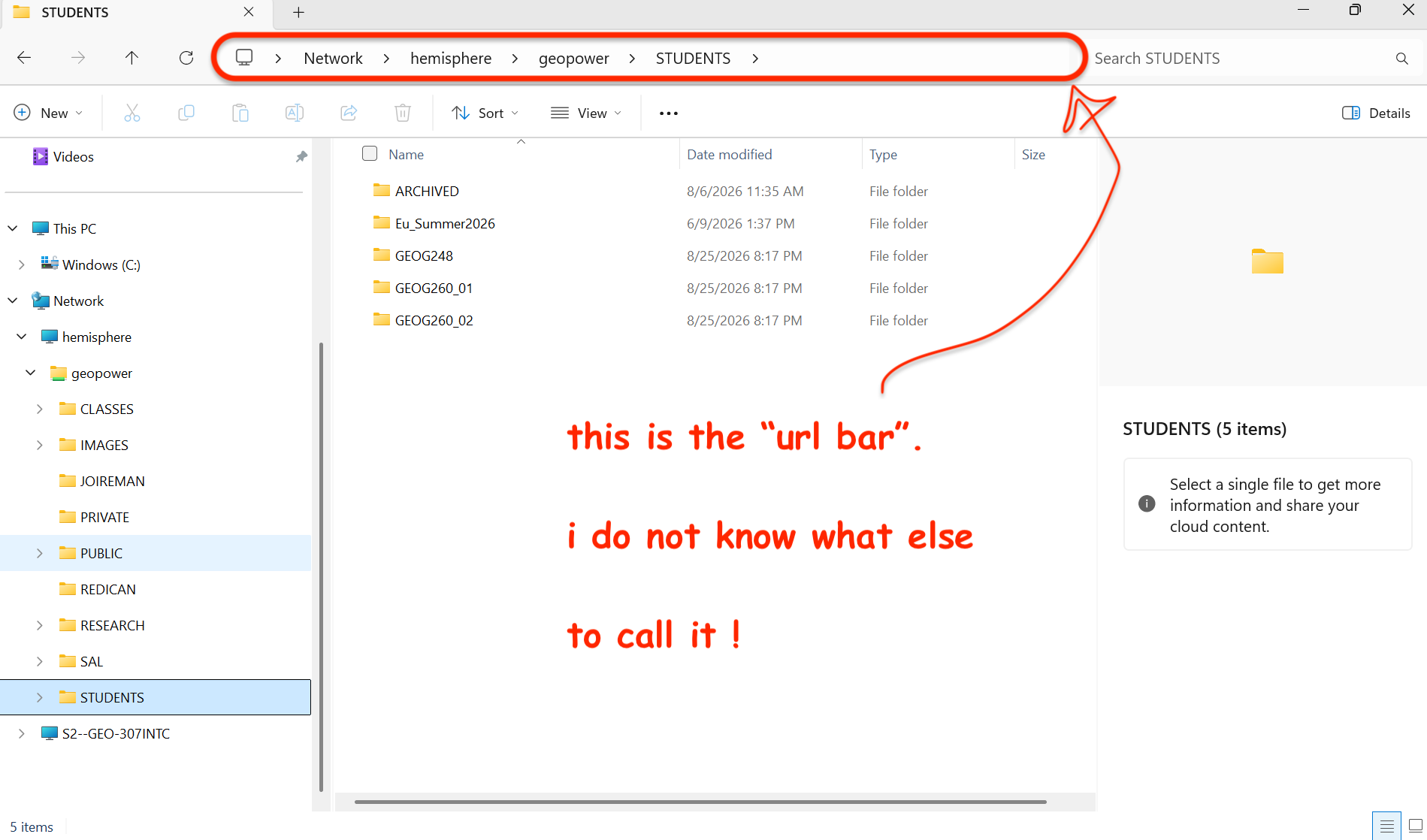
To use hemisphere from a campus computer, just open to the File Explorer, unfold the “Network” tab, and you should see the folder labeled “STUDENTS”.
If you don’t see it, you can navigate there manually by clicking into the white space in the URL bar of the File Explorer and then pasting \\hemisphere\geopower\students:
Connect hemisphere to your personal computer
Alternatively, you can connect to hemisphere from your personal computer. It’s fairly straightforward to do and it could come in handy if you ever need to access coursework data from an off-campus, non-SAL/Jepson machine.
Follow these steps:
- Before you do anything else, connect to the UR VPN
- If you’re on a Mac:
- Open Finder
- In the menu bar at the top of the screen, do “Go” => “Connect to Server”
- Paste
smb://hemisphere/geopower/students - Click “yes” if it asks you for permission to proceed
- Enter your UR Net ID login (e.g.,
ispangler) and password
- If you’re on Windows:
- Open File Explorer
- Right-click “This PC” => “Map network drive”
- paste
\\hemisphere\geopower\students(you may have to pick a drive letter; for clarity, don’t pickS) - Enter your UR Net ID login (e.g.,
ispangler) and password
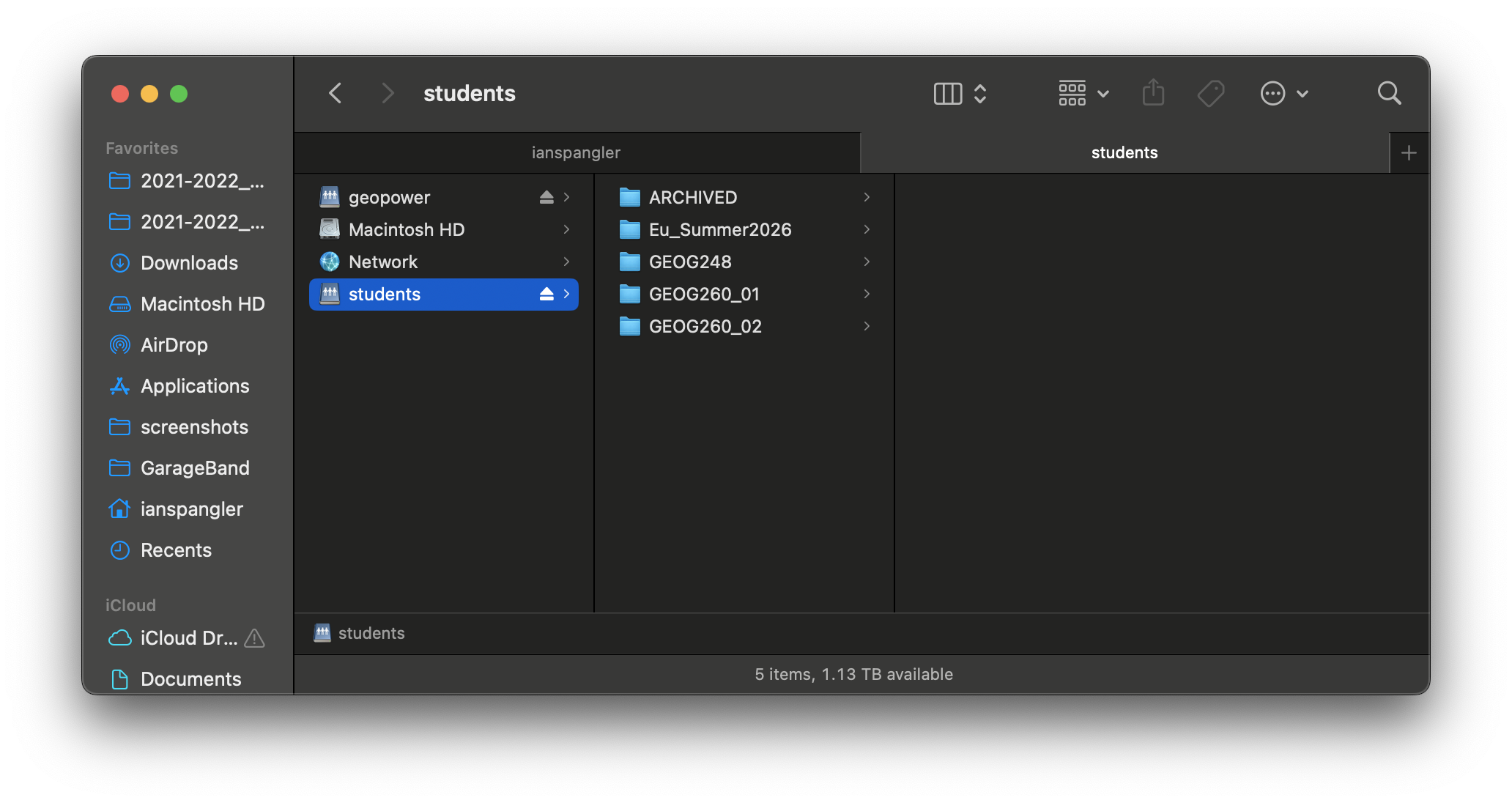
This should tunnel you right into the server:
hemisphereCongratulations! You’re like, a hacker now.